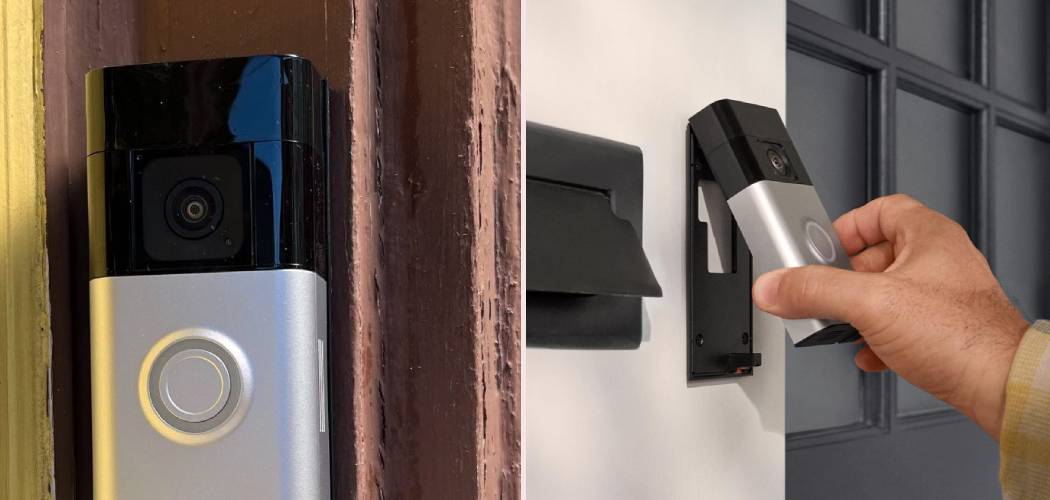
We love our smart home gadgets, but sometimes they can be a little too attentive. Maybe you are hosting a party and don’t want your phone buzzing every three seconds. Perhaps you are doing renovations and want to avoid recording the workers constantly.
Or maybe you just need a moment of digital privacy. Whatever the reason, figuring out how to turn off the Ring Doorbell doesn’t have to be complicated. It isn’t always as simple as flipping a switch, though.
These devices are designed to stay on, monitoring your front porch 24/7. Because of this design, “turning it off” can mean a few different things. Do you want to stop the notifications? Do you want to stop the recording? Or do you want to completely cut the power to the device?
This guide covers every angle. We will walk you through the app settings for a temporary break. We will also show you how to physically power down the unit if necessary. Let’s get your home quiet again.
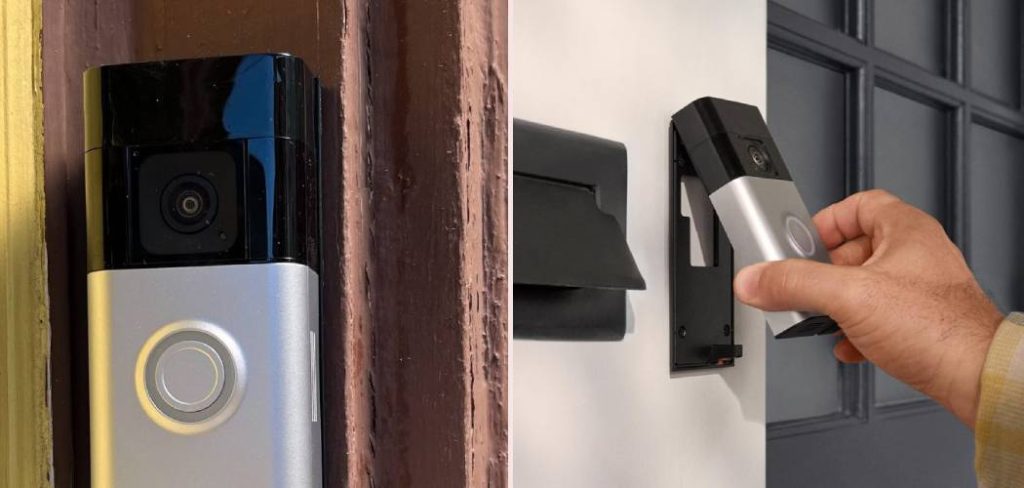
Understanding Your Power Down Options
Before you grab a screwdriver, pause for a second. You need to define what “off” means for you right now. Most users actually just want the annoying alerts to stop. Others want the camera to stop recording video entirely.
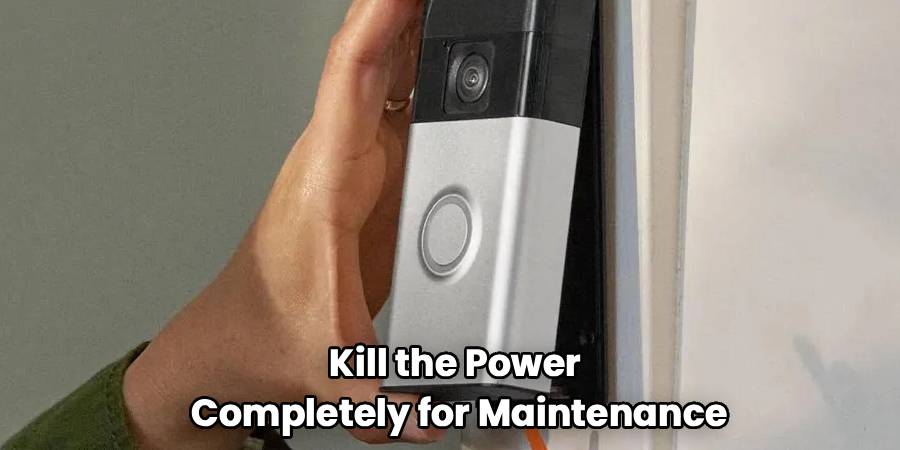
A few might need to kill the power completely for maintenance. Knowing which outcome you want will save you time. It will also prevent you from having to reconnect everything later.
Option 1: The Soft Off
This happens entirely inside the Ring app. The device stays powered on. It stays connected to your Wi-Fi network.
However, it stops sending alerts to your phone or tablet. It can also stop recording video if you change specific settings. This is best for temporary situations like parties or yard work.
Option 2: The Hard Off
This involves physical interaction with the hardware. This might mean pulling a battery out. It could mean flipping a breaker switch for hardwired models.
This completely kills the device. It will not detect motion, record video, or ring the chime. Use this method for electrical work or long-term shutdowns.
Method 1: Managing Settings via the Ring App
For 90% of users, this is the solution you are looking for. You don’t need tools. You don’t need to touch the doorbell itself. You can do this from your couch.
Step 1: Open the Dashboard
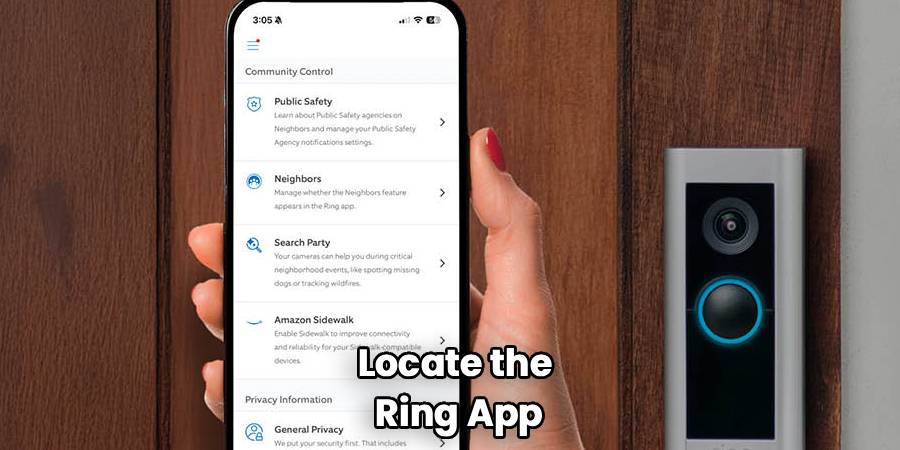
Grab your smartphone or tablet. Locate the Ring app icon and tap to open it. Wait for the dashboard to load your devices. You will see a list of your connected cameras and doorbells. Select the specific device you want to manage.
Step 2: Utilize Motion Snooze
This is the quickest way to get some peace and quiet. Look for the “Motion Snooze” button on the device screen. It usually looks like a crescent moon icon. Tap that icon. A menu will pop up asking how long you want to snooze for.
You can usually choose between 30 minutes and 4 hours. Select your desired duration. Save the setting. Your device is now silent, but it is still recording. This is perfect for when you are washing the car in the driveway.
Step 3: Toggle Off Motion Detection
If you want to stop recording entirely, you need to go deeper. On the device dashboard, look for the toggle switch labeled “Motion Detection.” Tap the switch to turn it off. The app might give you a warning message.
It will tell you that you won’t see any activity while this is off. Confirm your choice. Now, the camera will not trigger when someone walks by. It effectively blinds the sensors without killing the power.
Step 4: Using “Modes” to Disarm
Ring introduced a feature called “Modes” to make this easier. It mimics a traditional alarm system. You usually see three icons: Disarmed, Home, and Away. Tap on “Disarmed.” By default, this mode disables motion detection on your cameras.
It prevents them from recording inside or outside the home. You can customize these modes in the main settings menu. This is a great one-tap solution for privacy when you are home.
Method 2: Disconnecting a Battery-Powered Model
If the app settings aren’t enough, you might need to pull the plug physically. If you have a battery-operated model, this is very straightforward. This is a true “hard off.” The device will be completely dead until you reinsert the battery.
Step 1: Gather Your Tools
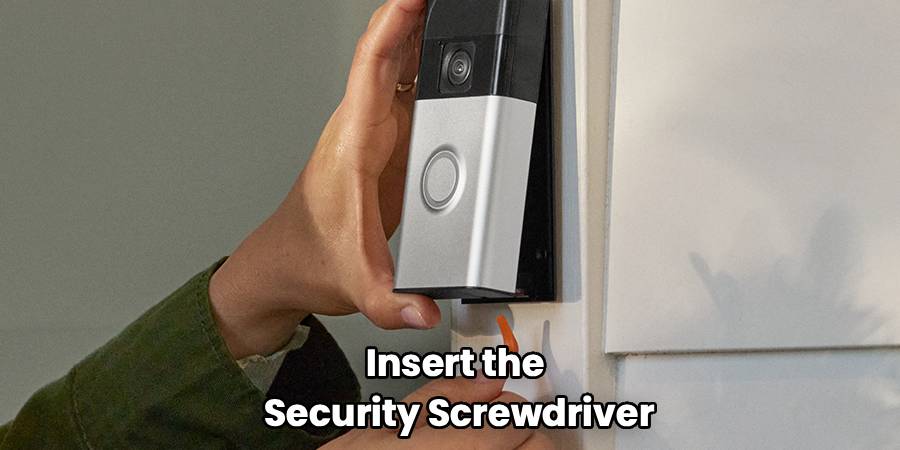
You will need the specific screwdriver that came with your doorbell. It is usually a Torx screwdriver with a star-shaped head. If you lost it, you can buy a replacement online easily. Standard screwdrivers usually won’t fit the security screw. This is a theft-prevention measure.
Step 2: Locate the Security Screw
Go outside to your doorbell. Look at the bottom of the faceplate. You should see a small screw holding the cover in place. In some older models, there might be two screws.
Step 3: Remove the Faceplate
Insert the security screwdriver into the screw. Turn it counter-clockwise to loosen it. Be careful not to drop the screw; it is very small. Once the screw is out, gently lift the faceplate off. It usually snaps off with a little pressure on the sides.
Step 4: Eject the Battery
Now you will see the rechargeable battery pack. There is usually a silver metal tab labeled “Push.” Press down on that tab. Slide the battery out of the compartment.
Once the battery is disconnected, the device is off. It has zero power source. Keep the battery in a safe, dry place if you aren’t charging it.
Method 3: Turning Off a Hardwired Ring Doorbell
This process is a bit more involved. Hardwired models draw power directly from your home’s electrical system. They don’t have a battery pack to pop out. To turn these off, you have to cut the power source.
Step 1: Locate Your Breaker Box
Go to your home’s electrical panel. This is often in the garage, basement, or a utility closet. Open the metal door to reveal the switches.
Step 2: Identify the Correct Circuit
Hopefully, your breaker switches are labeled. Look for a label that says “Doorbell,” “Front Hall,” or “Entry.” The doorbell is often on a general lighting circuit. If nothing is labeled, you might need a helper. Have someone stand by the doorbell while you flip switches.
Step 3: Cut the Power
Once you identify the switch, flip it to the “OFF” position. The ring around the doorbell button should stop glowing. Verify it is off by trying to ring the doorbell. If you hear no chime and see no light, you succeeded. This is the safest way to completely power down a hardwired unit.
Warning: Always double-check power is off before touching wires.
Step 4: Disconnecting Wires (Optional)
If you need the power on for other lights but want the doorbell off, you must disconnect it. Follow the steps to remove the security screw and faceplate. Unscrew the two mounting screws holding the device to the wall. Gently pull the unit away from the wall to reveal the wires.
Loosen the terminal screws on the back of the doorbell. Unhook the wires. Wrap the exposed wire ends in electrical tape for safety. This isolates the doorbell while keeping your house power on.
Method 4: Disconnecting via Wi-Fi
There is one other way to stop the device from working effectively. You can cut its connection to the internet. Without Wi-Fi, the Ring doorbell cannot send recordings to the cloud. It cannot send alerts to your phone. However, it may still have power.
Step 1: Change Your Wi-Fi Password
This is the “nuclear option” for network devices. If you change your router’s password, the doorbell gets kicked off. It will try to connect but fail. It essentially becomes a dumb doorbell.
Step 2: Use Router Admin Settings
Log into your router’s administrator dashboard. Find the list of connected devices. Locate the entry labeled “Ring” or “Ring Doorbell.”
Select the option to block or pause internet access for that specific device. This stops the data flow immediately. You can toggle it back on whenever you want.
Troubleshooting Common Issues
Sometimes, you think you turned it off, but it’s still active. Other times, you can’t get it back on. Here is how to handle those hiccups.
The Doorbell Still Rings Inside
Disabling “Motion Detection” does not disable the button press. If someone pushes the button, your indoor chime will still sound. To stop this, you must unplug your indoor Chime unit.
If you have a mechanical chime, you might need to disconnect a wire inside the chime box. App settings rarely silence a hardwired mechanical chime completely.
The “Off” Mode Isn’t Saving
Are you trying to change settings in a low-signal area? If your phone has poor data, the command might not reach the Ring cloud. Make sure you have a strong signal when saving changes. Force close the app and reopen it to verify the status.
Residual Power
Hardwired doorbells sometimes have a small internal capacitor. Even after cutting the breaker, the light might stay on for a few seconds. Wait a full minute to ensure the power is truly drained. Do not touch wires immediately after flipping the breaker.
Frequently Asked Questions
You might still have a few concerns about powering down. Here are the most common questions users ask.
Can I turn off the camera but keep the doorbell working?
Yes, absolutely. This is done in the “Motion Settings” of the app. Simply turn off “Motion Detection” and “Motion Alerts.” The camera won’t record passers-by. However, if someone presses the button, the bell will still ring. You will also still get a notification that someone is at the door.
Will turning it off delete my videos?
No, powering down the device does not erase data. Your video history is stored in the cloud, not on the device itself. Even if you smash the doorbell with a hammer, the old videos remain safe. They are accessible via your account online or on your phone. They will remain there until your subscription storage limit expires.
Does turning it off reset my settings?
Usually, no. If you pull the battery or cut the power, it remembers its settings. When you restore power, it should reconnect to Wi-Fi automatically. It will resume the same schedule and sensitivity settings you had before.
Why is the blue light still spinning?
A spinning blue light usually indicates a setup mode or an update. If you are trying to turn it off, this means it still has power. If you thought you cut the breaker, check again. If it is battery-powered, the battery is still engaged.
Can I schedule it to turn off automatically?
Yes, this is a great feature called “Motion Schedules.” In the app, you can tell the camera to ignore motion at specific times. For example, you can turn it off every Tuesday between 8 AM and 10 AM. This automates the process so you don’t have to remember.
Conclusion
Knowing how to turn off the Ring Doorbell gives you control back over your home privacy. You don’t always need to be monitored. Sometimes you need a break from the constant pinging of your phone.
Whether you choose the soft method through the app or the hard method by pulling the battery, the choice is yours. Start with the app settings first. Using “Motion Snooze” or “Disarmed Mode” is usually enough for most situations. Reserve the physical disconnection for maintenance or long-term shutdowns.
Remember to keep your safety tool handy for battery models. And always respect electricity when dealing with hardwired units. Your smart home should work for you, not annoy you. Take control of your notifications today.