
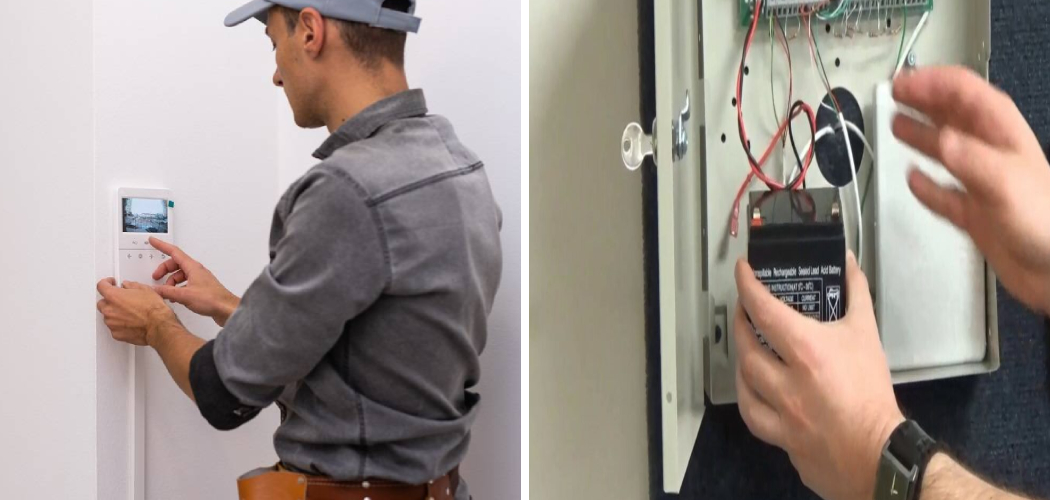
An ADT cellular failure can be a stressful experience, leaving you worried about your home’s security. This error message means your ADT security system is unable to communicate with the monitoring center through its cellular connection. This link is vital for sending alarm signals when a sensor is triggered. While it sounds serious, the problem is often something you can resolve on your own without needing a technician. This guide provides a clear, step-by-step approach on how to fix ADT cellular failure, helping you restore your system’s connection and your peace of mind quickly and efficiently.
Why Fixing a Cellular Failure is Important
Your ADT system’s cellular connection is its primary lifeline to the outside world. Unlike a landline, which can be cut, a cellular signal provides a more secure and reliable way to communicate with ADT’s monitoring centers. When this connection fails, your system cannot send alerts for break-ins, fires, or other emergencies. This means that if an alarm is triggered, ADT will not be notified, and emergency services will not be dispatched. Promptly addressing a cellular failure message is crucial for ensuring your home and family remain protected around the clock. Ignoring the issue leaves a significant gap in your security coverage.
7 Step-by-Step Guide on How to Fix ADT Cellular Failure
Step 1: Acknowledge and Silence the Beeping
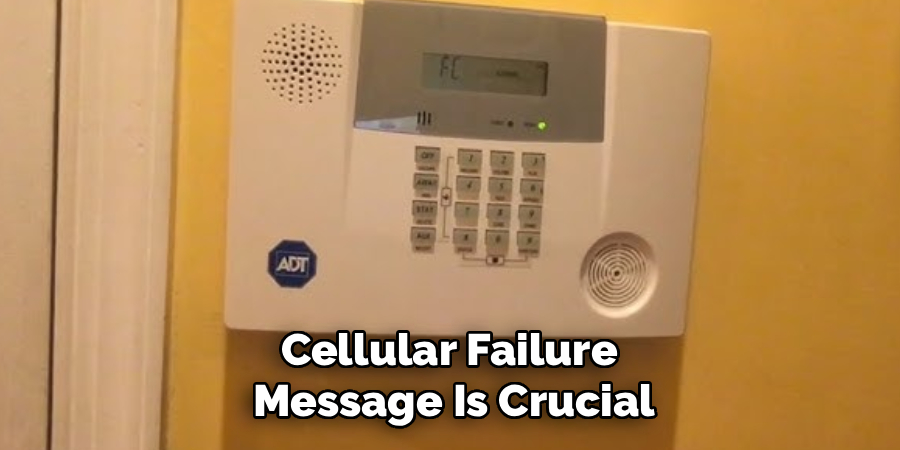
The first thing you’ll notice during a cellular failure is a beeping sound from your keypad, accompanied by an error message. This is the system’s way of getting your attention. Before you begin troubleshooting, you need to silence this alert. Most ADT keypads allow you to silence the beeping by entering your four-digit security code and pressing the “OFF” or “DISARM” button twice. This action acknowledges the trouble condition and stops the annoying sound, allowing you to focus on the next steps without a constant interruption. Silencing the alarm does not fix the underlying issue, but it is the necessary first step.
Step 2: Check for Local Cellular Outages
Sometimes, the problem isn’t with your ADT system at all. A local cellular network outage affecting the carrier ADT uses (often AT&T or Verizon) can prevent your system from connecting. Before you start tinkering with your equipment, do a quick check for service disruptions in your area. You can often find this information on the cellular carrier’s website or by using a service outage detector site. If there is a widespread outage, your only option is to wait for the carrier to resolve the issue. Your system should automatically reconnect once the network is back up and running.
Step 3: Perform a System Reboot
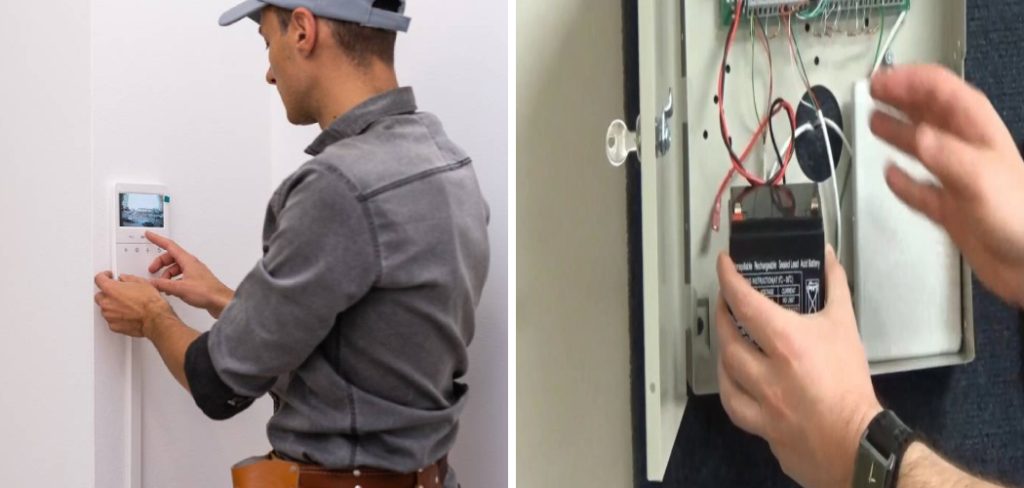
One of the most effective troubleshooting steps for any electronic device is a simple reboot. This can clear temporary glitches or communication errors within the system’s software. To reboot your ADT system, you must power it down completely. First, locate the main control panel box, which is usually a metal cabinet in a closet, basement, or utility room. Unplug the transformer from the wall outlet. Next, open the control panel and carefully disconnect one of the leads from the backup battery inside. Wait for at least 60 seconds to ensure all residual power is drained before you restore power.
Step 4: Restore Power to the System
After waiting a full minute, it’s time to power your ADT system back on. Always reconnect the backup battery first. Attach the lead you previously disconnected back onto the battery terminal, ensuring it is secure. Once the battery is connected, plug the system’s transformer back into the wall outlet. Your keypad should light up and the system will begin its startup sequence. This process can take several minutes as it re-establishes connections and runs self-diagnostics. Be patient and allow the system to fully initialize before checking if the cellular failure error has cleared.
Step 5: Verify the Cellular Communicator’s Status
Once the system has rebooted, check the status of the cellular communicator. The communicator, or radio, is the component responsible for sending signals. Its status lights can tell you a lot about the problem. On most ADT communicators, you should see a series of LEDs. A solid or slowly flashing green light typically indicates a strong connection to the cellular network. If you see a red light, no light, or a rapidly flashing light, it may signify a problem with the device itself or a persistent lack of signal. This visual check helps determine if the issue is a weak signal or a potential hardware fault.

Step 6: Check the Signal Strength
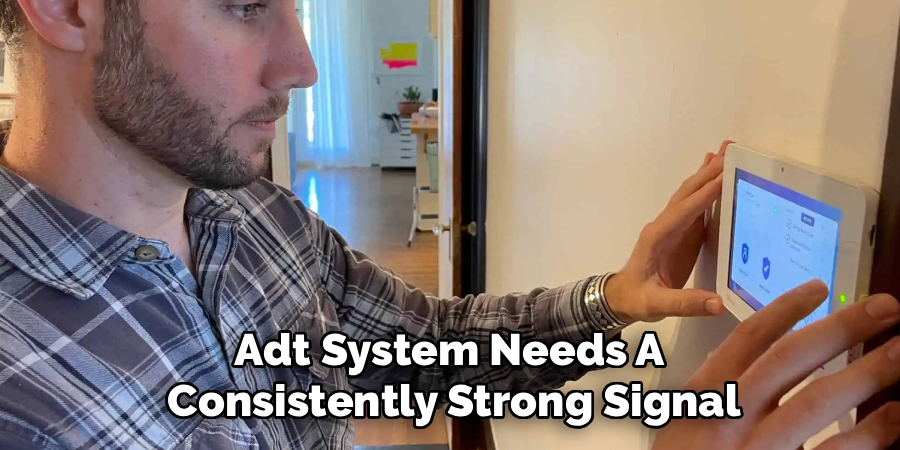
A weak cellular signal is a common cause of communication failures. Your ADT system needs a consistently strong signal to talk to the monitoring center. You can check the signal strength through your keypad on many ADT models. The specific process varies by system, but it often involves entering a diagnostic or test mode. Consult your user manual or the ADT support website for the exact key combination. If the signal strength is low, you may need to find a way to improve it. This is a crucial step for anyone learning how to fix ADT cellular failure permanently.
Step 7: Improve the Cellular Signal
If you’ve determined that a weak signal is the culprit, there are a few things you can do to boost it. First, ensure the main control panel and its cellular communicator are not obstructed. Moving large metal objects, such as filing cabinets or appliances, away from the panel can sometimes make a difference. If the communicator has an external antenna, make sure it is positioned upright for optimal reception. In cases of consistently poor service in your home, you may need to relocate the main control panel to a higher floor or closer to an exterior wall.
Contact ADT Customer Support
If you have completed all the previous steps and the cellular failure error persists, it’s time to call in the experts. The issue may be more complex, such as a faulty cellular communicator, an outdated module that needs replacement, or a problem on ADT’s end. When you contact ADT customer support, be prepared to tell them the steps you’ve already taken. This information will help the technician diagnose the problem more quickly. They can run remote diagnostics and determine if a service visit is necessary to replace any malfunctioning hardware.
Frequently Asked Questions
What Does “Cell Comm Failure” Mean on My ADT Alarm?
A “Cell Comm Failure” or “Cellular Failure” message indicates that your security system’s cellular communicator is unable to establish a connection with the ADT monitoring network. This is the primary communication path for alarm signals. The failure could be due to several reasons, including:
- A local cellular network outage.
- A temporary glitch in your system’s software.
- Poor signal strength at your location.
- Faulty or outdated hardware.
This error compromises your system’s ability to alert ADT during an emergency.
Will My ADT Alarm Still Work with a Cellular Failure?
Your local alarm functions will still work. This means if a door or window sensor is triggered, the siren in your home will still sound. However, the system will not be able to send a signal to the ADT monitoring center. Consequently, ADT will not be notified of the alarm event, and they will not dispatch emergency services. The system’s most critical function—professional monitoring—is disabled during a cellular failure, making it essential to resolve the issue promptly.
How Often Should I Test My ADT System?
It is recommended that you test your ADT system at least once a month to ensure it is communicating properly with the monitoring center. Most ADT systems have a “Test Mode” that you can activate through your keypad. This allows you to intentionally trigger sensors without causing a false alarm. When you put the system in test mode, ADT knows you are running a diagnostic. After the test, you can confirm with ADT that they received the signals from each zone you tested.
Can I Upgrade My ADT Cellular Communicator?
Yes, you can upgrade your ADT cellular communicator, and it is often necessary. Cellular carriers are phasing out older networks, like 3G and 4G, in favor of newer 5G technology. If your system has an older communicator, it will eventually lose its ability to connect. An upgrade to a 5G-compatible module ensures your system remains functional for years to come. You will need to schedule a service appointment with an ADT technician to have the new hardware professionally installed and configured.
Is It Okay to Reboot My ADT System Myself?
Rebooting your ADT system is a safe and common troubleshooting step that you can perform yourself. This process, also known as a power cycle, can resolve many minor issues without needing a technician. Just be sure to follow the correct procedure: unplug the main transformer, disconnect the backup battery, wait about a minute, and then reconnect the battery before plugging the transformer back in. This ensures the system resets correctly and can help re-establish a lost cellular connection.
Conclusion
Facing an ADT cellular failure message can be unsettling, but it is often a manageable issue. By systematically working through the steps—from rebooting the system to checking for local outages and improving the signal—you can often restore your home’s security connection on your own. These troubleshooting techniques empower you to take control and resolve common problems quickly. Remember that a functional cellular connection is the backbone of your security. By learning how to fix ADT cellular failure, you ensure your system is always ready to protect what matters most. If the problem persists, never hesitate to contact ADT support for professional assistance.

