
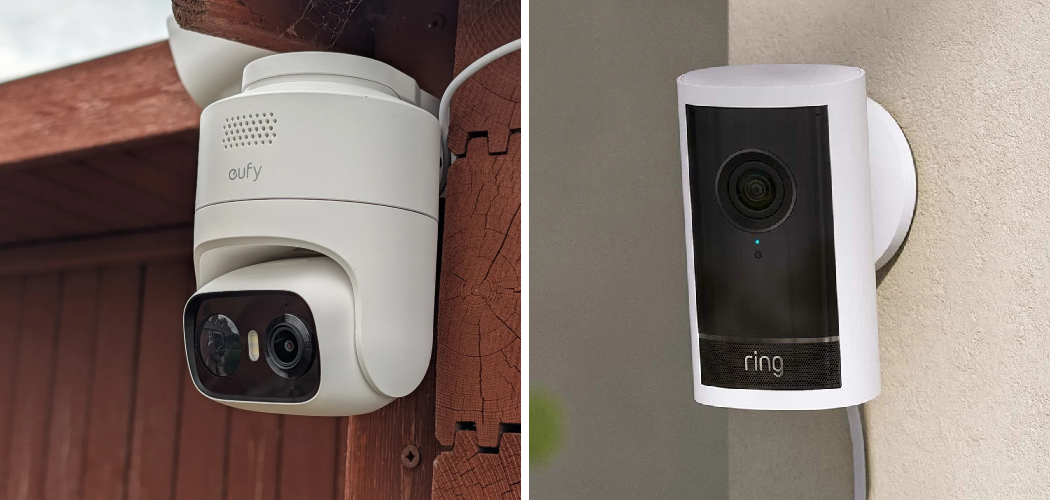
You check your Ring app after a delivery goes missing. You tap the live view, and there it is — half your porch, a big slice of sky, and no sign of your front door.
The camera’s been pointing the wrong way for weeks.
That sinking feeling is common. A camera aimed at the wrong angle misses the exact moments you bought it to catch. Packages, visitors, that raccoon knocking over your bins — all off-screen.
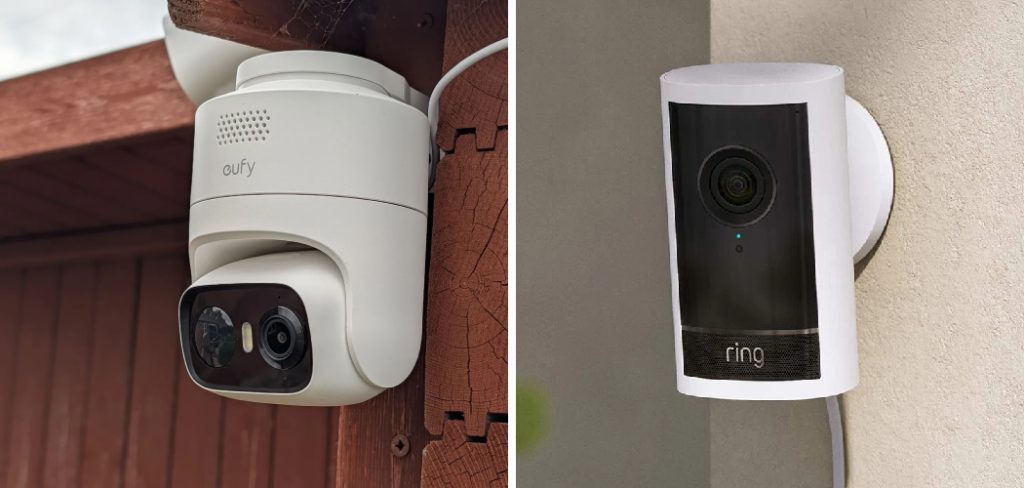
Here’s the good news: fixing the angle is quick once you know how.
In this guide, you’ll learn how to rotate outdoor Ring camera the right way. You’ll see which adjustments happen on the mount, which happen in the app, and how each model handles rotation. You’ll also learn the mounting tricks that keep your view sharp and the mistakes that leave you re-doing the whole job.
Understanding How Ring Cameras Actually Rotate
Before you touch anything, you need to know one thing.
Not all Ring cameras rotate the same way.
Some swivel on a ball-joint mount. Some pivot on a bracket. A few, like the newer Pan-Tilt models, actually turn on their own when you swipe in the app. Knowing which type you have saves you from forcing a part that isn’t meant to move.
Here’s the simple breakdown of the two ways you’ll adjust any Ring camera.
- Physical adjustment. You move the camera body or mount by hand to change where it points.
- App-based adjustment. You change zoom, motion zones, or (on some models) actual camera direction from your phone.
Most outdoor Ring cameras rely on physical adjustment. You loosen the mount, aim the camera, and lock it back down. The app fine-tunes what you already set.
In short: physical adjustment sets the direction, and the app polishes the details.
What You’ll Need Before You Start
Gather your gear first. Nothing kills momentum like climbing down a ladder to find a screwdriver.
Most rotation jobs need very little. Here’s your quick checklist to adjust your outdoor Ring camera angle.
Basic Tools
- Your phone with the Ring app installed and logged in.
- A Phillips or flathead screwdriver, depending on your mount.
- The hex/Allen key that came with your camera (many Ring mounts use one).
- A step ladder if the camera sits high.
Nice to Have
- A second person to watch the live view while you aim.
- A microfiber cloth to wipe the lens while you’re up there.
- A level or phone level app for straight framing.
Warning: If your camera is hardwired or mounted near electrical lines, cut the power at the breaker before you loosen anything. Safety first, always.
In short: a screwdriver, the right Allen key, and your phone cover almost every job.
Comparing Ring Outdoor Camera Models and Their Rotation
Rotation depends on your exact model. Some move freely. Some barely move at all.
This table shows how the most common outdoor Ring cameras adjust, so you know what to expect before you head outside.
| Model | Physical Rotation | App-Based Rotation | How It Adjusts | Best For |
| Stick Up Cam (Outdoor) | Full swivel and tilt | No true rotation | Ball-joint or bracket mount | Flexible placement, easy re-aiming |
| Spotlight Cam | Tilt and limited swivel | No true rotation | Bracket mount, loosen and aim | Wide yard and driveway coverage |
| Floodlight Cam | Tilt only, fixed base | No true rotation | Adjust head angle by hand | Permanent, high-mounted coverage |
| Ring Pan-Tilt Mount | Motorized 360° pan | Yes, swipe to rotate | Motor turns camera via app | Rooms or porches needing full sweep |
| Wired/Battery Doorbell | Slight angle with wedge kit | No true rotation | Angled mounting wedges | Fixed doorway framing |
Read this before you drill or loosen anything.
If you own a Floodlight Cam, don’t expect a full spin — you’ll adjust the head tilt, not the direction. If you want to physically turn the lens from your phone, only a Pan-Tilt setup does that. Most other outdoor models need you to reposition the Ring outdoor camera by hand.
In short: check your model first, because it decides whether you rotate by hand or by app.
How to Rotate Outdoor Ring Camera: Step by Step
Take this slow the first time. A rushed adjustment usually means climbing back up to redo it.
Step 1: Open the Live View First
Start in the Ring app before you move anything.
- Tap your camera, then open Live View.
- Note what’s in frame and what’s missing.
- Decide the exact direction you want to shift toward.
This gives you a target instead of guessing blind.
Step 2: Loosen the Mount
Head to the camera with your tool in hand.
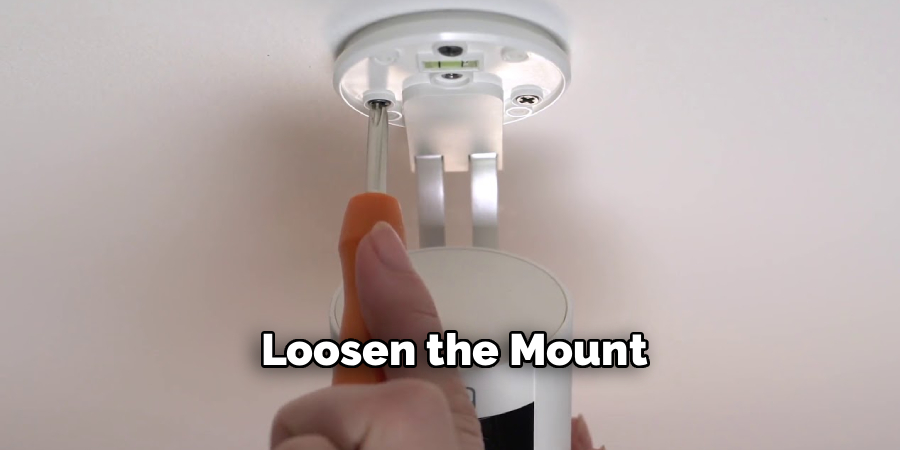
- Find the locking screw or knob on the mount or ball joint.
- Loosen it just enough to move the camera — don’t remove it fully.
- Keep one hand on the camera so it doesn’t droop.
Warning: Never yank a camera that won’t move. If it’s stiff, you probably haven’t loosened the right screw. Forcing it can crack the housing.
Step 3: Aim the Camera
Now point it where you want it.
- Move slowly while watching the live view (a helper makes this easy).
- Aim for the zone that matters most — door, driveway, or gate.
- Keep the horizon roughly level so footage doesn’t look tilted.
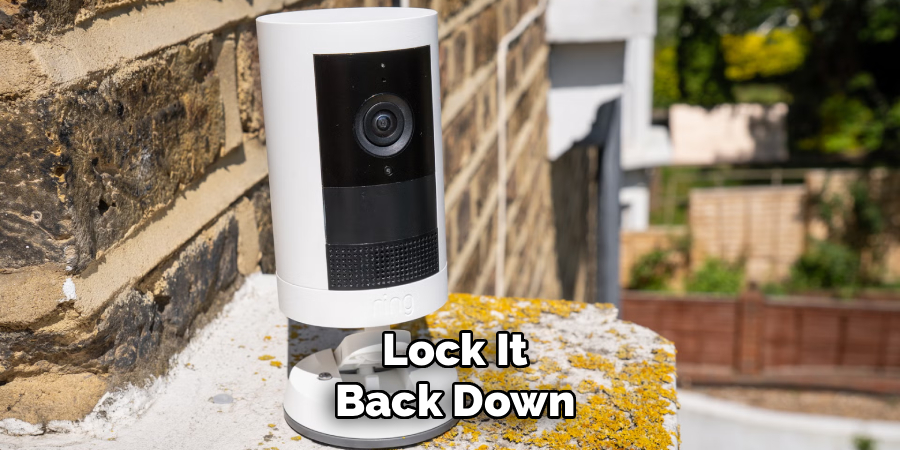
Step 4: Lock It Back Down
Once the frame looks right, secure everything.
- Tighten the locking screw or knob firmly.
- Give the camera a gentle wiggle to confirm it’s solid.
- Check the live view one last time.
Step 5: Fine-Tune in the App
The last touches happen on your phone.
- Adjust motion zones to match the new angle.
- Set privacy zones if you now catch a neighbor’s window.
- Tweak motion sensitivity so you catch people, not passing cars.
In short: aim by hand while watching the app, lock it tight, then adjust your zones to match.
Physical vs. App-Based Adjustments: Which One You Need
People often try to fix an aiming problem in the app when the real fix is on the mount. Knowing the difference saves you real frustration.
When to Adjust Physically
Reach for a screwdriver when the problem is direction.
- The camera points too high, too low, or off to one side.
- You need to cover a whole new area.
- The view is tilted or crooked.
No app setting can turn a fixed camera. You have to move the body itself.
When to Adjust in the App
Stay on your phone when the problem is framing or alerts.
- You want to zoom into a specific spot.
- You’re getting alerts from the street or trees.
- You need to block part of the frame for privacy.
These are software fixes. They shape what the camera does with the view it already has.
The One Exception: Pan-Tilt Cameras
The Ring Pan-Tilt Mount blurs the line.
With it, you swipe in the app and a motor physically turns the camera. It’s the only common setup where app-based control moves the lens itself. If you want to rotate your camera from the couch, this is the model to own.
In short: move the mount to change direction, use the app to change framing, and use Pan-Tilt if you want both from your phone.
Mounting Angle Tips for the Best View
A good angle does more than fill the frame. It decides whether you catch a face or the top of someone’s head.
Follow these tips whenever you adjust your outdoor Ring camera angle.
- Mount at 8 to 10 feet. High enough to stay out of reach, low enough to capture faces.
- Angle down about 15 to 20 degrees. This catches people and packages, not empty sky.
- Point away from direct sun. Facing the sun washes out footage and causes glare.
- Cover the approach, not just the spot. Aim where people walk in, so you see them coming.
- Avoid busy backgrounds. Trees, flags, and traffic trigger endless false alerts.
Test after every change. Walk through the frame yourself while watching a recording, then adjust until you’re captured clearly from head to toe.
In short: mount high, tilt down, avoid the sun, and always test the angle by walking through it.
Common Mistakes and Troubleshooting
Rotating a Ring camera looks simple, and mostly it is. But a few small errors send people back up the ladder again and again. Here are the ones that catch people most — why they happen, and exactly how to fix each.
Mistake 1: Trying to Rotate a Fixed-Base Camera
You grab the Floodlight Cam and try to spin it, but it won’t turn.
Why it happens: Not every Ring model rotates fully. Floodlight and doorbell cameras have fixed bases and only tilt or angle slightly.
The fix: Check your model in the table above. If it’s fixed-base, adjust the head tilt or add an angled wedge kit instead of forcing a rotation that isn’t built in.
Mistake 2: Loosening the Wrong Screw
You turn a screw and nothing moves, or worse, the whole camera comes off the wall.
Why it happens: Mounts often have two screws — one holds the camera to the wall, one lets it pivot. People grab the wrong one.
The fix: Find the pivot or ball-joint screw, usually right where the camera meets the mount arm. Loosen that one only, and never remove the wall-anchor screws for a simple angle change.
Mistake 3: Not Checking the Live View While Aiming
You aim, tighten, climb down, and the frame is still wrong.
Why it happens: Guessing the angle from behind the camera never matches what the lens sees.
The fix: Keep the Live View open the whole time. Better yet, have a helper watch your phone and call out directions while you move the camera. It saves a second trip up the ladder.
Mistake 4: Ignoring Motion Zones After Rotating
You reposition the Ring outdoor camera, then wonder why alerts stop — or won’t stop.
Why it happens: Your old motion zones were mapped to the old angle. After rotating, they cover the wrong area.
The fix: Open Motion Settings and redraw your zones to match the new view. Set them over walkways and doors, and keep them off streets and trees.
Mistake 5: Over-Tightening the Mount
You crank the screw hard, and later the housing cracks or the joint won’t move again.
Why it happens: People assume tighter is safer. Ring mounts are plastic and only need snug pressure.
The fix: Tighten until the camera holds firm, then stop. If it slips in wind, add a rubber washer for grip instead of forcing the screw tighter.
Mistake 6: Mounting Too High or Too Flat
Footage shows the tops of heads or wide, useless sky.
Why it happens: The camera sits too high or points straight out instead of angling down.
The fix: Keep the mount around 8 to 10 feet and tilt it down 15 to 20 degrees. Walk through the frame and confirm your face shows clearly.
In short: know your model, loosen the right screw, watch the app, redraw your zones, tighten gently, and angle down.
Frequently Asked Questions
Can you rotate a Ring camera from the app?
For most outdoor models, no — you have to move the camera by hand. The app controls zoom, motion zones, and privacy, not the physical direction. The one exception is the Ring Pan-Tilt Mount, which uses a motor so you can swipe to rotate the camera right from your phone.
How do I change the angle of my outdoor Ring camera?
Loosen the pivot screw or ball-joint on the mount, aim the camera while watching Live View, then tighten it back down. Angle it down about 15 to 20 degrees to catch faces and packages. Always redraw your motion zones afterward to match the new view.
Why won’t my Ring Floodlight Cam rotate?
Because it isn’t built to. The Floodlight Cam has a fixed base and only adjusts by tilting the head. Don’t force it to spin — instead, tilt the camera head to your target area, or move the whole mount if you need a completely different direction.
What’s the best height to mount an outdoor Ring camera?
Aim for 8 to 10 feet off the ground. That’s high enough to stay out of easy reach and low enough to capture clear faces instead of just heads. Any higher, and you’ll mostly record the tops of people and miss the details that matter.
Do I need to change my settings after I reposition the camera?
Yes. Once you reposition your Ring outdoor camera, your old motion and privacy zones no longer line up with the view. Open the app, redraw your zones over the areas you care about, and adjust motion sensitivity so you catch people rather than passing cars.
Wrapping Up
Aiming a Ring camera the wrong way costs you the exact moments you wanted to see. Now you know how to fix that fast.
You’ve learned how to rotate your outdoor Ring camera the right way — check your model, loosen the correct screw, aim while watching Live View, lock it down, and redraw your motion zones. You also know which jobs need a screwdriver and which need only the app, plus the mounting angles that keep every face in frame.
Take your time, test as you go, and your camera will finally watch what matters.
Want to sharpen your setup even more? Check out our guide on [related topic: setting up Ring motion zones for fewer false alerts] next.

About
Robert D is a distinguished figure in the world of Safety Systems and Risk Management, with a decade of expertise creating innovative and sustainable workplace solutions. His professional focus lies in merging traditional safety protocols with modern digital monitoring techniques, fostering environments that are both practical and hazard-conscious. As the lead author of SafetyRift, Robert delves into the art and science of risk mitigation, inspiring safety officers and industry professionals alike to bridge the gap between compliance and culture.
Education
RMIT University (Melbourne, Australia)
Associate Degree in Design (Industrial Safety)
-
Focus on sustainable safety infrastructure, industry-driven risk assessments, and practical implementation.
-
Gained hands-on experience with traditional hazard identification and digital monitoring tools, such as IoT safety sensors and predictive analytics software.
Nottingham Trent University (United Kingdom)
Bachelor’s in Occupational Health and Safety (Honors)
-
Specialized in systemic design with a focus on blending human behavior psychology with modern safety production techniques.
-
Participated in industry-wide projects, working with global logistics and manufacturing firms to gain real-world insights into large-scale safety deployments.
Publications and Impact
In SafetyRift, Robert shares his insights on safety design processes, protective materials, and strategies for efficient, accident-free production. His writing bridges the gap between foundational safety knowledge and modern industrial needs, making it a must-read for both budding safety coordinators and seasoned risk management professionals.
