
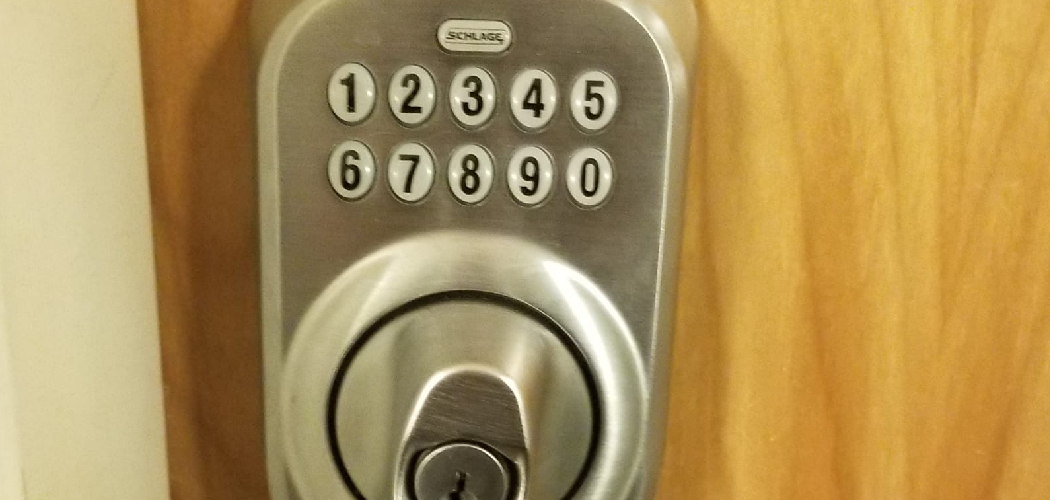
Welcome to your guide on mastering your home security. A Yale smart lock offers incredible convenience and safety, but its effectiveness relies on you managing the access codes properly. Changing your entry code periodically is a fundamental step in maintaining a secure home.
Whether you’ve just moved in, had a guest stay over, or simply want to refresh your security protocols, learning how to change code on yale door lock is a simple yet vital skill. This guide will walk you through the process, ensuring you can update your lock with confidence and ease, regardless of your technical expertise.
Why Keeping Your Door Code Updated is Crucial
Maintaining the security of your home goes beyond just having a strong lock; it involves actively managing who has access. Your Yale door lock’s code is the key to your front door. If old codes are not removed, former service providers, previous tenants, or anyone you once granted temporary access could potentially enter your home. Regularly changing the code eliminates this risk. It’s a proactive measure that ensures only authorized individuals can get in. This simple habit fortifies your home against unauthorized entry and gives you complete control over your personal security, providing invaluable peace of mind for you and your family.
7 Step Methods Guide on How to Change Code on Yale Door Lock
Step 1: Wake Up the Lock’s Keypad
Before you can make any changes, you must first activate the lock. To do this, simply touch the back of your hand or your palm to the keypad screen. The numbers on the keypad will illuminate, indicating that the lock is now awake and ready to receive commands. This initial step is essential for all programming functions, including changing codes.
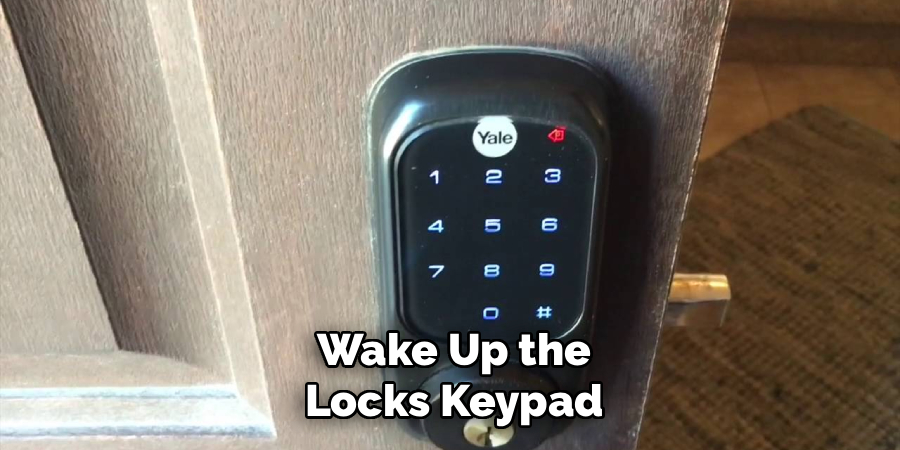
The lock will typically stay active for a short period, so be prepared to enter the next sequence promptly to avoid it going back to sleep, which would require you to start the process over again.
Step 2: Enter the Current Master PIN Code
With the keypad active, you will need to enter your current Master PIN code. This is the primary code used for all programming and setting adjustments on your Yale lock. It is typically 4 to 8 digits long. Carefully type in your Master PIN code and then press the gear or settings key (often represented by a gear icon or sometimes a hash ‘#’) to confirm the entry. This action tells the lock you are an authorized user attempting to access the programming menu. If you enter the wrong code, the lock will likely produce an error sound and you will have to start again from step one.
Step 3: Access the Main Menu
After successfully entering the Master PIN, you will enter the lock’s main programming menu. The lock will signal this with a series of beeps or a voice prompt. From here, you can access various functions. To proceed with changing a code, you will need to select the menu option for code management. Press the number ‘2’ on the keypad, which is the standard option for managing user PIN codes on most Yale Assure Lock models. After pressing ‘2’, press the gear or settings key once more to confirm your selection and move to the next stage of the programming sequence.
Step 4: Add or Change a User PIN Code
Now you are in the user management section. To add a new user code or change an existing one, you will first press the number ‘1’ on the keypad. This indicates your intent to register a new PIN. After pressing ‘1’, confirm by pressing the gear key. The lock is now ready to accept the new user code. This step is where you begin the process of creating a new entry credential. It’s important to differentiate this from changing the Master PIN, as this step specifically relates to the codes that are used for daily entry, not for administrative programming of the lock itself.
Step 5: How to Change Code on Yale Door Lock by Entering the New Code
At this point, the lock is waiting for you to input the new user code. Decide on a new PIN that is between 4 and 8 digits long. For security, avoid easily guessable combinations like “1234” or your birthdate. Enter your chosen new code into the keypad. After you have typed in the full sequence of digits for your new PIN, you must press the gear or settings key to confirm it. The lock will then process this new information. This is the most direct part of learning how to change code on yale door lock, as it involves the creation of the new credential.
Step 6: Confirm the New Code and Complete the Process
Once you have entered the new code and pressed the gear key, the lock will confirm that the new PIN has been successfully registered. You will typically hear a positive confirmation tone, see a checkmark on the screen, or hear a voice prompt like “Completed.” This signals that the new code is now active and can be used to unlock the door. To exit the programming menu, you can press the star or back button (often ‘*’ or an arrow icon) until you are back at the main screen, or simply wait for the programming mode to time out.
Step 7: Test the New User Code
The final and most important step is to test the newly created code. With the door in the locked position, close the door and wait for the deadbolt to extend fully. Then, wake the keypad and enter the new user PIN code you just created. Press the checkmark or appropriate key to unlock.
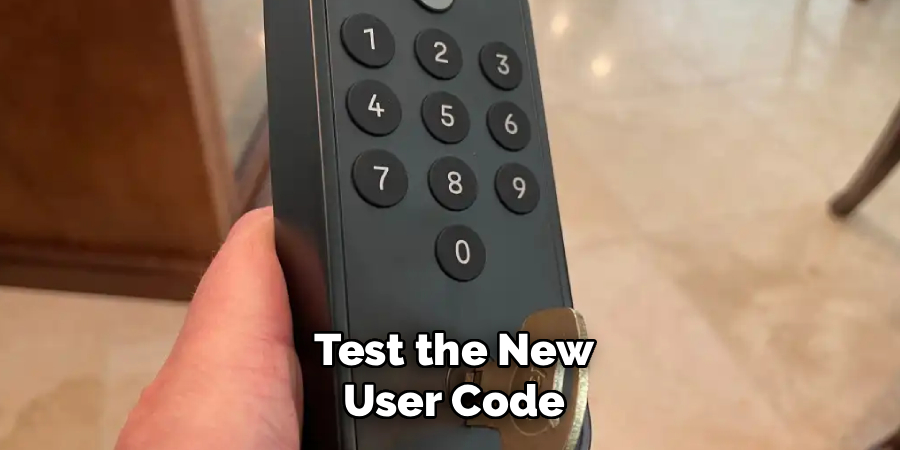
The deadbolt should retract smoothly, and the door should open. This confirms that the code was programmed correctly and is functioning as expected. If it doesn’t work, retrace the steps carefully, ensuring you are entering the correct Master PIN and following the prompts precisely.
Test Additional PIN Codes
To ensure all user PIN codes are working correctly, repeat the process with any additional PIN codes you have programmed. Wake the keypad, enter a newly created PIN code, and press the checkmark or corresponding button to unlock. Confirm that the deadbolt retracts smoothly and the mechanism operates without issue. If any PIN code fails, recheck its programming and follow the steps to set it up again. Properly testing all codes will ensure reliable functionality for all users.
Frequently Asked Questions
What Do I Do if I Forgot My Master PIN Code?
If you have forgotten your Master PIN, you cannot change codes. Your only option is to perform a factory reset on the lock. This will erase all existing codes, including the Master PIN, and restore it to the default code found in your user manual. After the reset, you will need to reprogram the lock from scratch, including setting a new Master PIN and adding back any user codes you wish to use.
Can I Have Multiple User Codes on My Yale Lock?
Yes, most Yale smart locks allow you to create multiple user PIN codes. Depending on the model, you can typically store between 25 and 250 unique codes. This is useful for giving temporary or permanent access to family members, friends, or service providers without sharing your Master PIN. Each user can have their own distinct code, which you can add or delete as needed through the programming menu.
How Often Should I Change My Door Lock Code?
For optimal security, it is a good practice to change your door lock code every 6 to 12 months. You should also change it immediately after you have given out a temporary code to someone, such as a contractor or house sitter, once their access is no longer needed. Regularly updating your code minimizes the risk of unauthorized access and keeps your home secure.
Will Changing the Batteries Erase My Codes?
No, changing the batteries in your Yale door lock will not erase your stored PIN codes. The lock uses non-volatile memory, which means it retains all programmed information, including the Master PIN and user codes, even when the power source is removed. You can replace the batteries without worrying about having to reprogram the entire lock. The lock will typically provide a low-battery warning to alert you when it’s time for a change.
How Do I Delete an Existing User Code?
To delete a user code, you will need to enter the programming menu using your Master PIN. From there, navigate to the user code management section (usually by pressing ‘2’). Instead of adding a code, you will select the option to delete one (often by pressing ‘3’). You will then be prompted to enter the specific user code you wish to remove. After entering the code and confirming, the lock will erase it from its memory.
Conclusion
You have now learned the essential steps for managing your home’s security by updating your smart lock. Following this guide makes the process of changing codes straightforward, empowering you to maintain control over who has access to your property. By regularly refreshing your PINs, you ensure that your home remains a safe and secure space. Now that you understand how to change code on yale door lock, take a moment to apply this knowledge. A few minutes spent updating your lock is a small investment that pays huge dividends in security and peace of mind.

About
Robert D is a distinguished figure in the world of Safety Systems and Risk Management, with a decade of expertise creating innovative and sustainable workplace solutions. His professional focus lies in merging traditional safety protocols with modern digital monitoring techniques, fostering environments that are both practical and hazard-conscious. As the lead author of SafetyRift, Robert delves into the art and science of risk mitigation, inspiring safety officers and industry professionals alike to bridge the gap between compliance and culture.
Education
RMIT University (Melbourne, Australia)
Associate Degree in Design (Industrial Safety)
-
Focus on sustainable safety infrastructure, industry-driven risk assessments, and practical implementation.
-
Gained hands-on experience with traditional hazard identification and digital monitoring tools, such as IoT safety sensors and predictive analytics software.
Nottingham Trent University (United Kingdom)
Bachelor’s in Occupational Health and Safety (Honors)
-
Specialized in systemic design with a focus on blending human behavior psychology with modern safety production techniques.
-
Participated in industry-wide projects, working with global logistics and manufacturing firms to gain real-world insights into large-scale safety deployments.
Publications and Impact
In SafetyRift, Robert shares his insights on safety design processes, protective materials, and strategies for efficient, accident-free production. His writing bridges the gap between foundational safety knowledge and modern industrial needs, making it a must-read for both budding safety coordinators and seasoned risk management professionals.
