
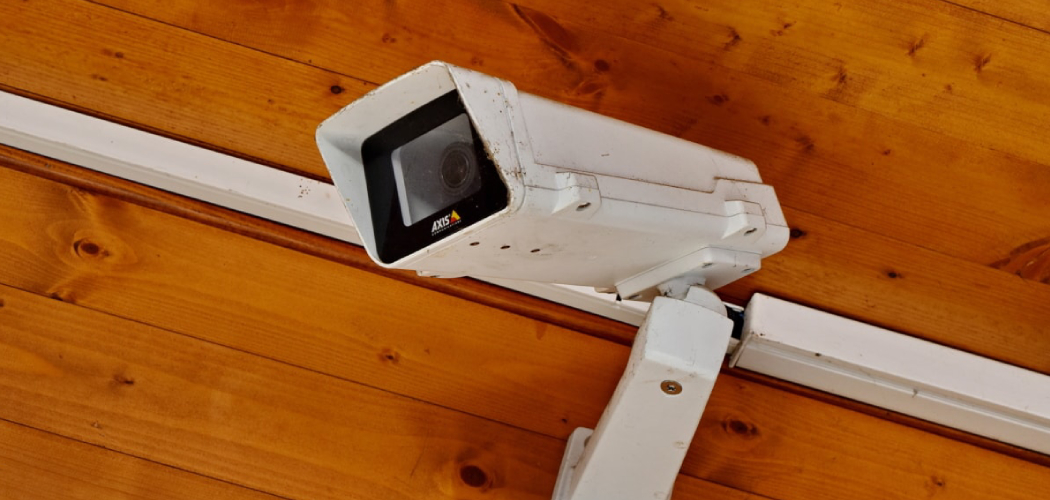
You walk into a shop, glance up, and spot a small black dome in the corner. Is it watching you right now? Or is it just sitting there, switched off? You can’t tell. And that quiet uncertainty follows you around the room.
That feeling is more common than you think.
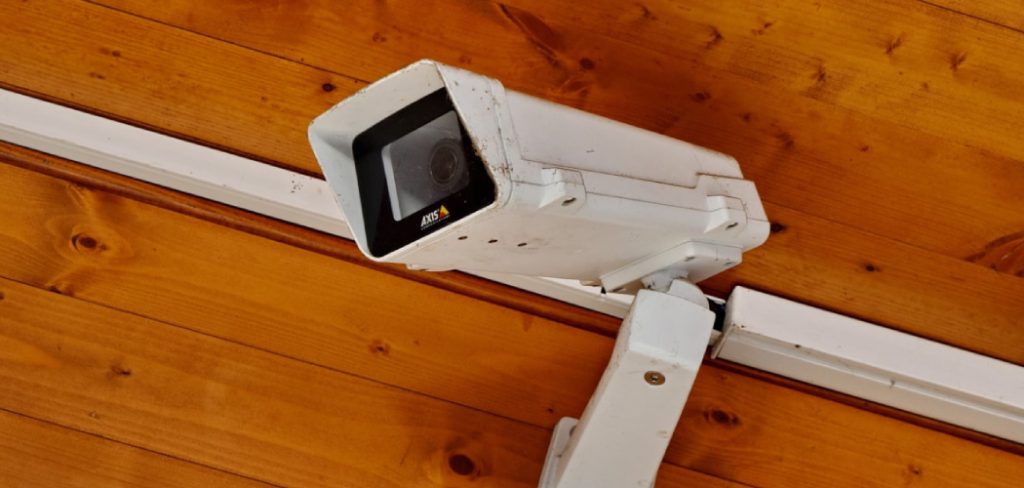
Cameras are everywhere now — in stores, offices, rentals, and even homes you visit. But knowing one exists isn’t the same as knowing it’s actively recording. This guide clears that up. You’ll learn the physical signs to look for, what the lights really mean, how apps and networks reveal recording status, and how to tell if a security camera is recording you.
By the end, you’ll be able to walk into almost any room and read the situation with confidence.
Physical Signs a Camera Is Recording
Before you reach for any app or gadget, use your eyes. Most cameras give away clues if you know where to look.
Start with the camera itself.
Look for Movement in the Lens
Many modern cameras have motorized lenses or pan-tilt features. If a camera slowly turns to follow you as you move across a room, it’s almost certainly active and likely recording.
Watch it for a few seconds. A camera that tracks motion is doing its job in real time.
Check the Lens for a Faint Glow
Point your attention at the lens itself. An active camera often shows a tiny red or green reflection deep inside the glass. This comes from the internal sensor or infrared LEDs.
In a dark room, this glow becomes much easier to spot.
Feel for Warmth
Cameras that record continuously generate heat. If you can safely reach one and it feels warm to the touch, it’s been running for a while.
A cold camera may be powered off — but don’t rely on this alone.
In short: your eyes and hands catch more than you’d expect, so start with a slow, careful look.
Reading Light Signals and Indicators
Lights are the most direct clue, but they’re also the trickiest. Manufacturers don’t follow one standard, so you have to know how to read them.
Solid vs. Blinking Lights
Here’s the general pattern most brands follow:
- Solid red light — the camera is powered on and often recording.
- Blinking red light — recording is active, or the camera is saving footage.
- Green light — usually means the camera is connected and live.
- Blue light — often signals setup mode or a network connection.
- No light at all — this is where people get fooled.
A dark indicator does not guarantee the camera is off.
Why “No Light” Doesn’t Mean “Not Recording”
Here’s the honest truth: many cameras let owners disable the status light through settings. Privacy cameras and covert models often ship with the light off by default.
So a camera with no visible light can still be recording everything.
Treat missing lights as a warning sign, not an all-clear.
Infrared Lights in the Dark
At night, active cameras with night vision emit infrared (IR) light. Your naked eye can’t see it, but your phone camera often can.
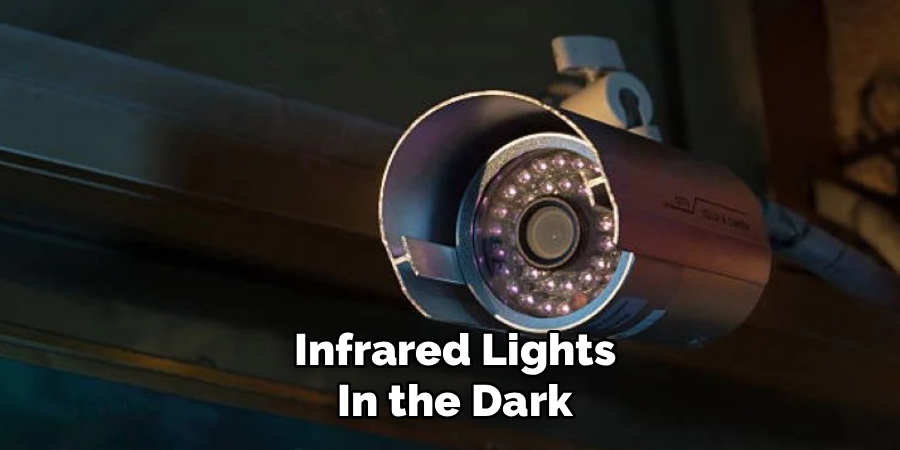
Open your phone’s camera app and point it at the suspected device. If you see a faint purple or white glow from the LEDs, the camera is on and recording in the dark.
In short: lights help, but only if you remember that owners can turn them off.
Using Apps and Software to Check Recording Status
If the camera is yours — or you have permission — apps give you the clearest answer of all.
Check the Camera’s Companion App
Most home security cameras pair with an app. Open it and look for:
- A live view feed — if you see a real-time image, the camera is capturing.
- A recording indicator — often a red dot or the word “Recording.”
- A timeline or event log — recent clips confirm active recording.
- Storage activity — a filling SD card or cloud account means footage is saving.
Brands like Ring, Nest, Wyze, and Arlo all show recording status right on the dashboard.
Use Hidden Camera Detector Apps
Suspect a hidden camera in a rental or hotel? Detector apps can help, though they have limits.
These apps scan for:
- Infrared reflections using your phone’s camera.
- Network devices connected to the same Wi-Fi.
- Magnetic fields from camera components, using your phone’s magnetometer.
Be honest with yourself about results. These apps flag possibilities, not certainties. A hit means “look closer here,” not “confirmed camera.”
In short: apps give the strongest proof when the camera is yours, and useful hints when it isn’t.
Detecting Cameras Through Your Network
Almost every modern camera connects to Wi-Fi. That connection is a trail you can follow.
Scan Your Wi-Fi for Connected Devices
Log in to your router or use a network scanner app like Fing. You’ll see a list of every device on your network.
Look for names that include:
- Camera brand names (Wyze, Ring, Reolink)
- Words like “cam,” “IPC,” or “NVR”
- Unknown devices you can’t identify
An unexplained device pulling steady data may be a camera actively streaming or recording.
Watch for Steady Data Usage
A recording camera uploads footage constantly. In your router’s traffic monitor, a device with continuous upload activity is a strong sign of live recording.
A silent device might be idle. A chatty one is usually working.
Warning: you can only scan networks you own or have permission to access. Scanning someone else’s network without consent can be illegal.
In short: your router quietly lists every camera on your network — you just have to look.
Camera Types and Their Recording Indicators
Not all cameras behave the same way. Knowing the type helps you read it correctly.
| Camera Type | Common Recording Sign | Light Behavior | Best Way to Confirm |
| Wired IP camera | Constant network upload | Solid or blinking LED | Router scan + app |
| Wireless Wi-Fi camera | Steady Wi-Fi data flow | LED (often adjustable) | Network scan + app |
| Battery camera | Records on motion only | Brief flash on trigger | App event log |
| Dome camera (CCTV) | Hard to tell externally | Often none visible | Ask owner / check DVR |
| Hidden/spy camera | No obvious signs | Usually none | IR scan + detector app |
| Doorbell camera | Records on motion/ring | Ring light or LED | Companion app |
Dome Cameras
Those dark domes hide the lens on purpose, so you can’t see which way it points. You often can’t tell if they’re recording just by looking. The DVR or NVR they connect to holds the real answer.
Battery-Powered Cameras
These sleep to save power and wake on motion. They don’t record all the time, so a lack of activity doesn’t mean they’re off. Check the app’s event log for recent triggers.
Hidden Cameras
Covert cameras are built to hide every clue. No lights, no movement, no noise. Here, IR scanning and network checks matter most.
In short: match your detection method to the camera type, and you’ll get a clearer answer every time.
Common Mistakes and Troubleshooting
People make the same errors when trying to tell if a security camera is recording them. Here’s what goes wrong — and how to fix it.
Mistake 1: Trusting the Light Alone
Why it happens: most guides say “red light means recording,” so people assume no light means safe. But owners can disable indicator lights on many models.
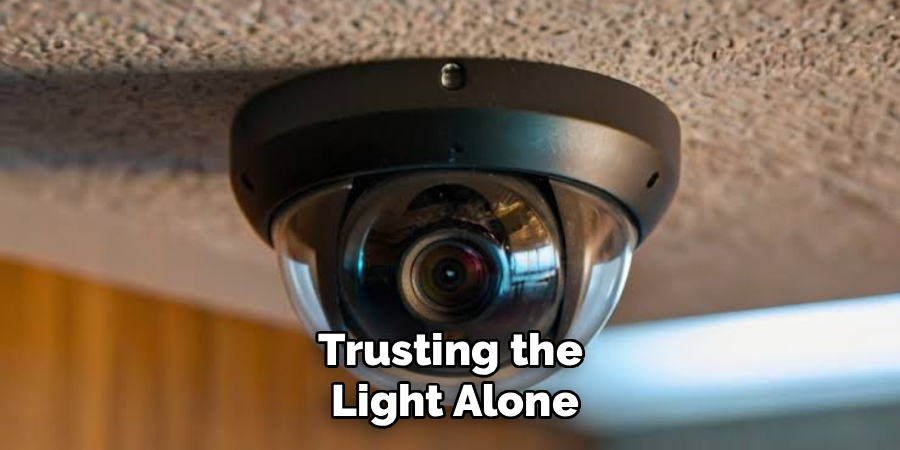
How to fix it: never rely on lights by themselves. Combine the light check with an IR phone-camera scan and a network scan for real confidence.
Mistake 2: Missing Infrared at Night
Why it happens: IR light is invisible to your eyes, so a camera recording in the dark looks completely off.
How to fix it: use your phone’s front or rear camera to view the device. IR LEDs show up as a purple-white glow on your screen. Test this first on a TV remote so you know what to look for.
Mistake 3: Confusing “Powered On” With “Recording”
Why it happens: a camera can be on and connected without saving footage — for example, if storage is full or recording is paused.
How to fix it: check the app’s storage status and event timeline. No new clips means no recording, even if the camera is live. A full SD card or ended cloud plan silently stops recording.
Mistake 4: Overtrusting Detector Apps
Why it happens: detector apps promise to find hidden cameras, so people expect certainty. In reality, they flag magnetic fields and reflections that could be anything.
How to fix it: treat every app alert as a “check this spot,” not proof. Follow up with a physical inspection and an IR scan of the flagged area.
Mistake 5: Skipping the Network Check
Why it happens: network scanning feels technical, so people avoid it. Yet it’s one of the most reliable methods for Wi-Fi cameras.
How to fix it: install a free scanner like Fing. It lists devices in plain language and often labels camera brands automatically. Only scan networks you’re allowed to use.
Mistake 6: Forgetting Battery Cameras Record on Motion
Why it happens: you watch a battery camera, see no activity, and assume it’s dead. But it’s simply waiting for movement.
How to fix it: move within its view and watch for a brief LED flash, then check the app’s event log for a fresh clip. Silence doesn’t mean it isn’t armed.
Frequently Asked Questions
Can a security camera record you without any light showing?
Yes. Many cameras let the owner turn off the status light through settings, and hidden cameras often have no light at all. Never assume a dark indicator means the camera is off. Use an infrared scan with your phone and a network check to be sure.
How can I use my phone to find a hidden camera?
Open your phone’s camera app and slowly scan the room in the dark. Active night-vision cameras emit infrared light that shows up as a faint purple or white glow on your screen. You can also use a network scanner app to spot camera devices connected to the same Wi-Fi.
Does a red light always mean a camera is recording?
Usually, but not always. On most cameras, a solid or blinking red light signals active recording. However, brands differ, and some use red for power only. Confirm through the camera’s app or event log rather than trusting the light by itself.
Is it legal to detect if a camera is recording me?
Checking for cameras in a space you’re in is generally fine, especially in areas where you expect privacy like bathrooms or bedrooms. Scanning a Wi-Fi network you don’t own, though, can break the law. Stick to visual, infrared, and permission-based methods to stay safe.
Why does my camera show live video but no saved recordings?
The camera is powered on and streaming, but something is stopping it from saving footage. Common causes include a full SD card, an expired cloud plan, or a paused recording setting. Check your storage and recording settings in the app to fix it.
Wrapping Up
You started uncertain, staring at a camera with no idea whether it was watching. Now you have a full toolkit.
You know to look for lens movement, faint glows, and warmth. You can read light signals — and you know why a dark light isn’t a safe sign. You can check apps for live feeds and event logs, scan your network for hidden devices, and match your method to the camera type in front of you.
Trust your eyes, then confirm with your phone and network.
Want to go further? Check out our guide on [how to protect your home privacy from cameras] for the next step.

About
Robert D is a distinguished figure in the world of Safety Systems and Risk Management, with a decade of expertise creating innovative and sustainable workplace solutions. His professional focus lies in merging traditional safety protocols with modern digital monitoring techniques, fostering environments that are both practical and hazard-conscious. As the lead author of SafetyRift, Robert delves into the art and science of risk mitigation, inspiring safety officers and industry professionals alike to bridge the gap between compliance and culture.
Education
RMIT University (Melbourne, Australia)
Associate Degree in Design (Industrial Safety)
-
Focus on sustainable safety infrastructure, industry-driven risk assessments, and practical implementation.
-
Gained hands-on experience with traditional hazard identification and digital monitoring tools, such as IoT safety sensors and predictive analytics software.
Nottingham Trent University (United Kingdom)
Bachelor’s in Occupational Health and Safety (Honors)
-
Specialized in systemic design with a focus on blending human behavior psychology with modern safety production techniques.
-
Participated in industry-wide projects, working with global logistics and manufacturing firms to gain real-world insights into large-scale safety deployments.
Publications and Impact
In SafetyRift, Robert shares his insights on safety design processes, protective materials, and strategies for efficient, accident-free production. His writing bridges the gap between foundational safety knowledge and modern industrial needs, making it a must-read for both budding safety coordinators and seasoned risk management professionals.
