
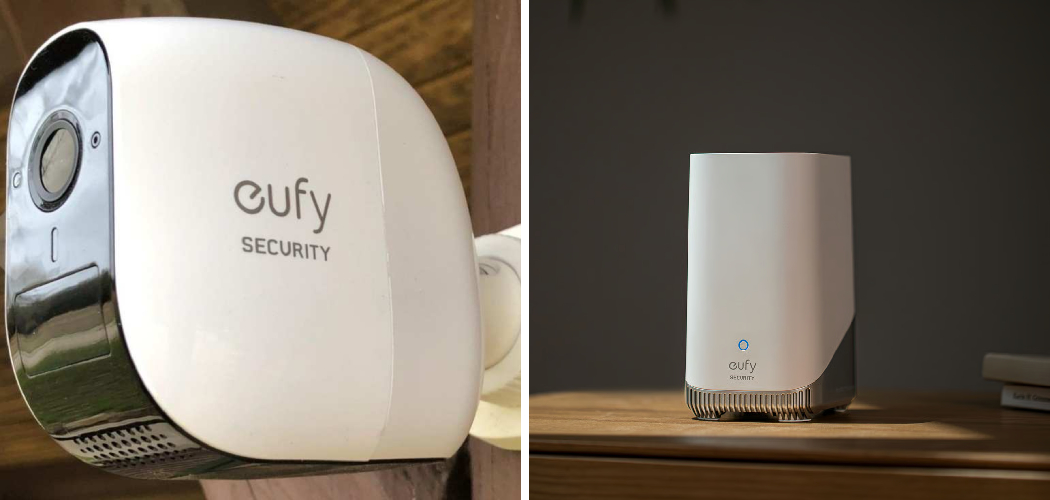
You just unboxed your new eufy HomeBase. The cameras are charged. You’re ready to feel safe.
Then the app stalls on “Connecting…” and won’t budge.
You’ve tried twice. The light keeps blinking the wrong color. And that excited feeling is turning into quiet frustration.
Take a breath. This happens to almost everyone, and it’s almost always a small fix.
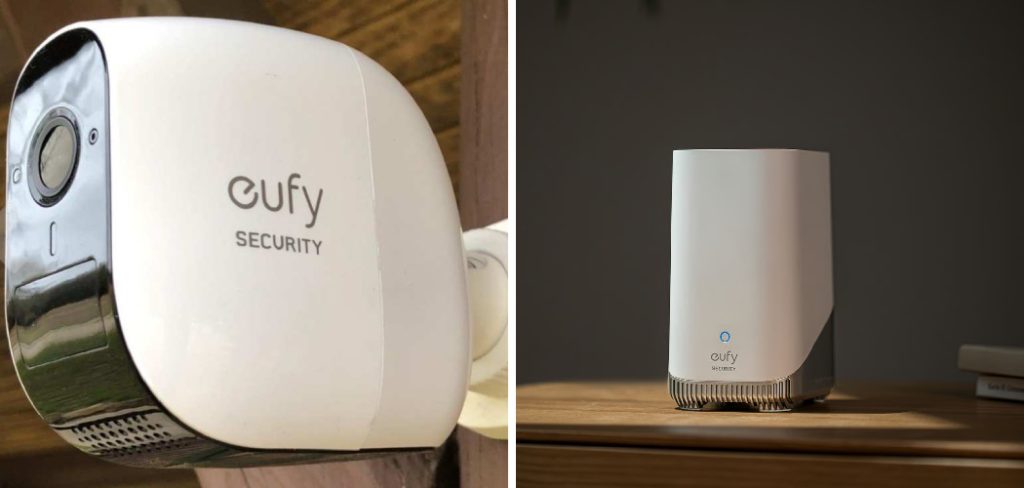
The truth is simple. Your HomeBase is the brain of your whole security system. If it can’t reach your WiFi, your cameras can’t send you alerts, save clips, or protect your home.
That’s the real stakes here: not a slow setup, but a system that can’t watch your door when you need it most.
In this guide, you’ll learn exactly how to connect eufy HomeBase to WiFi — step by step, for both the HomeBase 2 and HomeBase 3. We’ll cover what you need, how to switch networks, and how to fix the errors that trip people up.
Let’s get you connected.
What You’ll Need Before You Start
A smooth setup starts with the right pieces in front of you.
Gather these before you touch a single button. It saves you from stopping halfway through, frustrated, hunting for a password.
- Your eufy HomeBase (2 or 3) and its power adapter.
- The included Ethernet cable — you’ll need it for the first connection.
- Your router, with an open Ethernet port nearby.
- Your 2.4GHz WiFi network name and password (more on this below).
- The eufy Security app, downloaded on your phone.
- A eufy account — free to create in the app.
One detail matters more than the rest here.
Know Your WiFi Band First
Your HomeBase connects to a 2.4GHz WiFi band, not the faster 5GHz band.
Here’s why that matters. The 2.4GHz signal travels farther and passes through walls better. That’s perfect for a security device that needs a steady connection, not raw speed.
Many modern routers combine both bands under one network name. That’s fine for phones, but it can confuse your HomeBase during setup.
Warning: If your setup keeps failing, log into your router and temporarily separate the 2.4GHz band or give it its own name. We’ll walk through this in the troubleshooting section.
In short: have your gear, your account, and your 2.4GHz password ready before you begin.
How to Connect Eufy HomeBase 2 to WiFi
The HomeBase 2 uses a wired-first approach. You connect it to your router with a cable, then switch to WiFi if you want.
Follow these steps in order.
- Plug in the power adapter and connect it to your HomeBase 2.
- Connect the Ethernet cable from the HomeBase to an open port on your router.
- Wait for the LED light to turn solid blue. This means it’s online and ready.
- Open the eufy Security app and sign in to your account.
- Tap the plus (+) icon, then choose HomeBase 2 from the device list.
- Follow the on-screen steps to add the device to your account.
Your HomeBase 2 is now working over Ethernet. If you want it wireless, keep going.
Switching HomeBase 2 to WiFi
You don’t have to leave it plugged into the router forever.
- In the app, open your HomeBase 2 settings.
- Tap General, then WiFi Setup.
- Select your 2.4GHz network from the list.
- Enter your WiFi password carefully.
- Wait for the app to confirm the connection.
- Once confirmed, unplug the Ethernet cable.
The LED stays solid blue when the WiFi connection holds.
Warning: Don’t unplug the Ethernet cable before the app confirms WiFi. Pull it too early, and the HomeBase drops offline.
In short: connect the HomeBase 2 by cable first, then switch it to your 2.4GHz WiFi in the app settings.
How to Connect Eufy HomeBase 3 to WiFi
The HomeBase 3 gives you more flexibility. You can start with WiFi directly, no cable required for setup — though a cable still makes things smoother.
Here’s the wired path, which is the most reliable.
- Power on your HomeBase 3 with its adapter.
- Connect the Ethernet cable to your router.
- Wait for the voice prompt or solid blue light confirming it’s ready.
- Open the eufy Security app and sign in.
- Tap the plus (+) icon and select HomeBase 3 (S380).
- Follow the prompts to finish adding it.
That’s your HomeBase 3 online. Now let’s cut the cord.
Switching HomeBase 3 to WiFi
The HomeBase 3 moves to wireless the same easy way.
- Open your HomeBase 3 settings in the app.
- Go to General, then Connectivity or WiFi Setup.
- Pick your 2.4GHz network.
- Type your password and confirm.
- Wait for the success message.
- Remove the Ethernet cable only after the app confirms.
The HomeBase 3 also supports a stronger antenna, so it often holds WiFi better across a larger home.
In short: set up the HomeBase 3 by cable, confirm it in the app, then switch it to your 2.4GHz WiFi.
Compare Your Connection Options
Not sure which model or method fits your home? Here’s how the two HomeBase models and their connection paths stack up.
| Feature | HomeBase 2 | HomeBase 3 | Best For |
| Wired (Ethernet) setup | Required first | Recommended | Most stable connection |
| WiFi band supported | 2.4GHz only | 2.4GHz only | Long range through walls |
| WiFi range strength | Good | Better | Larger homes |
| Local storage | 16GB built-in | Expandable up to 16TB | Storing lots of footage |
| Best connection for reliability | Ethernet | Ethernet | Zero dropped alerts |
| Best connection for placement freedom | WiFi | WiFi | Rooms far from router |
One honest takeaway sits under this table.
A wired connection always beats WiFi for reliability. If your HomeBase sits near your router, leave the Ethernet cable in. Your alerts and recordings will never skip a beat.
In short: pick WiFi for placement freedom, but choose Ethernet whenever you can for a rock-solid connection.
How to Connect Eufy HomeBase to WiFi
You changed your router. Or you got new internet. Suddenly your HomeBase won’t connect.
This is one of the most common headaches, and the fix is quick.
If You Kept the Same Login Details
If your new network uses the same name and password as before, your HomeBase should reconnect on its own after a restart.
- Unplug the HomeBase for 30 seconds.
- Plug it back in and wait for the solid blue light.
- Check the app to confirm it’s back online.
If Your Network Name or Password Changed
New details mean you have to update the HomeBase manually.
- Connect the HomeBase to your router with the Ethernet cable first.
- Open the eufy Security app.
- Go to your HomeBase settings, then WiFi Setup.
- Select the new network and enter the new password.
- Confirm, then remove the cable.
Warning: If you can’t reach the HomeBase in the app at all, you may need to reset it. Hold the SYNC button for about 10 seconds until you hear a prompt, then add it again as a new device.
In short: same login means a simple restart, but new login details mean reconnecting through the app.
Router Settings That Affect Your Connection
Sometimes the problem isn’t the HomeBase at all. It’s your router quietly blocking it.
A few settings decide whether your connection holds or drops.
- 2.4GHz band enabled: The HomeBase can’t see a network that only broadcasts 5GHz.
- Band steering off (temporarily): This feature merges both bands and can confuse setup. Turn it off while connecting.
- WPA2 security: The HomeBase works best with WPA2. Newer WPA3-only settings can cause failures.
- DHCP turned on: Your router needs to assign the HomeBase an IP address automatically.
- MAC filtering off: If you filter devices, add the HomeBase’s MAC address to the allowed list.
You’ll find these under your router’s admin page, usually reached by typing its IP address into a browser.
In short: an enabled 2.4GHz band, WPA2 security, and DHCP are the settings that keep your HomeBase connected.
Common Mistakes and Troubleshooting
You followed every step, and it still won’t connect. Don’t worry.
Most connection failures come from a handful of small, fixable mistakes. Here are the ones that trip people up most — why they happen, and exactly how to fix each.
Mistake 1: Trying to Connect to a 5GHz Network
Why it happens: Your phone connects to the fast 5GHz band automatically, so you assume the HomeBase should too. It can’t.
How to fix it: Connect only to your 2.4GHz network. If both bands share one name, log into your router and give the 2.4GHz band its own name during setup. This one fix solves most failed connections.
Mistake 2: Typing the WiFi Password Wrong
Why it happens: Passwords are long, and the app hides the characters. One wrong letter or a stray space breaks everything.
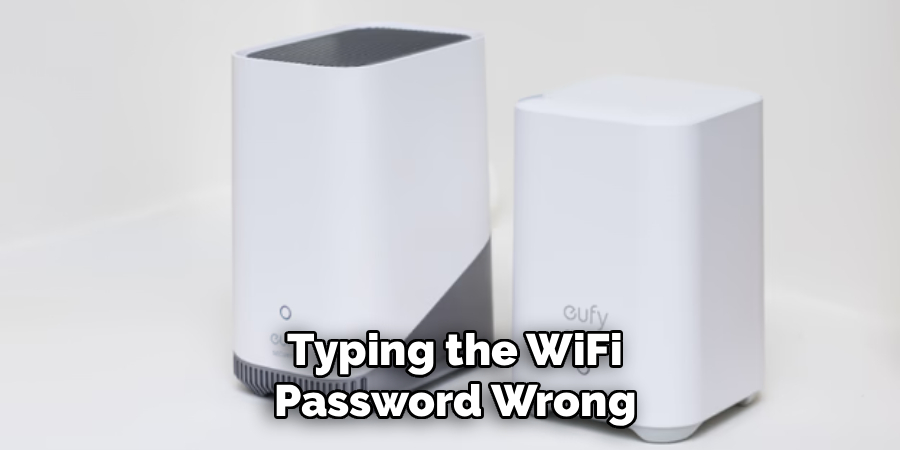
How to fix it: Retype the password slowly. Watch for capital letters, the letter “O” versus the number “0,” and extra spaces at the end. Tap the “show password” option if the app offers it.
Mistake 3: Unplugging Ethernet Too Soon
Why it happens: You see the WiFi selected and assume it’s done, so you pull the cable right away.
How to fix it: Wait for the app to confirm the WiFi connection with a success message before removing the Ethernet cable. Pull it early, and the HomeBase drops offline and reverts to searching.
Mistake 4: HomeBase Too Far From the Router
Why it happens: You placed the HomeBase in a distant room, and thick walls weaken the signal.
How to fix it: Move the HomeBase closer to your router, at least during setup. If you need it far away, add a WiFi extender or keep it wired with Ethernet for a steady link.
Mistake 5: Router Blocking the Device
Why it happens: Features like MAC filtering or WPA3-only security silently reject the HomeBase.
How to fix it: Log into your router. Switch security to WPA2, turn off MAC filtering (or whitelist the HomeBase), and make sure DHCP is on. Restart both the router and HomeBase after changes.
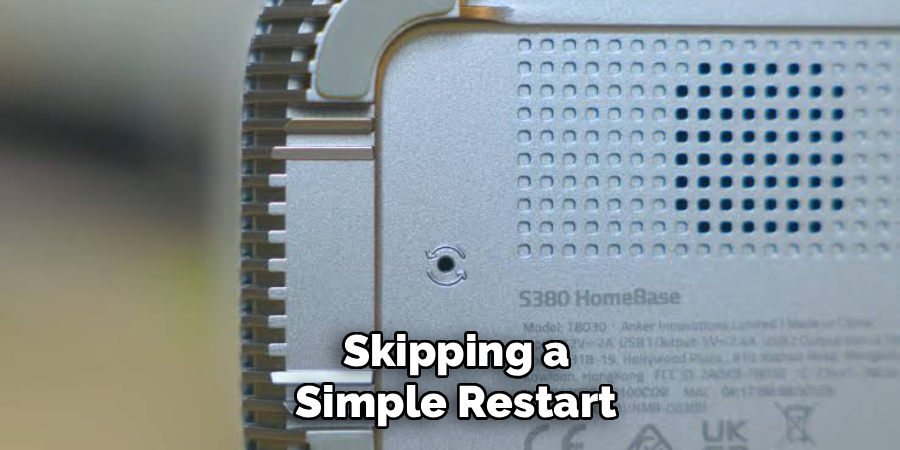
Mistake 6: Skipping a Simple Restart
Why it happens: When something fails, you keep retrying the same step instead of resetting.
How to fix it: Unplug the HomeBase for 30 seconds, then plug it back in. A fresh restart clears temporary glitches and fixes more problems than any other single step.
In short: most connection failures trace back to the wrong band, a mistyped password, or a router setting — all quick to fix once you know where to look.
Frequently Asked Questions
Why won’t my eufy HomeBase connect to WiFi?
The most common cause is trying to join a 5GHz network. Your HomeBase only works on the 2.4GHz band. Double-check you selected the right network, retype your password carefully, and make sure the HomeBase is close enough to your router with a strong signal.
Does the eufy HomeBase need to stay plugged into the router?
No. You only need the Ethernet cable for the initial setup. Once you switch the HomeBase to WiFi in the app and it confirms the connection, you can unplug the cable. That said, a wired connection is always more reliable if placement allows.
Can the eufy HomeBase connect to 5GHz WiFi?
No, the HomeBase connects only to 2.4GHz WiFi. This band reaches farther and passes through walls better, which suits a security device that needs a steady, dependable signal more than raw speed. If your router merges both bands, separate the 2.4GHz band during setup.
How do I change the WiFi on my eufy HomeBase?
Open the eufy Security app, go to your HomeBase settings, then tap WiFi Setup. Select your new network and enter the password. For a smooth switch, connect the HomeBase to your router with Ethernet first, then update the WiFi and remove the cable after it confirms.
How do I reset my eufy HomeBase?
Find the SYNC button on the HomeBase and hold it for about 10 seconds until you hear a voice prompt. This resets the device so you can add it again as new. Use a reset only when the HomeBase won’t respond in the app or won’t reconnect after a network change.
Wrapping Up
A stalled setup screen feels discouraging. It doesn’t have to stay that way.
Now you know how to connect your eufy HomeBase to WiFi — for both the HomeBase 2 and HomeBase 3. You’ve got the setup steps, the trick for switching networks, and the router fixes that solve the stubborn errors.
Remember the essentials: connect by Ethernet first, use your 2.4GHz band, type your password carefully, and wait for the app to confirm before unplugging. Those four habits prevent almost every problem.
Get your HomeBase online, and your whole system finally does its job: watching your home, day and night.
Want to get the most from your setup next? Check out our guide on [how to position your eufy cameras for the best coverage].

About
Robert D is a distinguished figure in the world of Safety Systems and Risk Management, with a decade of expertise creating innovative and sustainable workplace solutions. His professional focus lies in merging traditional safety protocols with modern digital monitoring techniques, fostering environments that are both practical and hazard-conscious. As the lead author of SafetyRift, Robert delves into the art and science of risk mitigation, inspiring safety officers and industry professionals alike to bridge the gap between compliance and culture.
Education
RMIT University (Melbourne, Australia)
Associate Degree in Design (Industrial Safety)
-
Focus on sustainable safety infrastructure, industry-driven risk assessments, and practical implementation.
-
Gained hands-on experience with traditional hazard identification and digital monitoring tools, such as IoT safety sensors and predictive analytics software.
Nottingham Trent University (United Kingdom)
Bachelor’s in Occupational Health and Safety (Honors)
-
Specialized in systemic design with a focus on blending human behavior psychology with modern safety production techniques.
-
Participated in industry-wide projects, working with global logistics and manufacturing firms to gain real-world insights into large-scale safety deployments.
Publications and Impact
In SafetyRift, Robert shares his insights on safety design processes, protective materials, and strategies for efficient, accident-free production. His writing bridges the gap between foundational safety knowledge and modern industrial needs, making it a must-read for both budding safety coordinators and seasoned risk management professionals.
