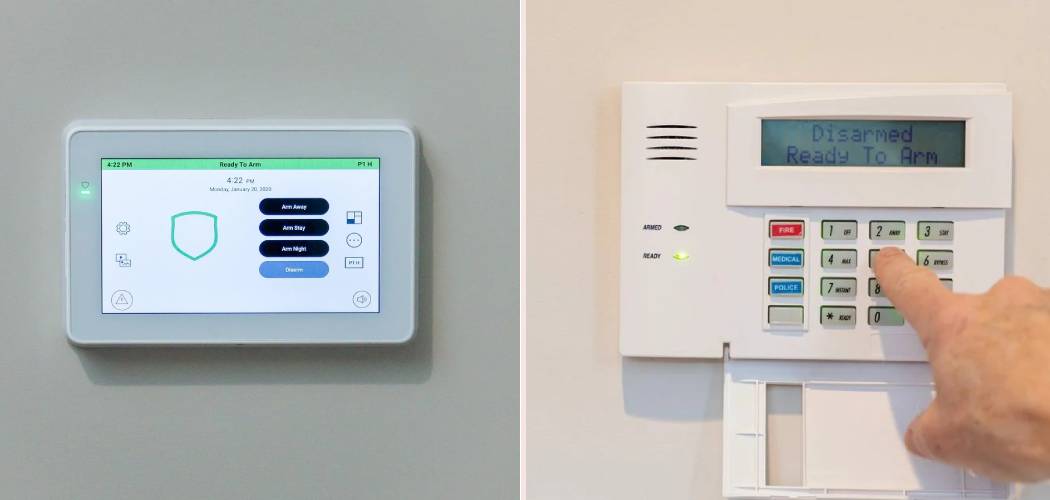
Dealing with a security panel that won’t stop beeping or simply needs to be turned off for maintenance can be stressful. Whether you are arriving home with your hands full of groceries or trying to stop a false alert at 3 AM, knowing exactly how to disarm a Honeywell alarm system is essential knowledge for any homeowner. This guide is designed to walk you through the process calmly and clearly, ensuring you can silence your keypad and secure your home without frustration.
We will cover everything from standard code entry to handling power outages and troubleshooting unresponsive panels. By the end of this article, you will feel confident managing your home security setup like a pro.
Understanding Your Security Panel
Before jumping into the buttons and codes, it is helpful to understand the basic layout of your equipment. Most Honeywell units, particularly the VISTA series and the newer Lyric controllers, operate on similar principles. You generally have a keypad located near the main entry points and a metal control box often hidden in a closet, basement, or utility room.
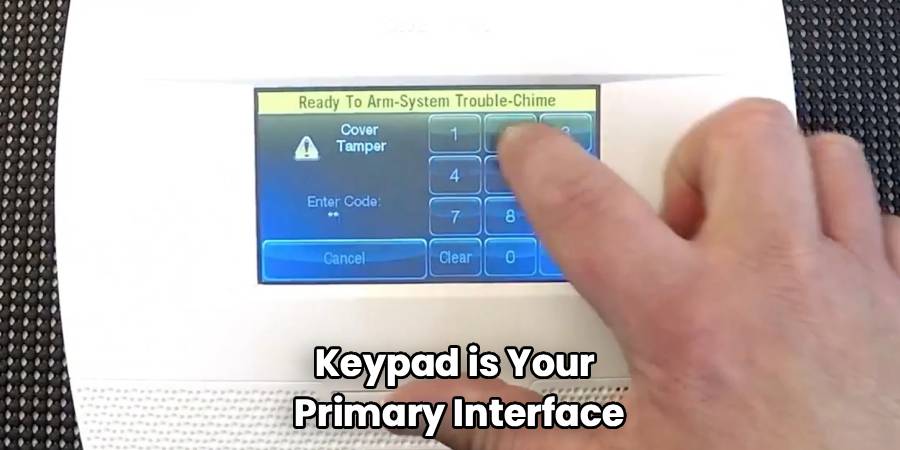
The keypad is your primary interface. It communicates with the “brain” of the setup—the control panel. When you enter a command, the keypad sends a signal to the panel to execute it. If the system is screaming at you, looking at the keypad display is your first step. It will usually tell you which zone is open or if there is a system trouble condition.
Identifying Your Specific Model
While most instructions work across the board, knowing if you have a VISTA-20P, a LYNX Touch, or a Lyric Controller helps.
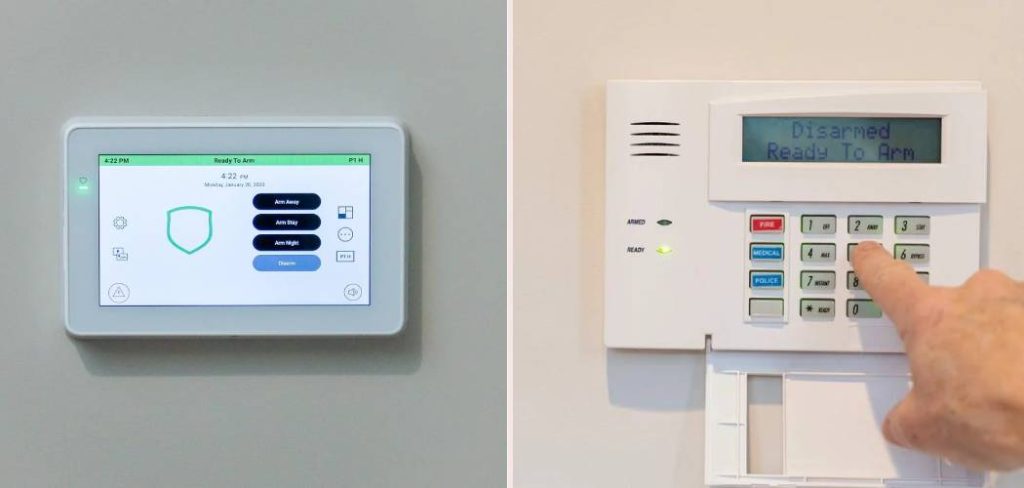
- VISTA Series: Traditional hardwired systems with rubberized keypads.
- LYNX Touch / Lyric: All-in-one wireless units with touchscreen interfaces.
Recognizing your specific hardware ensures you don’t waste time pressing physical buttons on a touchscreen model or tapping a blank screen on an older unit.
Standard Procedures On How To Disarm A Honeywell Alarm System
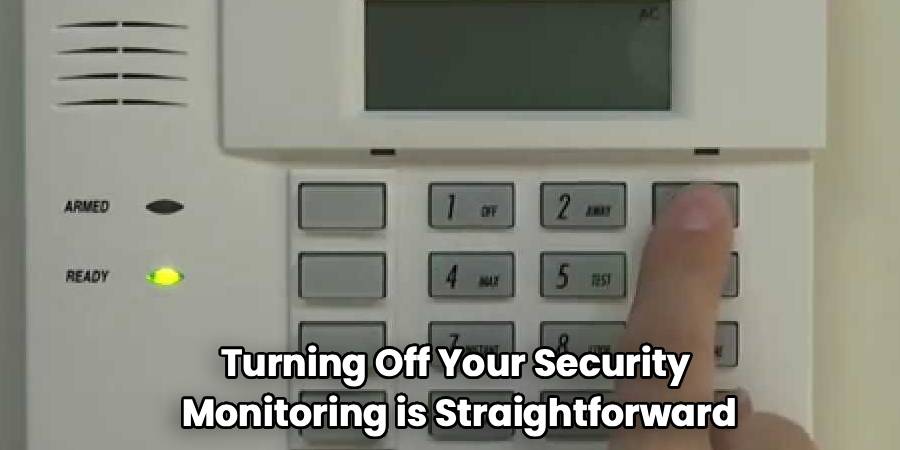
For most daily situations, turning off your security monitoring is straightforward. This is the routine process you use when coming home from work or waking up in the morning.
Method 1: The Master Code Sequence
This is the most common method for older VISTA panels.
- Locate the keypad. Go to the main control station, usually near your front door.
- Check the status. Ensure the keypad is responsive.
- Enter your 4-digit user code. This is the code you set up when the equipment was installed.
- Press the [1] or [OFF] key. On most standard Honeywell keypads, the number 1 key functions as the “OFF” command.
If done correctly, the keypad should beep once, and the “Armed” or “Away” light should turn off. The display will typically revert to “Ready to Arm.”
Method 2: Touchscreen Interface
If you have a newer LYNX or Lyric model, the process is even more intuitive.
- Wake up the screen. Tap the home button or the screen itself if it is dark.
- Tap the “Security” icon. This opens the main arming menu.
- Select “Disarm.” You will see a large icon indicating the current status.
- Input your user code. A number pad will appear on the screen. Enter your 4-digit PIN.
The system will verbally announce “Disarmed, Ready to Arm” or a similar confirmation phrase.
Dealing with False Alarms
False alarms happen to the best of us. Maybe you burned toast, or a pet triggered a motion sensor. The priority here is speed and communication.
Silence the Siren Immediately
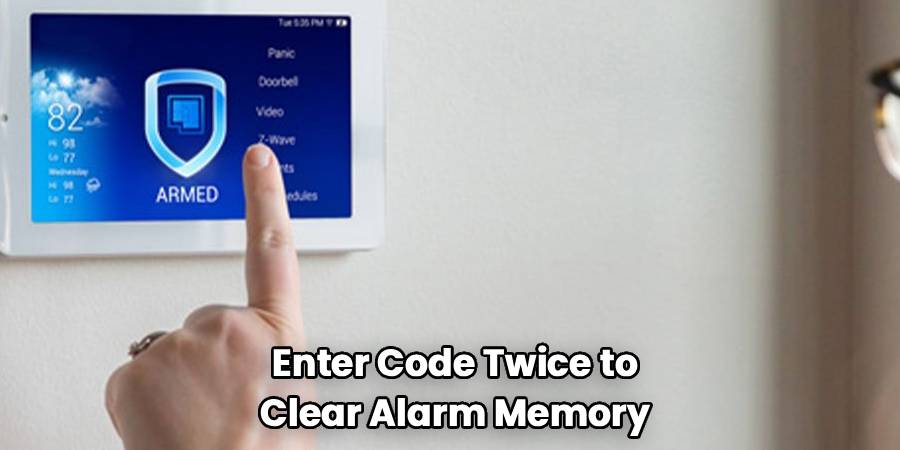
When the siren is blaring, it is hard to think. Follow the standard disarm procedure immediately. Enter your 4-digit code + [1] (OFF). If the siren doesn’t stop, enter the sequence again. On some older panels, you must enter the code twice to clear the alarm memory and fully silence the siren.
Check the Display
Once the noise stops, look at the LCD screen. It will display the zone number that triggered the event (e.g., “ALARM 03 FRONT WINDOW”). Note this information. It tells you exactly where the breach occurred, or which sensor might be faulty.
Read More: How To Open A Honeywell Safe
Clear the Alarm Memory
After a trigger event, the “Memory” light or message will often stay lit. This prevents you from re-arming the house until you acknowledge the event. To clear this, simply perform the disarm sequence one more time: Code + [1] (OFF).
Powering Down Completely
Sometimes, simply entering a code isn’t enough. If your keypad is frozen, you lost your code, or the equipment is malfunctioning during a power outage, you might need to power down the entire unit. This is often referred to as a “hard reset” or “power cycling.”
Step 1: Disconnect the Backup Battery
You cannot turn off the panel just by unplugging it from the wall because the backup battery will keep it running.
- Open the main control box. This is usually the beige metal cabinet in a closet or basement.
- Locate the battery. It is a black, brick-sized block with two terminals on top.
- Remove one lead. Pull the connector off either the red (positive) or black (negative) terminal. You might need to wiggle it slightly.
Step 2: Unplug the Transformer
Now you must cut the main AC power.
- Find the transformer. This is a large, beige or white power brick plugged into a standard wall outlet nearby. It might be screwed into the outlet faceplate.
- Unplug it. Pull the transformer out of the wall.
- Verify shutdown. Check the keypad. The screen should be completely blank, and no lights should be on.
Step 3: Powering Back Up
When you are ready to turn it back on:
- Plug in the transformer first.
- Reconnect the battery second.
- Wait for boot-up. The system will take a minute or two to initialize. You might see “Busy” or “Standby” on the screen.
Troubleshooting Common Issues
Even with the correct code, things can go wrong. Here are frequent hiccups homeowners face when trying to control their security setup.
The “FC” or Comm Failure Message
If you see “FC” on the display, it means “Failure to Communicate.” This happens when the panel tries to call the monitoring station but fails (usually due to a disconnected phone line or internet outage). To clear this, you typically just need to enter your disarm sequence (Code + 1) twice.
Keys Are Unresponsive
If you press buttons and nothing happens, check for a “Keypad Lockout.” If too many wrong codes were entered, the pad might lock for 15 minutes. Wait a while and try again. If it remains frozen, you may need to perform the power down steps mentioned above to reboot the processor.
Low Battery Beeping
A low battery can cause the keypad to chirp incessantly. While this isn’t an “armed” state, it is annoying. Entering your Code + [OFF] will silence the beeping for a few hours, but the only permanent fix is replacing the system battery in the main panel or the batteries in the individual wireless sensors.
Managing Codes and Users
Often, the inability to turn off the security comes down to forgotten user codes.
Master Code vs. Installer Code
Your system has different levels of access.
- Master Code: Can arm/disarm and add/delete other user codes.
- User Code: Can only arm/disarm.
- Installer Code: Used for programming. It can sometimes disarm the system, but only if the installer code was used to arm it in the first place. It usually cannot disarm the system if you armed it with a Master code.
Resetting a Forgotten Code
If you have lost your Master code, you can retrieve it using the Installer Code (default is often 4112).
- Enter Installer Code + [8] + [0] + [2] + New 4-Digit Master Code.
- Test the new code immediately.
If you don’t know the Installer Code, you will likely need to perform a “backdoor” entry method involving powering down the unit and pressing specific keys ([*] and [#]) simultaneously upon power-up. This gets technical, so consult your manual or a professional if you aren’t comfortable with wiring.
Remote Access and Apps
Modern living allows for easier management. If you have Total Connect 2.0 or a similar service, you may not need to touch the physical keypad at all.
Using the Mobile App
- Open the app. Log in with your credentials.
- View status. The dashboard will show a red shield if armed.
- Tap to Disarm. Press the icon. It will spin or load for a few seconds while sending the command to your home via cellular or Wi-Fi.
- Confirm. The shield should turn green.
This is particularly useful if you have a house sitter who triggered the alarm and doesn’t know the code. You can silence it from your office.
Safety Precautions
Dealing with security hardware involves electricity and sensitive electronics.
Voltage Warnings
The transformer plugs into 110V AC, but steps down to low voltage (usually 16.5V AC) for the panel. While the low voltage isn’t typically lethal, it can still spark or damage the board if you short it out with a screwdriver. Always be careful inside the metal cabinet.
Monitoring Service Notification
If your home is professionally monitored, always call the central station before you start testing or powering down your equipment. Put your account on “Test” mode. This prevents the police from being dispatched while you are fixing a low battery or testing a new code.
Keeping Your System Healthy
Preventative maintenance ensures you aren’t scrambling to figure out how to shut things off during an emergency.
Regular Battery Checks
Replace the main backup battery every 3-5 years. A failing battery can cause weird glitches, false sirens, and unresponsiveness.
User Code Audits
Review who has a code to your house every six months. Delete codes for old dog walkers, contractors, or roommates who have moved out. This keeps your security tight and prevents confusion about which code is active.
Sensor Maintenance
Dust and cobwebs can trigger motion detectors. Keep them clean. Ensure window contacts are tight and haven’t drifted apart due to loose screws, which can prevent the “Ready” light from turning on.
Conclusion
How to disarm a Honeywell alarm system ultimately depends on whether you need a quick silence or a full system shutdown. Whether you are punching in a code on a VISTA keypad, tapping a Lyric touchscreen, or pulling the plug on the transformer, the goal is always control and safety. By familiarizing yourself with these steps now, you save yourself the panic of a blaring siren later. Remember to keep your user codes memorable but secure, and don’t hesitate to reach out to a professional installer if the hardware seems stuck or broken. With a little preparation, your home security will remain a helpful asset rather than a noisy nuisance.