
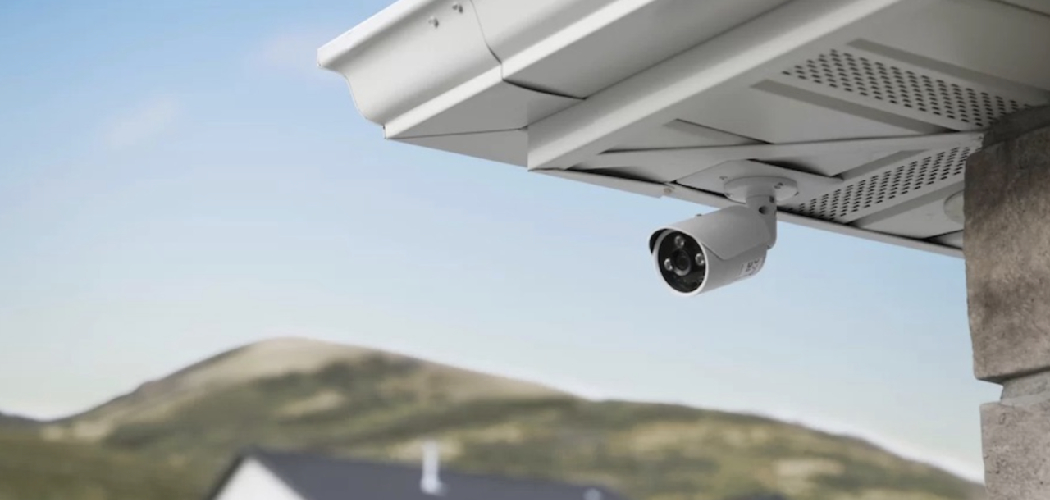
You pull into your driveway after a long day. There’s a package by your door, and you have no idea when it arrived or who dropped it off. Maybe it’s still there. Maybe it isn’t. That small feeling of not knowing what happens around your home? It adds up.
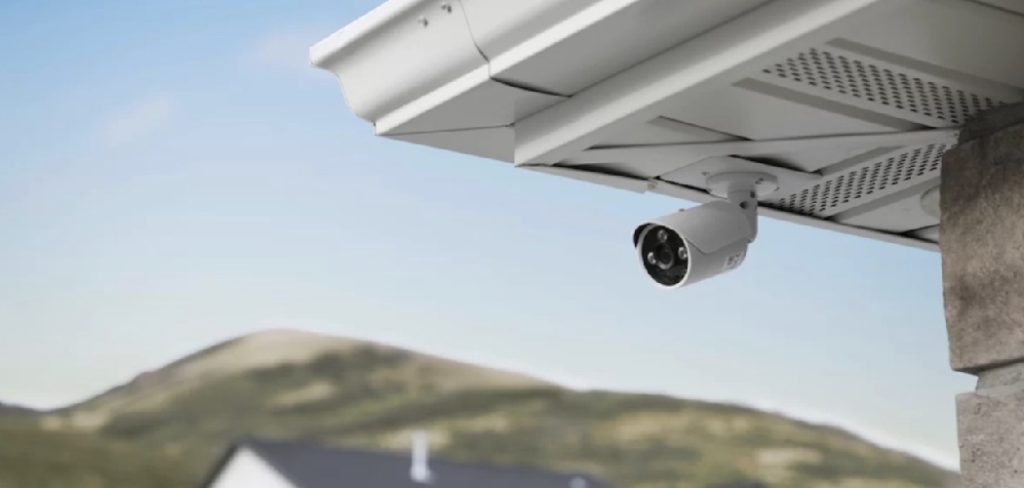
A Nest outdoor camera fixes that. You get a clear view of your front door, your driveway, or your backyard, straight from your phone.
Here’s the good news: you don’t need to hire an electrician or drill through half your house. In this guide, you’ll learn exactly what you need, how to mount and set up your camera step by step, how to install a nest outdoor camera, and how to fix the problems that trip up first-timers.
Let’s get your home covered.
What You’ll Need Before You Start
Installing a Nest outdoor camera is easier when you gather everything first. Nothing kills momentum like climbing down a ladder to find a missing screw.
Here’s your checklist:
- The Nest camera itself — either the battery model or the wired model.
- The Google Home app — free on iOS and Android. This is where all the setup happens.
- A Google account — you’ll sign in here to link the camera.
- A strong 2.4GHz Wi-Fi signal at the mounting spot. This matters more than people think.
- The included mounting plate, screws, and wall anchors — check the box.
- A power drill with the right drill bit for your wall type.
- A pencil for marking screw holes.
- A ladder, if you’re mounting high.
- A power adapter and outdoor-safe cable, only if you chose the wired version.
Warning: Don’t skip the Wi-Fi check. If your signal is weak where you plan to mount the camera, the setup will stall or the video will freeze later.
In short: gather your tools and confirm your Wi-Fi reaches the spot before you touch a drill.
Choosing the Right Nest Camera for Your Home
Before installing a Nest outdoor camera, you need to pick the right model. The wrong choice means either a drilling headache or a battery you’re charging every few weeks.
Two things decide it: how you’ll power the camera, and how often you’re willing to maintain it.
Battery vs. Wired: Which One Fits You
A battery-powered camera is the flexible choice. You mount it almost anywhere because it doesn’t need an outlet. The trade-off is recharging every one to three months, depending on how busy the area is.
A wired camera never runs out of power. It stays on all day and records without gaps. The trade-off is that you need an outdoor outlet nearby, or you’ll be running a cable.
Here’s a clear comparison to help you decide:
| Feature | Battery Nest Cam | Wired Nest Cam | Best For |
| Power source | Rechargeable battery | Plugged into outlet | Battery: renters. Wired: homeowners |
| Installation effort | Low — mount anywhere | Medium — needs an outlet | Battery: quick setups |
| Ongoing maintenance | Recharge every 1–3 months | None | Wired: set-and-forget |
| Recording style | Event-based clips | Continuous (with subscription) | Wired: busy entryways |
| Placement freedom | High | Limited by outlet location | Battery: odd spots and corners |
| Best mounting spot | Backyards, side gates | Front doors, driveways | Depends on power access |
In short: pick battery for freedom, pick wired for constant coverage you never have to think about.
5 Step-by-Step Instructions for Installing a Nest Outdoor Camera
Now the real work begins. Follow these steps in order and you’ll be done in under an hour.
Step 1: Set Up the Camera in the App First
Don’t mount it yet. Set it up indoors, where the light is good and your Wi-Fi is strong.
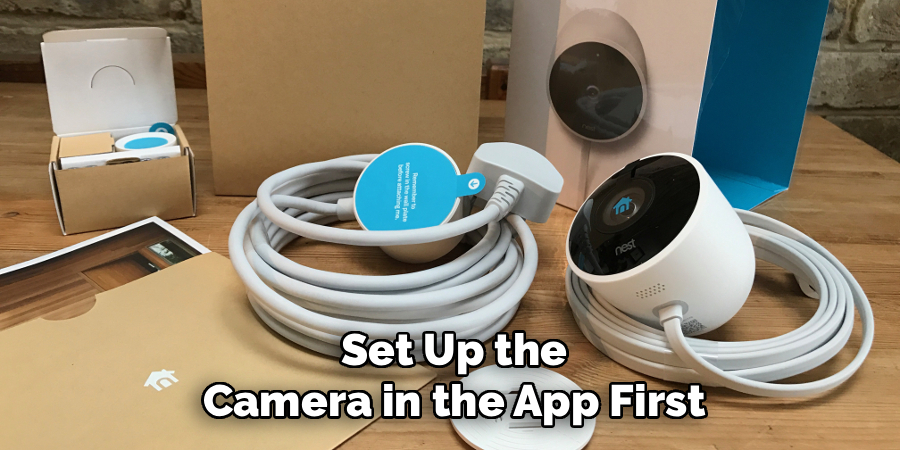
- Open the Google Home app on your phone.
- Tap the plus (+) icon, then choose Set up device.
- Select New device, then pick your home.
- Choose your Nest camera from the list.
- Scan the QR code on the camera or its box when prompted.
- Follow the app to connect the camera to your 2.4GHz Wi-Fi network.
Setting up indoors first means you catch any problem before you’re standing on a ladder.
Step 2: Pick the Perfect Spot
Your camera is only as good as its view. Choose a spot that covers what matters.
- Mount it 7 to 10 feet high for the best angle.
- Point it toward doors, driveways, or walkways — the paths people actually use.
- Avoid aiming straight at the sun, which washes out the image.
- Keep it within Wi-Fi range — test the signal on your phone at that exact spot.
Tip: Angle the camera slightly downward. This captures faces, not just the tops of heads.
Step 3: Mark and Drill the Holes
Hold the mounting plate against the wall where you want it. Use your pencil to mark each screw hole.
Then:
- Set the plate aside.
- Drill holes at your pencil marks.
- Push in the wall anchors if you’re drilling into brick, stucco, or concrete.
Warning: Wear safety glasses when drilling into masonry. Small chips fly, and they fly fast.
Step 4: Attach the Mount and Camera
You’re close now.
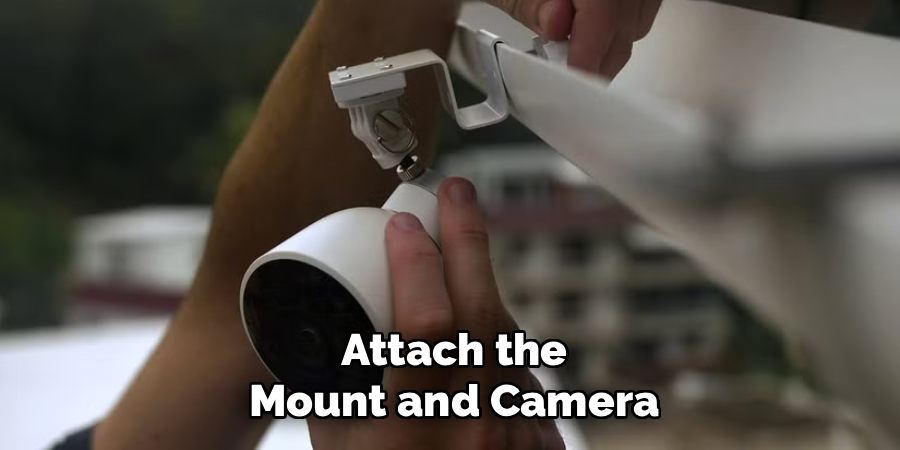
- Line up the mounting plate with your drilled holes.
- Screw it firmly into place.
- Snap or twist the camera onto the mount.
- Adjust the angle until the app preview shows the view you want.
Check the live feed on your phone as you tilt it. That live preview is your best friend here.
Step 5: Power It Up (Wired Models Only)
If you chose the wired version, run the cable to your outdoor outlet.
- Use weatherproof cable clips to secure it along the wall.
- Tuck the cable behind trim or gutters where you can.
- Plug it into a GFCI-protected outdoor outlet for safety.
Battery users can skip this step entirely. That’s the payoff for charging it now and then.
In short: set up indoors, choose a smart spot, drill, mount, and confirm the view before you walk away.
Getting the Most From Your Nest Outdoor Camera Setup
A mounted camera is just the start. A few settings turn it from a basic recorder into a real security tool.
Adjust Your Notification and Alert Zones
Your camera will ping you every time a car passes or a branch sways. That gets old fast, and worse, it trains you to ignore alerts.
Fix it in the app:
- Set Activity Zones so you only get alerts for your porch or driveway.
- Turn on person, package, and animal detection to filter the noise.
- Adjust notification sensitivity so passing traffic stays quiet.
Understand What a Subscription Adds
Your Nest camera works without a paid plan, but the free version only stores a few hours of event history.
A Nest Aware subscription adds longer video history, familiar face alerts, and continuous recording on wired models. If you want to look back at what happened last week, you’ll need it.
Be honest with yourself about how much history you actually need. No subscription is not a failure — it’s a fine starting point.
In short: shape your alerts so they mean something, and add a plan only if you need the history.
Common Mistakes and Troubleshooting
Most Nest outdoor camera problems come from a handful of avoidable errors. Here’s what goes wrong, why it happens, and how you fix it.
The Camera Won’t Connect to Wi-Fi
Why it happens: Nest cameras use the 2.4GHz band, not 5GHz. Many phones connect to 5GHz automatically, and the app gets confused. The signal at the mounting spot is also often weaker than you’d guess.
How to fix it: Make sure your phone is on the 2.4GHz network during setup. If your router combines both bands under one name, split them temporarily or move closer during setup. Weak signal at the wall? Add a Wi-Fi extender near the camera.
The Live Feed Keeps Buffering or Freezing
Why it happens: This is almost always bandwidth. Too much distance from the router, too many devices online, or a slow upload speed all choke the video.
How to fix it: Lower the video quality in the app settings. Move your router or add an extender. And check your internet’s upload speed — you want at least 2 Mbps per camera for smooth streaming.
The Battery Drains Way Too Fast
Why it happens: A busy scene wears the battery down. If the camera faces a busy street, it wakes and records constantly, and each event drains power.
How to fix it: Tighten your Activity Zones so the camera only watches key areas. Lower the recording quality and reduce clip length. Point it away from constant motion like roads or swaying trees.
The Camera Falls or Loosens Over Time
Why it happens: Skipping wall anchors on brick or stucco is the usual cause. Screws alone don’t grip masonry, so the mount slowly works loose.
How to fix it: Remount with the correct wall anchors for your surface. Tighten every screw fully. On siding, screw into a stud or solid backing, not just the panel.
Night Vision Looks Washed Out or Glaring
Why it happens: The camera’s infrared light bounces off a nearby wall, window, or overhang and blinds the lens.
How to fix it: Move the camera away from reflective surfaces. Pull it out from under tight overhangs. Even a small angle change often clears the glare completely.
Notifications Stopped Coming Through
Why it happens: Phone settings block them, or the app’s own alerts got switched off during an update.
How to fix it: Check that notifications are on for the Google Home app in your phone settings. Then confirm alerts are enabled inside the app. Restart the app if they still don’t arrive.
In short: most failures trace back to Wi-Fi, power, or mounting — and each one has a quick fix.
Frequently Asked Questions
Can I install a Nest outdoor camera myself without an electrician?
Yes. The battery model needs no wiring at all, so anyone can mount it with a drill and the included hardware. Even the wired version only needs a nearby outdoor outlet. You’d only call an electrician if you wanted a brand-new outlet installed.
Does the Nest outdoor camera need to be plugged in?
It depends on the model. The battery version runs on a rechargeable battery and needs charging every one to three months. The wired version stays plugged into an outlet for continuous power and never needs recharging.
How high should I mount my Nest outdoor camera?
Aim for 7 to 10 feet off the ground. That height keeps the camera out of easy reach while still capturing clear faces. Angle it slightly downward toward the door or path you want to watch.
Do I need a subscription to use a Nest outdoor camera?
No, you can use it without one. Your camera still records event clips and sends alerts for free. A Nest Aware subscription adds longer video history, continuous recording, and familiar face alerts if you want them.
Will the Nest outdoor camera work in rain and snow?
Yes. Nest outdoor cameras are weather-resistant and built to handle rain, snow, heat, and cold. Just mount the camera itself outdoors and keep any power adapter in a sheltered or indoor spot.
Wrapping It Up
That uneasy feeling of not knowing what happens around your home? You’ve just replaced it with a clear view on your phone.
You’ve learned what to gather, how to choose between battery and wired, and how to mount and set up your camera step by step. You also know how to shape your alerts and fix the problems that stop most first-timers cold.
Take your time on the Wi-Fi check and the mounting spot. Those two choices decide whether your setup runs smoothly for years.
You’ve got this. Grab your camera and start today.
Want to cover more of your property? Check out our guide on [related topic: building a full home security camera system].

About
Robert D is a distinguished figure in the world of Safety Systems and Risk Management, with a decade of expertise creating innovative and sustainable workplace solutions. His professional focus lies in merging traditional safety protocols with modern digital monitoring techniques, fostering environments that are both practical and hazard-conscious. As the lead author of SafetyRift, Robert delves into the art and science of risk mitigation, inspiring safety officers and industry professionals alike to bridge the gap between compliance and culture.
Education
RMIT University (Melbourne, Australia)
Associate Degree in Design (Industrial Safety)
-
Focus on sustainable safety infrastructure, industry-driven risk assessments, and practical implementation.
-
Gained hands-on experience with traditional hazard identification and digital monitoring tools, such as IoT safety sensors and predictive analytics software.
Nottingham Trent University (United Kingdom)
Bachelor’s in Occupational Health and Safety (Honors)
-
Specialized in systemic design with a focus on blending human behavior psychology with modern safety production techniques.
-
Participated in industry-wide projects, working with global logistics and manufacturing firms to gain real-world insights into large-scale safety deployments.
Publications and Impact
In SafetyRift, Robert shares his insights on safety design processes, protective materials, and strategies for efficient, accident-free production. His writing bridges the gap between foundational safety knowledge and modern industrial needs, making it a must-read for both budding safety coordinators and seasoned risk management professionals.

1 thought on “How to Install a Nest Outdoor Camera”