
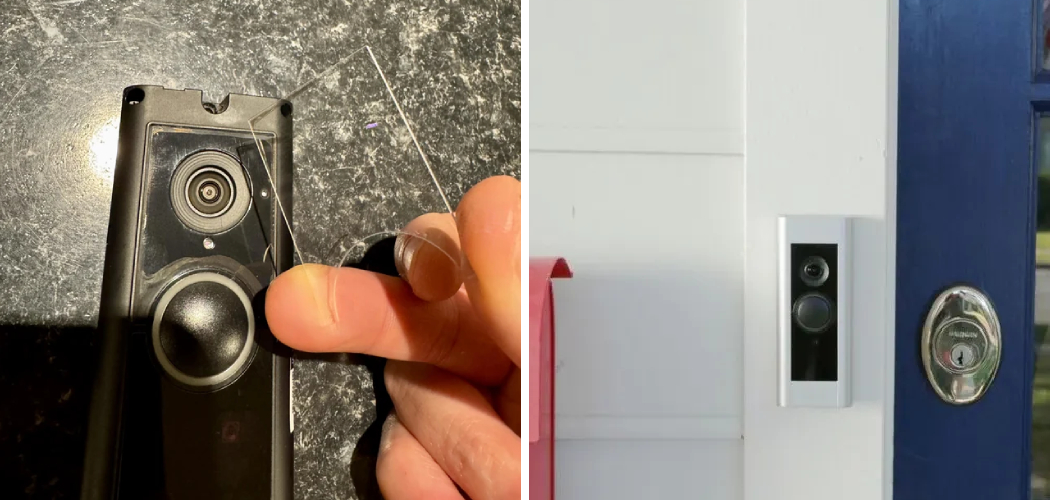
You press the button, and nothing happens. No chime. No video. The little light on the front just blinks blue at you, over and over, like it’s stuck in a loop.
Maybe you switched internet providers. Maybe the app keeps saying “offline.” Maybe you’re moving out and want a clean slate for the new owner.
That knot of frustration in your stomach? It’s real. A doorbell that won’t cooperate feels like your front door lost its eyes.
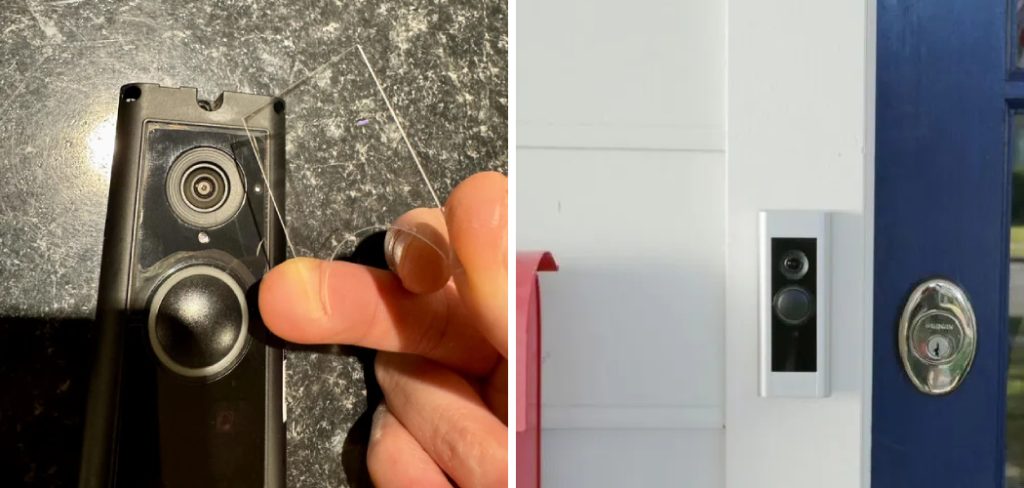
Here’s the good news. You don’t need a technician, and you rarely need a replacement.
In this guide, you’ll learn exactly how to reset Ring Doorbell Pro — the soft reset for small glitches, the full factory reset for bigger problems, and how to set it back up afterward. You’ll also learn the mistakes that trap most people and how to dodge them.
Let’s get your doorbell watching your door again.
Why Your Ring Doorbell Pro Needs a Reset
Before you reset anything, you should know what’s actually wrong. That saves you from wiping settings you didn’t need to touch.
A reset fixes problems the app alone can’t. It clears out corrupted settings, drops a stale WiFi connection, and gives the device a fresh start.
Most people reset for one of these reasons:
- A new WiFi network or password the doorbell can’t join
- The device stuck offline even though your internet works
- A frozen or unresponsive doorbell that won’t stream video
- Selling or gifting the device and needing to erase your data
- A failed setup you want to start over cleanly
Notice the pattern. A reset isn’t a repair for broken hardware. It’s a way to clear the software slate when something’s tangled.
In short: Reset your Ring Doorbell Pro when the settings are stuck, not when the hardware is dead.
What You’ll Need Before You Start
You don’t need tools scattered across your workbench. A few basics keep you from stopping halfway through.
Gather these first:
- The Ring app installed on your phone, and your login details
- Your current WiFi name and password written down and correct
- A stable internet connection (2.4 GHz band works best for setup)
- A small screwdriver — the special one that came in the Ring box
- A ladder or step stool if your doorbell sits up high
- 5 to 15 minutes of patience
One warning before you press anything.
A factory reset erases everything — your settings, your WiFi, and the link to your account. Only do a full reset when a soft reset can’t fix the problem.
In short: The right WiFi details and the Ring app solve most reset headaches before you ever touch the button.
How to Reset Ring Doorbell Pro Steps: The Two Methods
There are two ways to reset your device, and they solve very different problems. Start with the gentle one.
Method 1: The Soft Reset (Restart)
A soft reset just restarts the doorbell. It keeps all your settings and your WiFi connection intact.
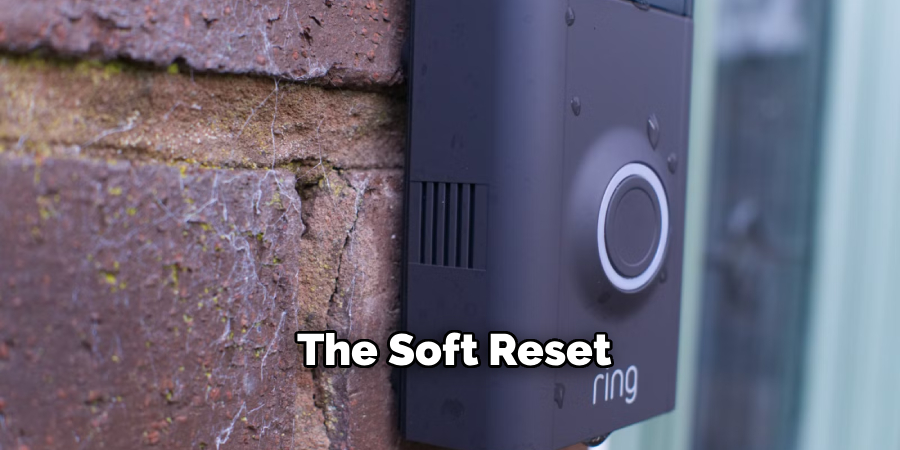
Use this first for freezes, lag, or a doorbell that stopped responding.
You can do it right from the app:
- Open the Ring app on your phone.
- Tap the three lines (menu) in the top corner.
- Select your Ring Doorbell Pro from your device list.
- Tap Device Health.
- Scroll down and tap Reboot This Device.
- Wait 1 to 2 minutes for it to restart.
If the app can’t reach the device, restart it by hand instead:
- Remove the faceplate from the doorbell.
- Find the small orange button on the front.
- Press and hold it for about 10 seconds.
- Release, then wait for the light to spin and settle.
That’s it. A soft reset fixes most temporary glitches without erasing a thing.
Method 2: The Factory Reset
A factory reset Ring Doorbell Pro wipes the device back to how it came out of the box. Your settings, WiFi, and account link all disappear.
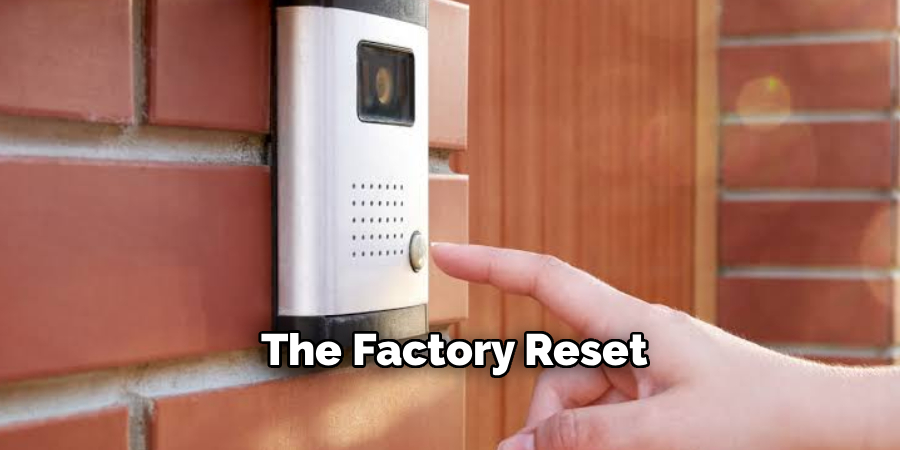
Use this when the soft reset fails, when you’re changing networks and nothing else works, or when you’re selling the device.
Here’s how:
- Remove the faceplate to expose the front of the device.
- Locate the orange setup button on the front.
- Press and hold the button for 15 to 20 seconds.
- Release it. The light on the front will start flashing.
- Wait for the flashing to finish — this can take a full minute.
Once the light spins and stops, the reset is done. The doorbell is now blank and waiting for setup.
Warning: After a factory reset, you must set the device up again from scratch. Have your WiFi details ready.
In short: Try the soft reset first — save the factory reset for when nothing else clears the problem.
Comparison: Soft Reset vs. Factory Reset
Not every problem needs the nuclear option. This table helps you pick the right reset fast.
| Feature | Soft Reset (Reboot) | Factory Reset | Best For |
| What it does | Restarts the device | Erases all settings | — |
| Keeps your settings? | Yes | No | Soft reset for quick fixes |
| Keeps WiFi connection? | Yes | No | Soft reset when internet is fine |
| Removes account link? | No | Yes | Factory reset before selling |
| Time needed | 1–2 minutes | 1–3 minutes plus setup | Soft reset when you’re in a hurry |
| Button hold time | ~10 seconds | 15–20 seconds | — |
| Risk level | Low | Medium | Soft reset first, always |
Start on the left. Move to the factory reset only when the soft reset can’t solve it.
In short: A soft reset fixes glitches; a factory reset gives you a clean slate.
How to Set Up Your Ring Doorbell Pro After a Reset
A factory reset leaves your doorbell blank. Now you need to reconnect it, or it stays a piece of plastic on your wall.
Setup takes just a few minutes in the app.
- Open the Ring app and tap Set Up a Device.
- Choose Doorbells, then scan the QR code or MAC ID on the device.
- Select your location and give the doorbell a name.
- When prompted, put the device into setup mode — the light should already be spinning if you just reset it.
- Tap Join and pick your 2.4 GHz WiFi network.
- Enter your WiFi password carefully. One wrong character stops the whole process.
- Wait for the app to confirm the connection and update the device.
Once the app says you’re connected, test it. Press the doorbell and watch for the live view and chime.
In short: Setup after a reset is fast, but a correct WiFi password is the one step you can’t rush.
Reset Scenarios: New WiFi, Selling, and Troubleshooting
Different situations call for different steps. Here’s how to handle the three most common ones.
Changing to a New WiFi Network
You switched providers or changed your router password. Your doorbell can’t join a network it doesn’t recognize.
You don’t need a factory reset for this. Instead:
- Open the Ring app and select your device.
- Tap Device Health, then Change WiFi Network.
- Follow the prompts and enter your new WiFi details.
Only do a factory reset if the app can’t reconnect after two or three tries.
Selling or Giving Away Your Device
You’re passing the doorbell to someone else. Your videos, settings, and account link must not go with it.
Do this before you hand it over:
- Remove the device from your Ring app (Device Settings → Remove Device).
- Perform a full factory reset using the 15–20 second button hold.
- Confirm the light spins, showing the device is blank.
Skipping the removal step leaves the doorbell tied to your account — and the new owner can’t set it up.
Troubleshooting a Frozen Device
Your doorbell won’t stream, won’t chime, and the app shows it offline. Your internet is fine everywhere else.
Start small and work up:
- Try a soft reset first (reboot from the app or hold the button 10 seconds).
- Restart your router and wait for it to fully reconnect.
- If it’s still stuck, run a factory reset and set it up again.
In short: Match the reset to your situation — new WiFi rarely needs a factory wipe, but selling always does.
Common Mistakes and Troubleshooting
You followed the steps, and the doorbell still won’t behave. That’s maddening, and you’re probably wondering if you broke it.
You didn’t. You most likely hit one of these snags.
Mistake 1: Not Holding the Button Long Enough
Why it happens: People press the orange button for a few seconds and let go too soon. The device registers it as a reboot, not a full reset.
How to fix it: For a factory reset, hold the button for a full 15 to 20 seconds. Count it out. Watch for the light to start flashing before you release.
Mistake 2: Using the Wrong WiFi Band
Why it happens: Ring Doorbell Pro connects best on the 2.4 GHz band, but many routers push you onto 5 GHz by default. The setup then fails or drops constantly.
How to fix it: In your router settings, connect to the 2.4 GHz network during setup. If your bands share one name, split them or contact your provider for help.
Mistake 3: Entering the WiFi Password Wrong
Why it happens: Passwords are case-sensitive, and one wrong letter or a stray space blocks the connection. The app just says setup failed, with no clue why.
How to fix it: Type the password slowly. Use the “show password” option to see each character. Copy it exactly from your router label if you’re unsure.
Mistake 4: Forgetting to Remove the Device Before Selling
Why it happens: People factory reset the doorbell but never remove it from their Ring account. The device stays locked to the old owner.
How to fix it: Always remove the device in the app first, then factory reset. If you already sold it, log in and remove it remotely so the buyer can set it up.
Mistake 5: Weak WiFi Signal at the Door
Why it happens: Your front door sits far from the router, so the signal is too weak for a stable connection. The reset works, but the doorbell keeps dropping offline.
How to fix it: Check your signal strength in Device Health (RSSI). If it’s weak, add a WiFi extender or a Ring Chime Pro to boost the signal near the door.
Mistake 6: Resetting When the Problem Is Power
Why it happens: A loose wire or low voltage looks like a software glitch. You reset over and over, but the real issue is power reaching the device.
How to fix it: Check your transformer voltage and wiring at the doorbell. Ring Doorbell Pro needs a steady supply. Tighten connections or call an electrician if the voltage runs low.
In short: Most failed resets come down to button timing, WiFi settings, or power — not a broken doorbell.
Frequently Asked Questions
How do I factory reset my Ring Doorbell Pro without the app?
Remove the faceplate and find the orange button on the front of the device. Press and hold it for 15 to 20 seconds until the light starts flashing. This wipes the device completely, no app needed. You’ll still need the app afterward to set it up again.
Why is my Ring Doorbell Pro still offline after a reset?
An offline doorbell after a reset usually points to WiFi, not the device. Check that you’re on the 2.4 GHz band, that your password is correct, and that your signal reaches the door. Restart your router, then try setup again from the Ring app.
Will a factory reset delete my saved videos?
Your recorded videos live in the cloud through your Ring Protect subscription, not on the device. A factory reset erases the doorbell’s local settings and account link, but your saved videos stay in your account. You can still view them after resetting.
How long does it take to reset a Ring Doorbell Pro?
A soft reset takes about 1 to 2 minutes. A factory reset takes 1 to 3 minutes, plus another few minutes to set the device back up in the app. Plan for around 10 minutes total if you’re doing a full reset and reconnection.
Do I need to remove the doorbell from the wall to reset it?
No. You only need to remove the faceplate to reach the orange button. The device can stay mounted on your wall the entire time. Just make sure you can reach the button comfortably before you start.
Wrapping It Up
A doorbell that won’t connect feels like a bigger problem than it is. It rarely is.
You now know why your device needs a reset, what to gather first, and how to reset Ring Doorbell Pro two ways — a quick soft reset for glitches and a full factory reset for a clean slate. You’ve got the setup steps, the real-world scenarios, and fixes for the mistakes that trap most first-timers.
Start gentle. Try the soft reset, check your WiFi, and only reach for the factory reset when nothing else works.
Next time that light blinks at you, you’ll know exactly what to do.
Want to keep your whole entryway secure? Check out our guide on [setting up a complete Ring home security system] next.

About
Robert D is a distinguished figure in the world of Safety Systems and Risk Management, with a decade of expertise creating innovative and sustainable workplace solutions. His professional focus lies in merging traditional safety protocols with modern digital monitoring techniques, fostering environments that are both practical and hazard-conscious. As the lead author of SafetyRift, Robert delves into the art and science of risk mitigation, inspiring safety officers and industry professionals alike to bridge the gap between compliance and culture.
Education
RMIT University (Melbourne, Australia)
Associate Degree in Design (Industrial Safety)
-
Focus on sustainable safety infrastructure, industry-driven risk assessments, and practical implementation.
-
Gained hands-on experience with traditional hazard identification and digital monitoring tools, such as IoT safety sensors and predictive analytics software.
Nottingham Trent University (United Kingdom)
Bachelor’s in Occupational Health and Safety (Honors)
-
Specialized in systemic design with a focus on blending human behavior psychology with modern safety production techniques.
-
Participated in industry-wide projects, working with global logistics and manufacturing firms to gain real-world insights into large-scale safety deployments.
Publications and Impact
In SafetyRift, Robert shares his insights on safety design processes, protective materials, and strategies for efficient, accident-free production. His writing bridges the gap between foundational safety knowledge and modern industrial needs, making it a must-read for both budding safety coordinators and seasoned risk management professionals.
