
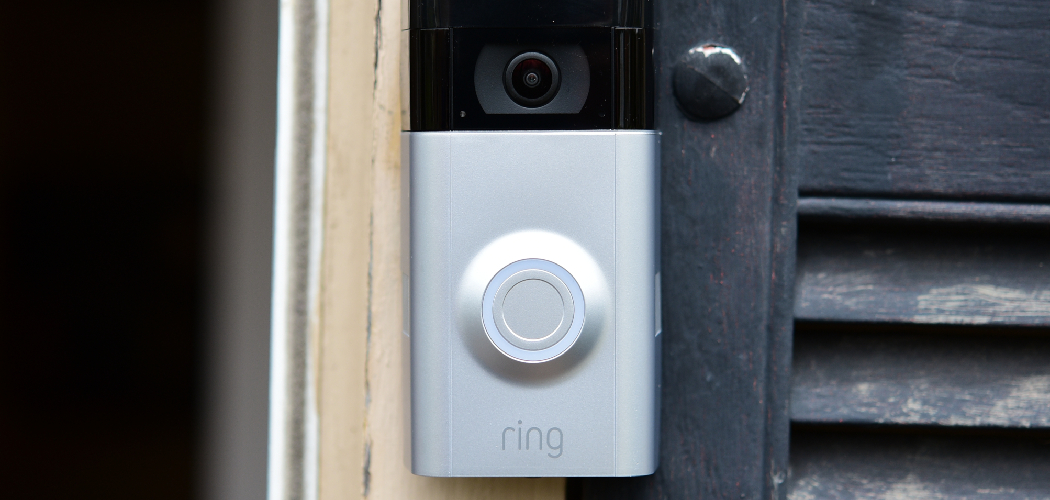
Welcome to your guide on home security management! A Ring Doorbell is a fantastic tool for keeping an eye on your property, but its true power is unlocked when you share access with family, roommates, or trusted neighbors. Granting access allows others to see who is at the door, receive motion alerts, and help monitor your home, creating a collaborative security network.
If you have been wondering how to add user to ring doorbell, you have come to the right place. This guide will walk you through the simple, step-by-step process, ensuring you can securely and confidently share access with those you trust. It’s a straightforward process that boosts both convenience and peace of mind.
Why Sharing Access to Your Ring Doorbell Matters
Enhancing your home security is a team effort. By adding users to your Ring Doorbell, you create a stronger, more responsive security circle. When family members or housemates have access, they can answer the door remotely, monitor package deliveries, and view visitor history. This is particularly useful when you’re away on vacation, busy at work, or simply unable to check an alert yourself.
Sharing access doesn’t mean giving up control; as the owner, you decide the level of access each person has. This feature transforms your smart doorbell from a personal device into a shared household utility, ensuring that someone you trust is always able to keep an eye on your front door, providing an extra layer of protection and convenience for everyone.
8 Step-by-Step Guide: How to Add User to Ring Doorbell
Step 1: Open the Ring App on Your Smartphone
Your journey begins with the Ring app, the central command center for all your Ring devices. Locate the app icon on your smartphone’s home screen or app library and tap to open it. Ensure you are logged into your account as the device owner. The owner is the person who initially set up the Ring Doorbell.
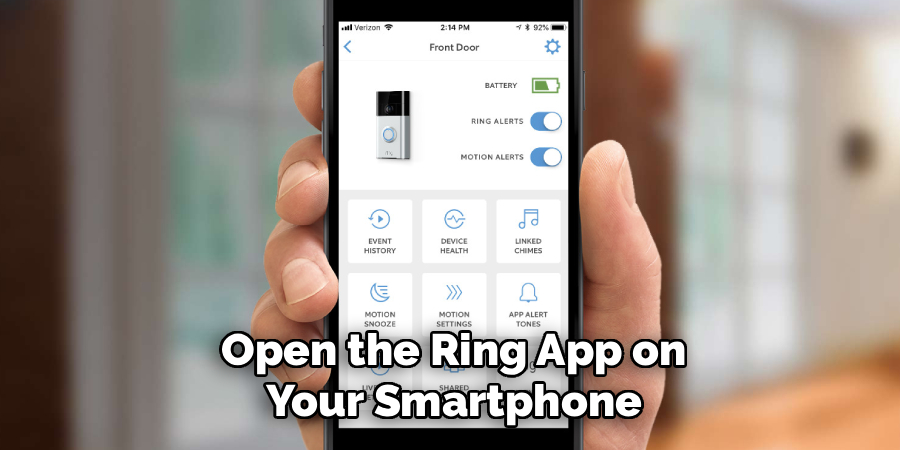
If you have multiple users with access, only the owner has the authority to add or remove other users. Before proceeding, it’s also a good idea to check that your app is updated to the latest version to ensure all features function correctly and you have the most recent security updates.
Step 2: Navigate to the Main Menu
Once the Ring app is open, you will land on the main dashboard, which displays a snapshot of your device activity. Look for the three horizontal lines, often called a “hamburger menu,” typically located in the top-left corner of the screen. Tapping this icon will open the main navigation menu. This menu is your gateway to all the settings and features available for your Ring account and devices. From here, you can access your device list, check your account history, and manage your subscription plans. For our purpose, this menu is the starting point for accessing user management settings.
Step 3: Select “Settings” from the Menu
Within the main navigation menu, you will see a list of options such as “Dashboard,” “History,” and “Devices.” Scan this list and find the “Settings” option. It is usually located toward the bottom of the menu. Tapping on “Settings” will take you to a new screen where you can manage account-wide preferences. This section controls your personal information, notification settings, and linked accounts. It’s the central hub for configuring how your entire Ring ecosystem operates, distinct from the settings for an individual device. This is the correct path to begin managing user access for your home.
Step 4: Access the “Users and Roles” Section
Inside the “Settings” menu, you will find several administrative options. Look for a section labeled “Users and Roles” or something similar like “Shared Access.” This is where you control who has access to your Ring devices and what they are permitted to do. Tap on this option to proceed. This area allows you to view a list of current users, including yourself as the “Owner” and any “Shared Users” you may have already added. It is the primary screen for all user management tasks, from inviting new people to modifying the permissions of existing users or removing them entirely.
Step 5: Invite a New User
On the “Users and Roles” screen, you will see an option to add a new person. This is typically represented by a plus (+) icon or a button labeled “Add User” or “Invite User.” Tap this button to start the invitation process. A new screen will appear where you will be prompted to assign a role to the new user. The primary role you will be adding is “Shared User.” This role is designed for family members and trusted individuals, giving them access to view videos and receive alerts without allowing them to change device settings or delete videos.
Step 6: Enter the New User’s Email Address
You are now ready to send the invitation. In the provided field, carefully type the email address of the person you want to add. It is crucial to double-check the email address for accuracy to ensure the invitation is sent to the correct individual. This email address is how Ring identifies the new user and links them to your system. The person you invite will need to have or create their own Ring account using this same email address to accept your invitation. Once you have entered the email, you will typically tap a “Send Invite” or “Continue” button to finalize the invitation.
Step 7: How to Add a User to Ring Doorbell by Assigning Devices
After sending the invitation, you must specify which of your Ring devices the new user can access. If you have multiple Ring products, such as a Ring Doorbell and several Ring Cams, you can grant access to all of them or select specific ones. This granular control is useful if you want a family member to have access to the front door but not the camera in the backyard, for example. Check the box next to each device you want to share with the new user. This step ensures that the new user only has access to the cameras you authorize.
Step 8: The New User Must Accept the Invitation
Your part of the process is nearly complete. The person you invited will receive an email from Ring containing a link to accept your shared access invitation. They must click the link in the email and either sign in to their existing Ring account or create a new one.
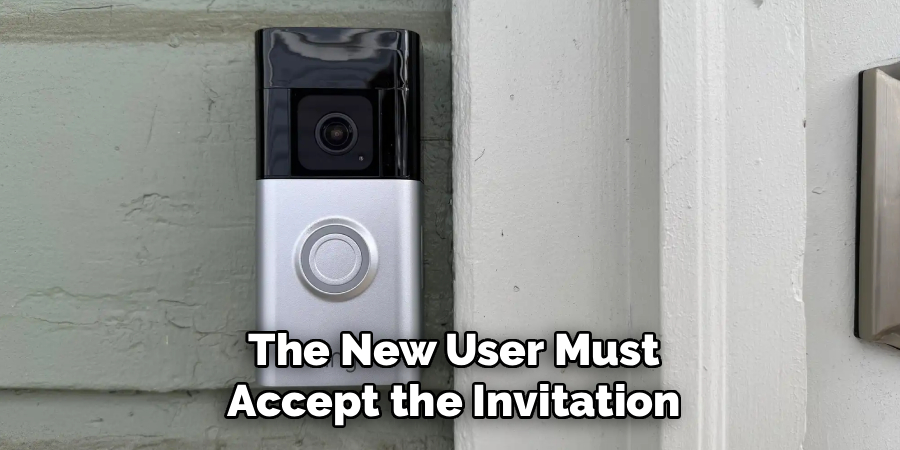
It is essential that they use the same email address to which you sent the invitation. Once they accept, their status in your “Users and Roles” list will change from “Invited” to “Shared User,” and they will immediately have access to the devices you assigned to them through their own Ring app.
Frequently Asked Questions
What Is the Difference Between an Owner and a Shared User?
The Owner is the primary account holder who initially set up the Ring device. They have full administrative control, including the ability to add or remove users, change device settings, delete videos, and manage subscription plans. A Shared User, on the other hand, is an invited guest. They can view live video feeds, see event history, and receive alerts, but they cannot change settings, delete videos, or manage other users. This tiered structure ensures the primary account holder maintains ultimate control over the home security system.
Can a Shared User Delete Videos from the Ring History?
No, a Shared User cannot delete any videos. This function is reserved exclusively for the Owner of the Ring account. This is a critical security feature that prevents a shared user from accidentally or intentionally removing important footage from the event history. Shared Users can view all recorded events and live streams for the devices they have been granted access to, but the power to delete any of that content remains solely with the Owner, ensuring the integrity of your security records.
How Many Users Can I Add to My Ring Doorbell?
There is no limit to the number of Shared Users you can add to your Ring account. You can invite as many family members, friends, or trusted individuals as you need. This allows you to build a comprehensive security network tailored to your household. Each person will need their own Ring account and must accept the invitation you send. This flexibility makes it easy to manage access for large families, shared living situations, or even for giving temporary access to a house sitter while you are away.
How Do I Remove a Shared User from My Ring Account?
Removing a Shared User is a simple process that can only be done by the Owner. Open the Ring app, navigate to “Settings,” and then to “Users and Roles.” You will see a list of all users. Tap on the user you wish to remove. You will then see an option to “Remove User” or a similar command, often represented by a trash can icon. Confirm your choice, and that person’s access to your Ring devices will be revoked instantly.
Do Shared Users Need a Ring Protect Plan Subscription?
No, Shared Users do not need their own Ring Protect Plan. The subscription is tied to the Ring device itself, not to individual user accounts. As long as the Owner has an active Ring Protect Plan for the device, all Shared Users will be able to access the plan’s features, such as video recording, event history, and rich notifications. They benefit from the Owner’s subscription without any additional cost or need for a separate plan, making it a cost-effective way to share security coverage.
Conclusion
Sharing access to your Ring Doorbell is a simple yet powerful way to enhance your home’s security and convenience. By following the steps outlined above, you can confidently grant access to family, friends, and other trusted individuals, creating a collaborative watch over your property. The ability to control who sees what ensures you remain in complete command while extending peace of mind to your entire household. Now that you understand the process, take a few minutes to complete the steps on how to add user to ring doorbell. You’ll empower your loved ones and make your smart home security system even more effective.

About
Robert D is a distinguished figure in the world of Safety Systems and Risk Management, with a decade of expertise creating innovative and sustainable workplace solutions. His professional focus lies in merging traditional safety protocols with modern digital monitoring techniques, fostering environments that are both practical and hazard-conscious. As the lead author of SafetyRift, Robert delves into the art and science of risk mitigation, inspiring safety officers and industry professionals alike to bridge the gap between compliance and culture.
Education
RMIT University (Melbourne, Australia)
Associate Degree in Design (Industrial Safety)
-
Focus on sustainable safety infrastructure, industry-driven risk assessments, and practical implementation.
-
Gained hands-on experience with traditional hazard identification and digital monitoring tools, such as IoT safety sensors and predictive analytics software.
Nottingham Trent University (United Kingdom)
Bachelor’s in Occupational Health and Safety (Honors)
-
Specialized in systemic design with a focus on blending human behavior psychology with modern safety production techniques.
-
Participated in industry-wide projects, working with global logistics and manufacturing firms to gain real-world insights into large-scale safety deployments.
Publications and Impact
In SafetyRift, Robert shares his insights on safety design processes, protective materials, and strategies for efficient, accident-free production. His writing bridges the gap between foundational safety knowledge and modern industrial needs, making it a must-read for both budding safety coordinators and seasoned risk management professionals.
