
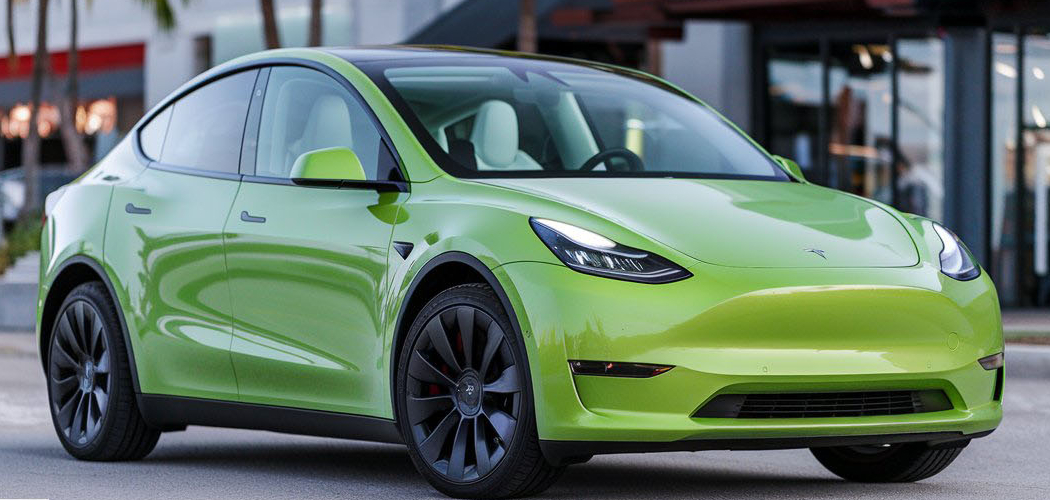
Transitioning to a Tesla Model Y can feel like stepping into a spaceship compared to traditional gasoline vehicles. The lack of a physical key fob for standard entry often confuses new owners who are accustomed to pressing a button or turning a metal key in a lock cylinder. Understanding the nuances of this high-tech security system is crucial for protecting your investment and ensuring your personal safety. Instead of mechanical locks, you are now dealing with RFID cards, Bluetooth signals, and smartphone applications that communicate seamlessly with your car’s computer.
While the technology is advanced, mastering it is straightforward once you know the basics. This guide is designed specifically for safety-conscious beginners who want to ensure their vehicle is secure every time they walk away. We will walk you through every method available, ensuring you never have to wonder if you left your car open. By the end of this article, you will know exactly how to lock Tesla Model Y using multiple methods, giving you total peace of mind wherever you park.
Why Understanding Tesla’s Security System Matters
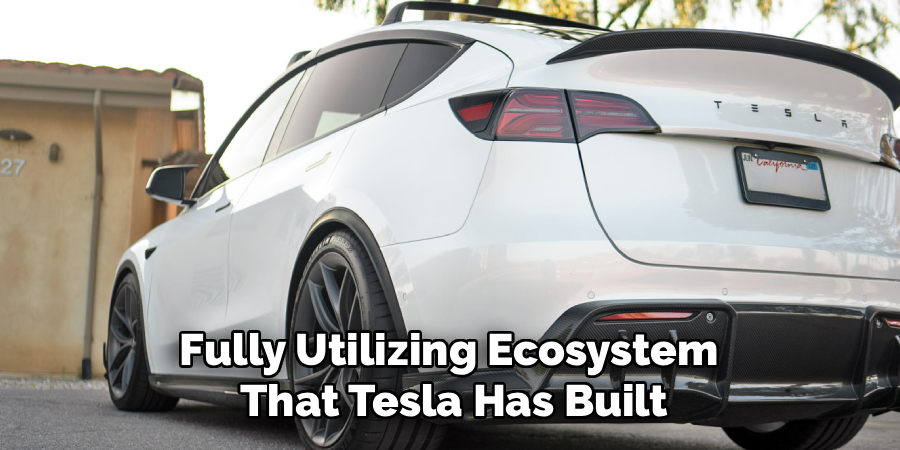
Securing your vehicle goes beyond simply preventing theft; it is about fully utilizing the ecosystem that Tesla has built for owner convenience and safety. Unlike traditional cars where locking is a singular manual action, the Model Y offers passive and active security layers that adapt to your lifestyle. If you do not understand these settings, you might accidentally leave your vehicle accessible, especially if you rely solely on automation without configuring the settings correctly first.
Furthermore, proper locking initiation is the trigger for other vital security features. Systems like Sentry Mode, which monitors the environment around your car and records potential threats, often rely on the vehicle being in a “locked” state to activate effectively. Understanding the difference between simply closing the door and actually engaging the security protocols ensures that your battery is utilized efficiently for protection. By learning the specific mechanisms behind the locking system, you avoid common pitfalls such as leaving your phone inside the car, which could prevent the doors from securing properly.
Step-by-Step Guide: How to Lock Tesla Model Y
Step 1: Set Up Your Phone Key to Lock Tesla Model Y
The most convenient method for securing your vehicle involves using your smartphone as the primary key. To start this process, you must download the official Tesla application and log into your Tesla account. Once logged in, ensure that your phone’s Bluetooth settings are turned on and that the Tesla app has permission to access your location and run in the background. You will then sit inside the vehicle with your physical key card ready.
In the app, select the “Phone Key” option and follow the prompts to pair your device. This connection allows the car to detect your proximity. By setting this up correctly, you are laying the foundation for the automated security features that make owning a Tesla so unique. Without a properly paired phone, you will be forced to rely on manual methods every time you exit.
Step 2: Enable the Walk-Away Door Lock Feature
Once your phone is paired, you need to tell the car to lock itself automatically when you leave. This feature is not always enabled by default, so you must activate it manually through the vehicle’s touchscreen. Sit in the driver’s seat and tap the car icon in the bottom corner to open the main menu.
Navigate to the “Controls” section and then select “Locks.” Look for the toggle switch labeled “Walk-Away Door Lock” and ensure it is set to the “On” position. This specific setting is the magic behind the hands-free experience. When this is active, the vehicle monitors the signal strength of your phone key. When the signal fades as you move away, the computer triggers the locking mechanism. This is a critical step in understanding how to lock Tesla Model Y automatically without fumbling for cards or buttons.
Step 3: Verify the “Exclude Home” Settings
After enabling the walk-away feature, you should pay close attention to the “Exclude Home” checkbox located right next to the Walk-Away Door Lock setting. If you check this box, your Model Y will stay unlocked when it is parked at the location you have designated as “Home” in your navigation system. This can be convenient if you have a secure private garage and want easy access to the car without a key.
However, for safety-conscious beginners who park in a driveway or a shared apartment complex garage, you should leave this box unchecked. Leaving it unchecked ensures that the car locks itself every single time you walk away, regardless of where you are parked. This eliminates the risk of forgetting to lock the car simply because you are in a familiar environment. It creates a consistent safety habit that protects your belongings everywhere.
Step 4: Perform the Physical Walk-Away Test
Now that your settings are configured, it is time to test the system physically to build confidence in the technology. Exit the vehicle and close all doors, including the rear trunk and the front trunk (frunk). If a door is slightly ajar, the car will not lock. With your phone in your pocket, walk away from the vehicle. You usually need to be about ten to fifteen feet away for the system to engage.
Listen carefully for a specific sound—a short horn honk. You should also watch the side mirrors. When the Model Y locks successfully, the mirrors will automatically fold inward, and the exterior lights will flash once. This visual and auditory confirmation is your primary feedback loop. If the mirrors do not fold or the horn does not sound, you know immediately that the car is still unlocked, prompting you to return and check for open doors or a key left inside.
Step 5: Use the Key Card for Manual Security
Technology can sometimes fail, or perhaps your phone battery has died, leaving you without your primary key. In these instances, you must know how to use the RFID key card provided by Tesla. This card acts as a reliable backup and functions differently than the phone key. To lock the car using this method, exit the vehicle and close all the doors. Take your key card and hold it against the B-pillar.
The B-pillar is the vertical post between the front and rear driver-side windows. There is a camera located near the top of this pillar; you should tap the card just below that camera area. Hold it there for a second or two until you see the mirrors fold and lights flash. This manual action overrides the passive entry system and ensures the car is secured instantly. It is vital to carry this card in your wallet as a safety net.
Step 6: Secure the Vehicle from the Touchscreen
There are situations where you might want to lock the car while you or others are still sitting inside it, or perhaps you are camping in the vehicle. You can control the locks directly from the main touchscreen interface. While seated inside, look at the top left corner of the display where the car status visualization is shown. You will see a small icon that looks like a padlock. If the icon is open, the car is unlocked.
Tap this icon once, and it will change to a closed padlock symbol, indicating that all doors are now secured. This is particularly useful for immediate safety when you are parked in an unfamiliar area and want to ensure no one can enter the vehicle from the outside. Additionally, you can access the “Controls” menu to engage child locks, which adds another layer of security for rear passengers, preventing the doors from being opened from the inside.
Step 7: Utilize the Mobile App to Lock Tesla Model Y
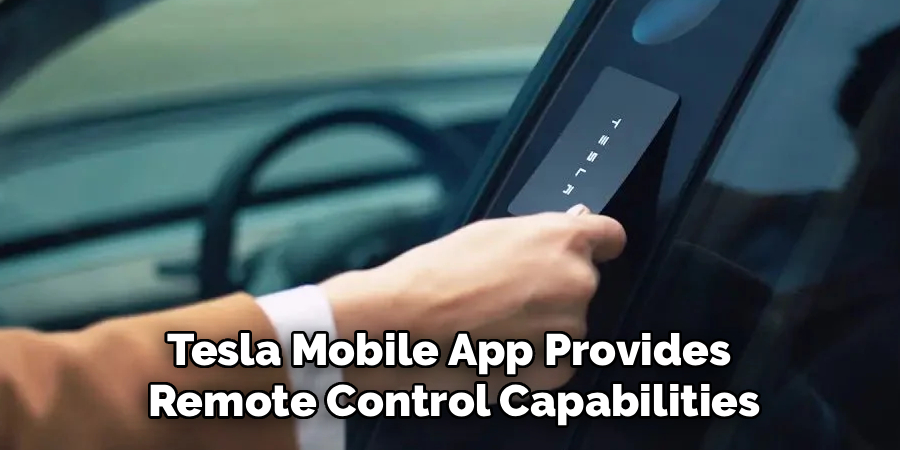
The Tesla mobile app provides incredible remote control capabilities that extend far beyond just using your phone as a key. If you have already walked away from your car and suddenly panic, wondering if you remembered to lock it, you do not need to walk back. Simply open the Tesla app on your smartphone. The home screen of the app displays a visualization of your vehicle.
Look for the padlock icon located below the car image. If it shows an open lock, tap it once. The app will send a signal over the internet to your car, commanding it to lock immediately. The icon will switch to a closed lock, confirming the action. This feature is perfect for double-checking your security status from your office, your home, or even a different city. Mastering how to lock Tesla Model Y remotely is a game-changer for anyone who frequently worries about vehicle security.
Unlock Your Tesla Model Y Remotely
To unlock your Tesla Model Y remotely, repeat the same steps as locking it, but this time look for the padlock icon to confirm it shows a closed lock. Tap it, and the app will send a signal to your car to unlock the doors. Once the action is completed, the icon will switch to an open lock, verifying the car is now accessible. This remote unlocking feature is particularly useful if you’ve accidentally locked yourself out or need to grant access to someone else when you’re not nearby.
Frequently Asked Questions
1. Does the Tesla Model Y Lock Automatically When I Walk Away?
Yes, the Tesla Model Y can lock automatically, but you must enable this feature first. It is called “Walk-Away Door Lock.” You can find it in the car’s menu under Controls > Locks. Once enabled, the car will lock itself when you walk away with your phone key or key fob. However, it will not lock automatically if you are only using the key card; key cards require you to manually tap the B-pillar to lock the vehicle.
2. Can I Lock My Keys Inside the Tesla Model Y?
It is very difficult to lock your keys inside a Model Y, but it is possible under specific circumstances. The car is designed to detect if a phone key is inside. If it detects the phone key inside, it will usually prevent the doors from locking to save you from being locked out. However, if your phone is in “Airplane Mode,” has Bluetooth off, or the battery is dead, the car may not detect it and could lock you out.
3. What Do I Do If My Phone Key Is Not Working?
If your phone key fails to lock or unlock the car, first check that your Bluetooth is on and the Tesla app is open in the background. If that does not work, toggling Bluetooth off and on again often fixes the glitch. If the phone remains unresponsive, you should immediately use your backup key card. Place the card against the driver’s side B-pillar to lock or unlock the car. Always keep the key card in your wallet for these situations.
4. How Do I Know If My Tesla Is Actually Locked?
The Tesla Model Y provides both visual and audible confirmations when it locks successfully.
- Visual: The exterior mirrors will fold inward automatically (if Mirror Auto Fold is on), and the hazard lights will flash once.
- Audible: The car will emit a short, distinct horn sound (Lock Confirmation Sound).
- Remote: You can also check the Tesla mobile app; if the padlock icon is closed, the vehicle is secure.
5. Can I Lock the Tesla Model Y While Driving?
Yes, the Tesla Model Y automatically locks all doors once you start driving and the speed exceeds 5 mph (8 km/h). This is a safety feature designed to prevent intruders from entering the car while it is stopped at intersections or in traffic. You can also manually lock or unlock the doors at any time while driving by tapping the lock icon on the top corner of the touchscreen display.
Conclusion
Securing your vehicle is the first step to enjoying the Tesla ownership experience with confidence. By familiarizing yourself with the various methods of locking the car—from the automated Walk-Away feature to the manual key card tap—you ensure that your vehicle and belongings remain safe in any situation. Remember to double-check your settings in the “Locks” menu and always keep a backup key card handy just in case your technology fails.
Now that you are equipped with this knowledge, take a moment today to test these features in your driveway. Practice the walk-away distance and listen for that reassuring horn sound. Once you are comfortable with how to lock Tesla Model Y, you can relax and enjoy the drive, knowing your safety is fully under control.

