
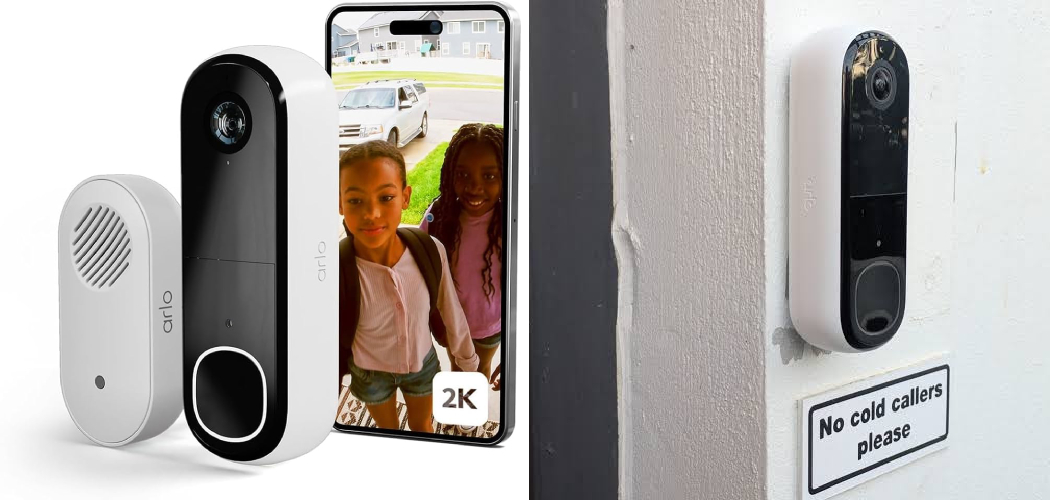
Your doorbell just stopped talking to you.
Someone’s at the front door, but your phone stays silent. No chime. No video. The live view spins forever, then times out. You tap the button on the doorbell itself, and nothing happens.
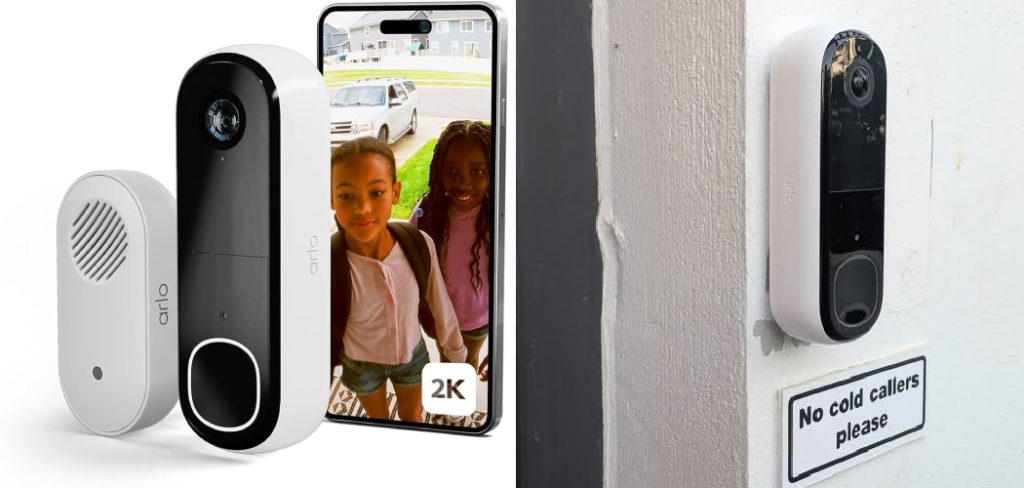
That sinking feeling is real. A doorbell that won’t respond feels like a hole in your home’s security.
Most of the time, the fix is simpler than you’d think: a reset.
In this guide, you’ll learn exactly how to reset arlo doorbell — step by step. We’ll cover both the Arlo Video Doorbell Wire-Free and the Arlo Wired Video Doorbell, since they reset differently. You’ll see how a soft reset differs from a full factory reset Arlo doorbell procedure, when to use each, and the mistakes that trip people up.
Let’s get your doorbell answering the door again.
Reset vs. Factory Reset: Know the Difference First
Before you touch a single button, understand what “reset” actually means. People use the word for two very different things.
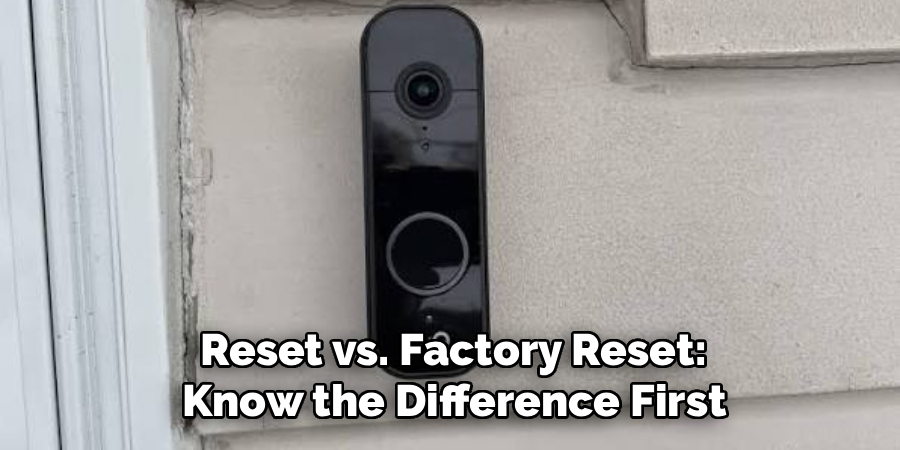
Get this wrong, and you’ll either waste time or wipe settings you didn’t need to lose.
A Soft Reset (Power Cycle)
A soft reset just restarts the device. Think of it like rebooting a frozen phone.
It clears temporary glitches — a stuck live view, a dropped connection, a laggy chime. Your settings, recordings, and Wi-Fi login stay intact.
Try this first. It fixes most problems.
A Factory Reset
A factory reset erases everything. It wipes your Wi-Fi credentials, removes the doorbell from your account, and returns it to the state it left the box in.
You’ll need to set it up again from scratch afterward.
Only do a factory reset Arlo doorbell procedure when:
- You’re selling or giving away the device.
- You’re moving it to a new home or network.
- A soft reset didn’t fix the problem.
- The doorbell won’t connect no matter what you try.
In short: start with a soft reset, and save the factory reset for when nothing else works or you’re moving the device on.
What You’ll Need Before Resetting
Resetting an Arlo doorbell takes almost nothing. But being unprepared mid-reset is frustrating.
Gather these first:
- The Arlo Secure app, installed and logged in on your phone.
- A paperclip or SIM ejector pin for the pinhole reset button.
- Your Wi-Fi network name and password, especially for a factory reset.
- A charged phone with Bluetooth turned on.
- Access to the doorbell — you may need to remove it from the mount.
For the Wire-Free model, make sure the battery has a decent charge. A dying battery makes resetting Arlo doorbell hardware unreliable.
For the Wired model, know where your doorbell transformer or breaker is. You may need to cut power briefly.
Warning: Don’t start a factory reset if you don’t have your Wi-Fi password handy. You can’t finish setup without it, and you’ll be stuck with a doorbell that’s offline.
In short: grab the app, a paperclip, and your Wi-Fi password before you begin.
How to Reset the Arlo Video Doorbell (Wire-Free)
The Wire-Free doorbell runs on a rechargeable battery. That changes how you reset it.
Here’s how to handle both a soft reset and a full Arlo video doorbell reset.
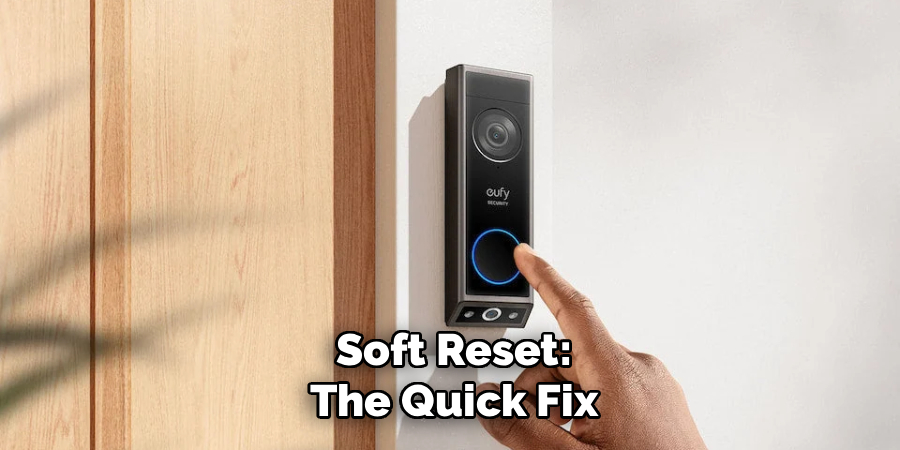
Soft Reset: The Quick Fix
Try this first when the doorbell acts up but still shows online.
- Open the Arlo Secure app.
- Tap the Settings gear for your doorbell.
- Select Device Utilities, then Restart.
- Wait for the LED to cycle and the doorbell to reconnect.
No app access? Pull the doorbell off its mount and press the release. Let it sit unplugged from the mount for 20 seconds, then reattach.
Factory Reset: The Full Wipe
Do this when the doorbell won’t behave or you’re moving it on.
- Remove the doorbell from its mounting plate.
- Find the small pinhole reset button on the back or bottom.
- Insert your paperclip and press and hold for about 15 seconds.
- Watch the LED. It’ll flash — often amber, then blue — to confirm the reset.
- Release the pin once the light pattern changes.
The doorbell is now factory fresh. Open the app and add it as a new device.
Warning: Holding the button too briefly does nothing. Hold the full 15 seconds or the reset won’t take.
In short: restart through the app for small glitches, and use the 15-second pinhole hold for a full factory reset.
How to Reset the Arlo Wired Video Doorbell
The Wired doorbell draws power from your home’s existing doorbell wiring. That means power cycling works differently — you control it at the source.
Soft Reset: Power Cycle the Wired Way
- Go to your breaker box or doorbell transformer.
- Turn off power to the doorbell circuit.
- Wait a full 60 seconds. Don’t rush this part.
- Restore power and give the doorbell two minutes to boot up.
You can also restart it from the app under Device Utilities, just like the Wire-Free model.
Factory Reset: The Pinhole Method
- Make sure the doorbell has power. Unlike the battery model, it needs power for this.
- Locate the reset button — usually a pinhole on the unit.
- Press and hold for around 15 seconds with your paperclip.
- Wait for the LED to flash, signaling the reset began.
- Release and let the doorbell fully cycle.
Once done, the doorbell drops off your account. Re-add it through the app to finish.
Warning: Never poke around the wiring with power on if you’re removing the unit. Kill the breaker first. A live doorbell transformer can give you a nasty shock.
In short: power cycle a wired doorbell at the breaker for glitches, and use the powered pinhole hold for a factory reset.
Reset Methods Compared: Which One Do You Need?
Not sure which method fits your problem? This table lays it out side by side.
| Feature | Pinhole Reset | App Reset | Power Cycle |
| What it does | Full factory wipe | Simple restart | Simple restart |
| Erases settings? | Yes, everything | No | No |
| Wi-Fi login kept? | No | Yes | Yes |
| Time needed | ~15 sec hold + setup | Under 2 minutes | 1–3 minutes |
| Requires app access? | No | Yes | No |
| Best for | Selling, moving, or last resort | Frozen feeds, minor bugs | No app access, offline device |
The pattern is simple. If you want to keep your setup, avoid the pinhole. If you want a clean slate, that’s the button you need.
In short: power cycle and app resets fix glitches without data loss, while the pinhole wipes everything for a true fresh start.
Common Mistakes and Troubleshooting
Resetting an Arlo doorbell looks easy on paper. In practice, small errors leave you stuck. Here are the ones that catch people out, why they happen, and how to fix each.
Mistake 1: Not Holding the Reset Button Long Enough
You press the pinhole for a few seconds, let go, and nothing changes.
Why it happens: The reset needs a sustained hold — usually 15 seconds — to register. A quick tap does nothing.
The fix: Hold steady and count slowly. Watch for the LED to flash or change color. Don’t release until you see that signal. That light is your confirmation.
Mistake 2: Factory Resetting Without the Wi-Fi Password
You wipe the doorbell, then realize you don’t know your network password.
Why it happens: A factory reset erases stored Wi-Fi credentials. Setup demands them again, and many people never wrote theirs down.
The fix: Find your password before you reset. Check your router label, your phone’s saved networks, or your internet provider’s app. Only then start the wipe.
Mistake 3: Resetting a Dead-Battery Wire-Free Doorbell
The reset seems to work, but the doorbell won’t reconnect afterward.
Why it happens: A low battery can’t complete setup. It drops offline halfway through.
The fix: Charge the Wire-Free doorbell to at least 50% before resetting. Then run the Arlo video doorbell reset with confidence.
Mistake 4: Forgetting the Wired Doorbell Needs Power to Reset
You cut power at the breaker, then try the pinhole reset, and it fails.
Why it happens: The Wired model needs live power to perform a factory reset — the opposite of what many assume.
The fix: Restore power first. Then hold the pinhole button. Only kill the breaker when you’re physically removing the unit.
Mistake 5: Standing Too Far From the Doorbell During Setup
Setup keeps failing at the “connecting” stage.
Why it happens: Re-adding the doorbell relies on Bluetooth, which has a short range.
The fix: Stand within a few feet of the doorbell with Bluetooth on. Once paired, distance stops mattering.
Mistake 6: Skipping the Soft Reset and Jumping Straight to Factory
You wipe everything to fix a minor glitch, then spend 20 minutes re-setting up.
Why it happens: Panic. A frozen feed feels serious, so people reach for the biggest hammer.
The fix: Always try a power cycle or app restart first. Nine times out of ten, that’s all you need.
In short: hold long enough, keep your password ready, mind the power source, and never factory reset until a soft reset has failed.
Frequently Asked Questions
How do I factory reset my Arlo doorbell without the app?
Use the pinhole reset button on the device. Insert a paperclip and hold it for about 15 seconds until the LED flashes. This performs a full factory reset without needing the app, though you’ll need the app afterward to set the doorbell up again.
Where is the reset button on an Arlo doorbell?
It’s a small pinhole, usually on the back or bottom of the unit. On the Wire-Free model, you’ll need to remove the doorbell from its mount to reach it. You’ll need a paperclip or SIM ejector pin to press it.
Why does my Arlo doorbell keep going offline after a reset?
The most common causes are a weak Wi-Fi signal, a low battery on the Wire-Free model, or incomplete setup. Move your router closer, charge the battery fully, and make sure you finished every setup step. Resetting Arlo doorbell hardware won’t stick if the signal is too weak.
Do I lose my recordings when I reset my Arlo doorbell?
A soft reset or power cycle keeps everything, including cloud recordings. A factory reset removes the device from your account, but recordings tied to an active subscription usually stay in your cloud library. Check your Arlo Secure plan to be sure.
How long does an Arlo doorbell take to reset?
A power cycle or app restart takes 1 to 3 minutes. A full factory reset plus fresh setup takes closer to 10 to 15 minutes, since you’re reconnecting Wi-Fi and re-adding the device.
Wrapping Up
A silent doorbell doesn’t have to mean a broken one.
As you’ve seen, most problems clear up with a simple restart. Save the pinhole and the full factory reset Arlo doorbell steps for when you’re moving the device or nothing else works.
The key takeaway is simple: try the soft reset first, keep your Wi-Fi password close, and match the method to your model — Wire-Free or Wired.
Do that, and your doorbell will be answering the door again in minutes.
Ready to make your setup even better? Check out our guide on [related topic: setting up your Arlo chime and custom notifications] next.

About
Robert D is a distinguished figure in the world of Safety Systems and Risk Management, with a decade of expertise creating innovative and sustainable workplace solutions. His professional focus lies in merging traditional safety protocols with modern digital monitoring techniques, fostering environments that are both practical and hazard-conscious. As the lead author of SafetyRift, Robert delves into the art and science of risk mitigation, inspiring safety officers and industry professionals alike to bridge the gap between compliance and culture.
Education
RMIT University (Melbourne, Australia)
Associate Degree in Design (Industrial Safety)
-
Focus on sustainable safety infrastructure, industry-driven risk assessments, and practical implementation.
-
Gained hands-on experience with traditional hazard identification and digital monitoring tools, such as IoT safety sensors and predictive analytics software.
Nottingham Trent University (United Kingdom)
Bachelor’s in Occupational Health and Safety (Honors)
-
Specialized in systemic design with a focus on blending human behavior psychology with modern safety production techniques.
-
Participated in industry-wide projects, working with global logistics and manufacturing firms to gain real-world insights into large-scale safety deployments.
Publications and Impact
In SafetyRift, Robert shares his insights on safety design processes, protective materials, and strategies for efficient, accident-free production. His writing bridges the gap between foundational safety knowledge and modern industrial needs, making it a must-read for both budding safety coordinators and seasoned risk management professionals.
