
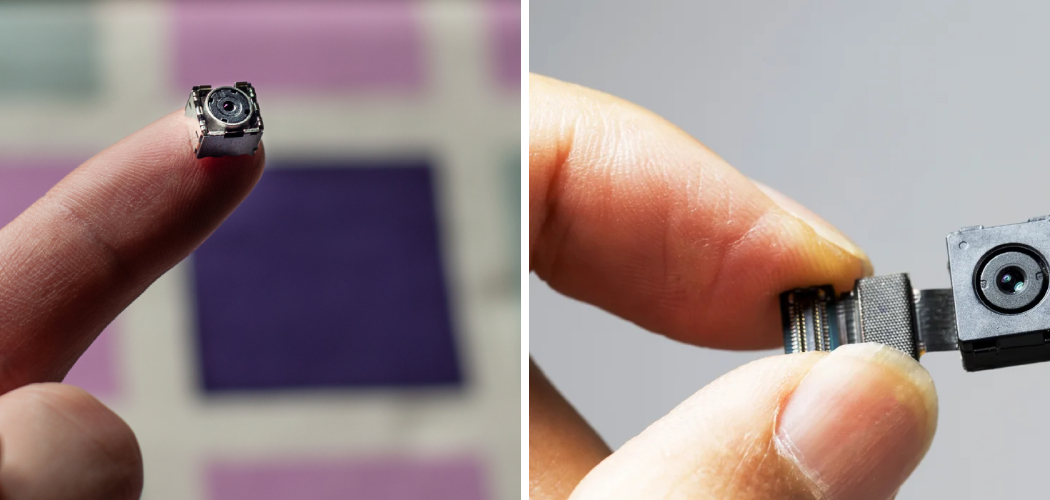
You check into a rental, drop your bags, and something nags at you. That smoke detector on the ceiling. The little hole in the alarm clock. The mirror that sits at an odd angle. You can’t shake the feeling that something’s watching you.
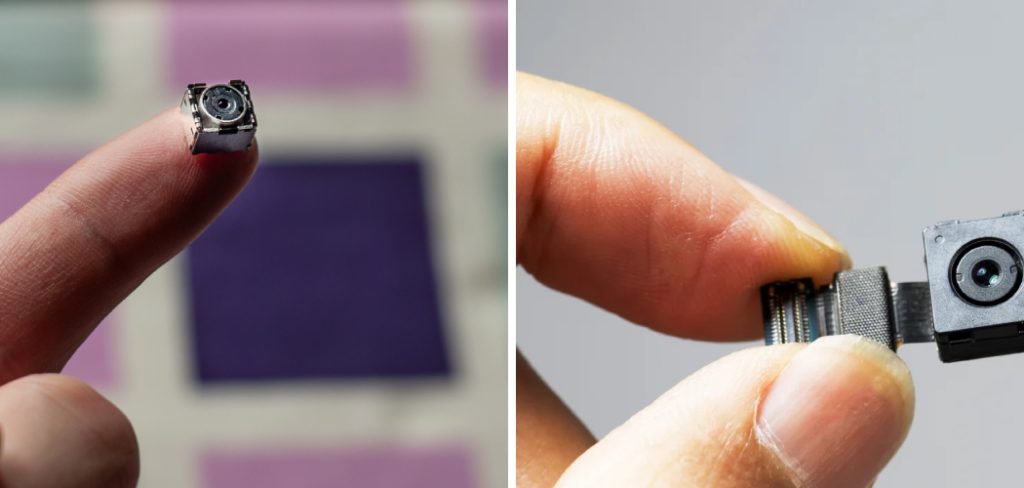
That feeling has a name: unease. And you shouldn’t have to sit with it in a place where you’re supposed to feel safe.
Here’s the good news. You can check the room yourself, right now, with tools you already own. This guide walks you through it step by step. You’ll learn how to know if there’s a camera in a room, spot lens reflections and lights, use your phone to catch hidden infrared, scan the Wi-Fi for sneaky devices, and pick the right detection tool for the job.
Let’s find out what’s really in that room.
Start With a Slow Physical Sweep
Before you download anything, use your eyes and hands. Most hidden cameras hide in plain sight, tucked into everyday objects. A calm, careful sweep catches more than people expect.
Walk the room slowly. Look at it the way a camera would — from corners, high shelves, and anything pointed toward the bed or bathroom.
Check the Usual Hiding Spots
Cameras get hidden inside objects that face open areas. Focus your attention here first:
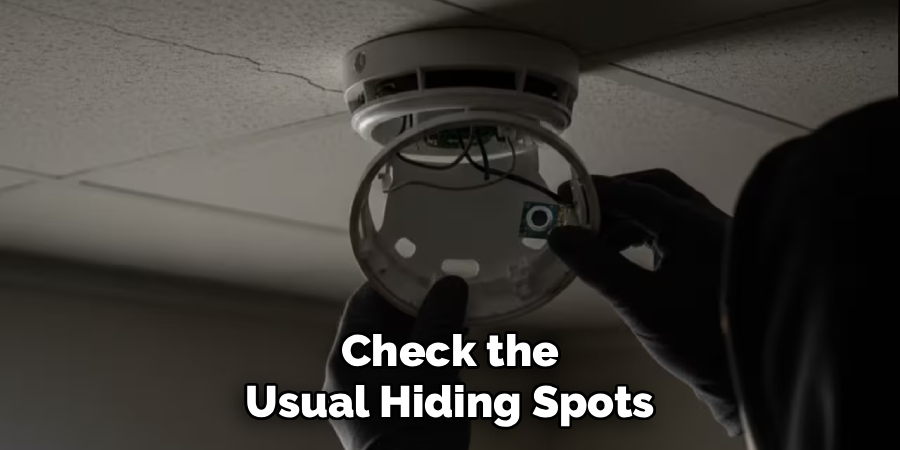
- Smoke detectors and ceiling vents
- Alarm clocks and digital radios
- Air purifiers and tissue boxes
- Picture frames and wall decorations
- USB chargers and power adapters
- Stuffed animals, books, and shelf clutter
- Mirrors, especially two-way ones
Anything with a small hole, dark dot, or glassy point deserves a closer look.
Do the Two-Way Mirror Test
A two-way mirror can hide a camera behind it. Here’s a quick way to check.
Place your fingertip against the glass. In a normal mirror, there’s a gap between your finger and its reflection — the reflection sits slightly behind. In a two-way mirror, your finger and its reflection touch directly, with no gap.
No gap means you should be cautious.
Feel for Warmth and Wires
Cameras that run all the time give off heat. Gently touch suspicious objects. If a device feels warm for no reason, that’s worth noting.
Also follow any wires. A cable that runs to nothing obvious, or a device plugged in when it shouldn’t need power, can point straight to a camera.
In short: a slow, deliberate walk-through with your eyes and hands catches most hidden cameras before you touch a single app.
Spot the Lens and Light Clues
Every camera needs a lens. And a lens gives itself away if you know how to make it shine.
This step turns the camera’s own hardware against it.
Use a Flashlight to Catch Reflections
Turn off the room lights. Grab a flashlight — your phone’s works fine.
Slowly sweep the beam across the room, watching for a small, bright reflection bouncing back at you. Camera lenses reflect light in a sharp, distinct way, often blue or white. Move your head as you scan so the angle keeps changing.
When you catch a tiny glint from inside an object, stop and inspect it closely.
Read the Tiny Status Lights
Some cameras show a small LED indicator — a pinprick of red, green, or blue light. In a fully dark room, these become much easier to spot.
But here’s the honest part.
Many hidden cameras let the owner turn the light off completely. So a dark device isn’t proof of safety. Treat a visible light as a strong clue, and a missing light as no clue at all.
Look for the Pinhole
Spy cameras often hide behind a tiny pinhole — smaller than a pencil tip. Scan flat surfaces on devices for a single dark dot that doesn’t match anything around it.
A pinhole where there shouldn’t be one is a red flag.
In short: kill the lights, sweep with a flashlight, and let the lens reveal itself through its reflection.
Use Your Phone to Find Infrared Cameras
Many cameras record in the dark using infrared (IR) light. Your eyes can’t see it. Your phone often can.
This is one of the most reliable free methods you have.
How to Scan for Infrared
Follow these steps in a dark room:
- Turn off all the lights so the room is as dark as possible.
- Open your phone’s camera app.
- Try your front-facing camera first — many rear cameras block IR with a filter.
- Slowly pan across the room, watching your screen.
- Look for a faint purple or white glow that you can’t see with your naked eye.
An active night-vision camera will light up on your screen even though the room looks dark to you.
Test It First So You Know What to Look For
Point your phone camera at a TV remote and press a button. You’ll see the remote’s IR light flash on your screen as a purple-white dot.
That’s exactly what a hidden camera’s IR LEDs look like. Practice on the remote first, and you’ll recognize the real thing instantly.
In short: your phone can see infrared light that your eyes can’t, turning a dark room into an open book.
Scan the Wi-Fi Network for Hidden Cameras
Most modern cameras connect to Wi-Fi to send footage somewhere. That connection leaves a trail you can follow — if you have permission to check the network.
This step works best in your own home or a place where you’re allowed to access the Wi-Fi.
List Every Connected Device
Install a free network scanner app like Fing, or log in to the router directly. Both show you every device on the network.
Scan the list for anything suspicious:
- Names with “cam,” “IPC,” “IP camera,” or “NVR”
- Known camera brands like Wyze, Ring, or Reolink
- Unknown devices you can’t match to a phone, laptop, or TV
An unfamiliar device pulling steady data may be a camera streaming footage right now.
Watch for Constant Uploads
A recording camera uploads video nonstop. In your router’s traffic view, a device with continuous upload activity stands out from your other gadgets.
A quiet device might be idle. A chatty one is usually working.
Warning: only scan networks you own or have clear permission to use. Scanning someone else’s network without consent can break the law in many places.
In short: your router quietly lists every camera on the Wi-Fi — you just have to open the list and read it.
Compare Your Detection Options
Not every method fits every situation. Some are fast and free. Others cost money but dig deeper. Here’s how they stack up so you can pick the right one.
| Detection Method | Effectiveness | Ease of Use | Cost | Best For |
| Physical sweep | Moderate | Very easy | Free | A quick first check anywhere |
| Flashlight lens scan | Moderate–High | Easy | Free | Finding lens reflections in dark rooms |
| Phone IR scan | High | Easy | Free | Catching night-vision cameras |
| Wi-Fi network scan | High | Moderate | Free | Wi-Fi cameras on a network you control |
| RF detector | High | Moderate | $30–$150 | Wireless cameras that transmit signals |
| Lens finder gadget | High | Easy | $20–$60 | Pinpointing hidden lenses fast |
When Free Methods Are Enough
For a quick check in a hotel or rental, your phone and a flashlight cover most situations. Combine the IR scan, the flashlight reflection test, and a physical sweep, and you’ll catch the majority of hidden cameras.
Start here before spending a cent.
When to Buy a Dedicated Detector
If you travel often, own sensitive property, or need real peace of mind, a dedicated tool earns its price.
- An RF detector picks up wireless cameras that transmit a signal, even ones not on the local Wi-Fi.
- A lens finder uses flashing lights to make hidden lenses glow bright red, so you can spot them fast.
Both take a little practice, but they close the gaps that free methods leave open.
In short: free tools handle most rooms, and a dedicated detector covers the rare cases they miss.
Common Mistakes and Troubleshooting
People try to check a room for cameras and miss things anyway. Usually it comes down to the same handful of errors. Here’s what goes wrong — and how to fix it.
Mistake 1: Trusting the Status Light
Why it happens: guides say “look for a red light,” so people assume no light means no camera. But most hidden cameras let the owner disable the light entirely.
How to fix it: never rely on lights alone. Back up the light check with an IR phone scan and a flashlight reflection sweep. Treat a missing light as no information, not an all-clear.
Mistake 2: Scanning With the Wrong Phone Camera
Why it happens: many rear-facing phone cameras have an IR filter that blocks infrared light, so the glow never shows up on screen.
How to fix it: use your front-facing camera for IR scans, since it usually lacks that filter. Test on a TV remote first. If the remote’s light shows up, that camera can see infrared.
Mistake 3: Rushing the Sweep
Why it happens: you glance around for a few seconds, see nothing obvious, and assume the room is clean. Hidden cameras are built to survive a quick glance.
How to fix it: slow down. Spend real time in each area, especially spots facing the bed and bathroom. Check objects from multiple angles, since a lens only reflects at certain positions.
Mistake 4: Ignoring Everyday Objects
Why it happens: people picture cameras as obvious black boxes, so they skip past chargers, clocks, and smoke detectors.
How to fix it: inspect ordinary items closely. Look for a pinhole, a glassy dot, or a device that feels warm or sits at an odd angle. The most common hiding spots are the ones you’d never suspect.
Mistake 5: Forgetting Offline Cameras
Why it happens: you scan the Wi-Fi, find nothing, and relax. But some cameras record to a local SD card and never touch the network.
How to fix it: don’t stop at the network scan. Follow it with a physical sweep and an IR check to catch cameras that store footage on their own.
Mistake 6: Not Scanning in the Dark
Why it happens: people check the room with the lights on, which hides both lens reflections and faint LED glows.
How to fix it: turn off every light. Darkness makes reflections pop under a flashlight and makes IR light visible on your phone screen. It’s the single biggest upgrade to your search.
Frequently Asked Questions
How can I detect a hidden camera with my phone for free?
Open your phone’s camera app in a dark room and scan slowly with the front-facing camera. Active night-vision cameras emit infrared light that shows up as a faint purple or white glow on your screen. You can also install a free network scanner app to spot camera devices on the same Wi-Fi.
Where are cameras most often hidden in a room?
Cameras usually hide in objects that face open areas like the bed or bathroom. Common spots include smoke detectors, alarm clocks, air purifiers, USB chargers, picture frames, and mirrors. Anything with a small hole, glassy dot, or odd angle deserves a close look.
Does a red light always mean a hidden camera is watching?
No. A visible light is a strong clue, but many hidden cameras let the owner turn the light off completely. So a dark device isn’t proof of safety. Always back up the light check with an infrared phone scan and a flashlight reflection sweep.
How do I check for a two-way mirror?
Place your fingertip against the glass and look at the reflection. In a normal mirror, there’s a gap between your finger and its reflection. In a two-way mirror, your finger and its reflection touch directly with no gap — and that’s a reason to be cautious.
Can I find a hidden camera that isn’t connected to Wi-Fi?
Yes. Some cameras record to a local SD card and never join a network, so a Wi-Fi scan won’t catch them. Use a physical sweep, a flashlight reflection test, and an infrared phone scan instead. An RF detector can also pick up wireless models that transmit their own signal.
Wrapping Up
You walked in uneasy, unsure if something was watching. Now you know exactly what to do.
Start with a slow physical sweep and check the usual hiding spots. Kill the lights and hunt for lens reflections with a flashlight. Use your phone’s front camera to catch infrared. Scan the Wi-Fi for unfamiliar devices, and reach for an RF detector or lens finder when you want extra certainty.
Trust your eyes first, then confirm with your phone and network. You don’t have to sit with that uneasy feeling anymore — you can answer it.
Want to go deeper? Check out our guide on [how to protect your privacy while traveling] for your next step.

About
Robert D is a distinguished figure in the world of Safety Systems and Risk Management, with a decade of expertise creating innovative and sustainable workplace solutions. His professional focus lies in merging traditional safety protocols with modern digital monitoring techniques, fostering environments that are both practical and hazard-conscious. As the lead author of SafetyRift, Robert delves into the art and science of risk mitigation, inspiring safety officers and industry professionals alike to bridge the gap between compliance and culture.
Education
RMIT University (Melbourne, Australia)
Associate Degree in Design (Industrial Safety)
-
Focus on sustainable safety infrastructure, industry-driven risk assessments, and practical implementation.
-
Gained hands-on experience with traditional hazard identification and digital monitoring tools, such as IoT safety sensors and predictive analytics software.
Nottingham Trent University (United Kingdom)
Bachelor’s in Occupational Health and Safety (Honors)
-
Specialized in systemic design with a focus on blending human behavior psychology with modern safety production techniques.
-
Participated in industry-wide projects, working with global logistics and manufacturing firms to gain real-world insights into large-scale safety deployments.
Publications and Impact
In SafetyRift, Robert shares his insights on safety design processes, protective materials, and strategies for efficient, accident-free production. His writing bridges the gap between foundational safety knowledge and modern industrial needs, making it a must-read for both budding safety coordinators and seasoned risk management professionals.
