
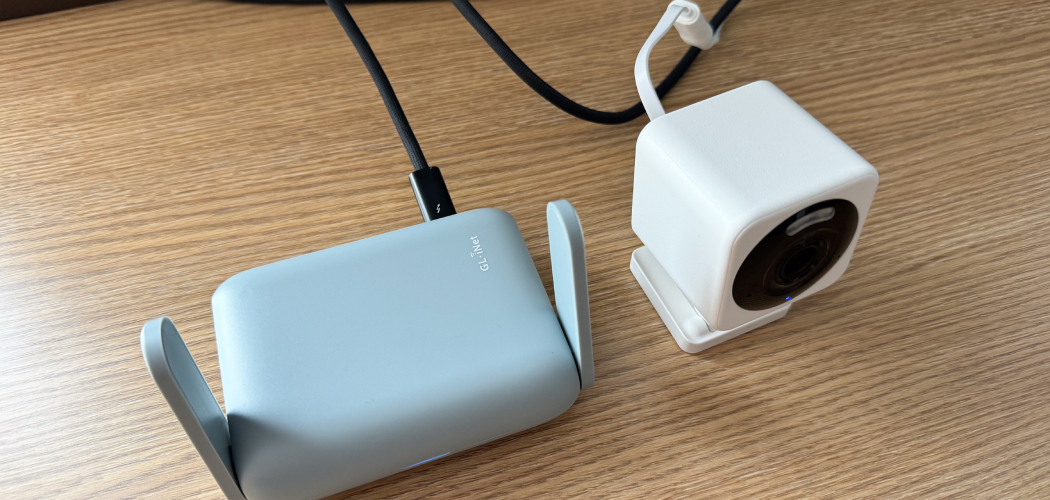
Wyze cameras are fantastic tools for home security, offering peace of mind at an affordable price. However, like any piece of technology, they can sometimes lose their connection to your Wi-Fi network. This can happen due to a power outage, a change in your Wi-Fi password, or other network interruptions.
When your camera goes offline, it can be frustrating, but the fix is usually straightforward. This guide will walk you through the simple process of how to reconnect wyze cam, ensuring your home monitoring is back up and running in no time. We’ll cover everything from basic checks to a full setup reset, making the process easy for anyone to follow.
Why Your Wyze Cam Might Go Offline
Understanding why your Wyze Cam disconnected in the first place can help prevent future issues. The most common culprit is a change in your Wi-Fi network. If you’ve recently changed your network’s name (SSID) or password, the camera won’t be able to connect and will appear offline in the app. Similarly, power outages, even brief ones, can disrupt the camera’s connection. Sometimes the issue is simpler, like the camera being too far from your Wi-Fi router, resulting in a weak or unstable signal. Less frequently, firmware updates or temporary glitches within the Wyze app can cause a disconnection. Identifying the potential cause can often lead you to a quicker solution.
7 Step Methods Guide on How to Reconnect Wyze Cam
Step 1: Check Your Power and Internet Connection
Before diving into camera settings, ensure the fundamentals are in place. Verify that your Wyze Cam is properly plugged into a functioning power outlet. Look for the status light on the back of the camera; a solid yellow or blue light indicates it has power. Next, confirm that your home Wi-Fi is working correctly.
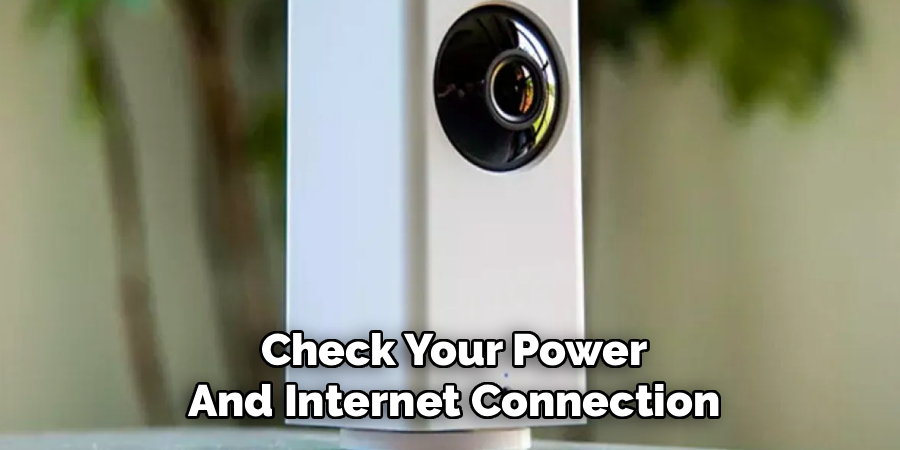
Try connecting to the internet with another device, like your smartphone or laptop. If your internet is down, you will need to resolve that issue with your internet service provider first. Rebooting your router by unplugging it for 30 seconds and plugging it back in can often solve many connectivity problems.
Step 2: Power Cycle the Wyze Camera
One of the simplest and most effective troubleshooting steps is to “power cycle” the device. This process clears out any temporary glitches or errors in the camera’s memory. To do this, simply unplug the Wyze Cam from its power source. Wait for at least 30 seconds before plugging it back in. This waiting period is important as it allows the internal components to fully reset. Once you plug it back in, the camera will go through its startup sequence. Give it a minute or two to reconnect to your Wi-Fi network automatically. Check the Wyze app to see if the camera is now online.
Step 3: Verify the Wi-Fi Signal Strength
The location of your camera plays a huge role in its ability to maintain a stable connection. If your Wyze Cam is too far from your Wi-Fi router, it may struggle to receive a strong signal. You can check the signal strength directly in the Wyze app. Go to the camera’s settings, then select “Device Info.” You will see a signal strength indicator. If the signal is weak (one or two bars), try moving the camera closer to the router. If moving the camera isn’t an option, consider investing in a Wi-Fi extender or a mesh Wi-Fi system to boost the signal in that area of your home.
Step 4: Re-Enter Your Wi-Fi Credentials
If you have recently changed your Wi-Fi password or network name (SSID), your camera will need to be updated with the new information. Since the camera cannot connect, you will have to go through the setup process again to provide the new credentials. In the Wyze app, attempt to add a new device, even though the camera is already listed. This action will prompt the setup flow, where you can select your Wi-Fi network and enter the new password. This step is a common part of learning how to reconnect wyze cam after making network changes.
Step 5: Check the Status Light for Clues
The small LED light on your Wyze Cam is a powerful diagnostic tool. Its color and pattern can tell you exactly what’s wrong. A solid blue light means the camera is connected and working correctly. A flashing blue light indicates it’s trying to connect. A flashing yellow light means it’s ready for setup. If you see a solid yellow light, it means the camera has power but hasn’t completed its startup. A flashing red light often means it can’t connect to the Wi-Fi. Understanding these codes can help you pinpoint the problem and choose the right troubleshooting step without guessing.
Step 6: How to Reconnect Wyze Cam by Deleting and Re-adding
If the simpler steps have not worked, you may need to remove the camera from your Wyze app and set it up again as if it were a new device. This creates a fresh connection profile. To do this, open the Wyze app, go to the offline camera’s settings, and tap “Delete Device” at the bottom of the screen. Confirm the deletion. Once the camera is removed, press the “Setup” button on the bottom of the camera until you hear a “Ready to connect” voice prompt. Then, in the app, tap the plus (+) sign to add a new device and follow the on-screen instructions.
Step 7: Perform a Factory Reset
As a last resort, performing a factory reset will erase all settings from the camera and return it to its original, out-of-the-box state. This step should only be taken if all other troubleshooting has failed. To perform a factory reset, make sure the camera is plugged in.
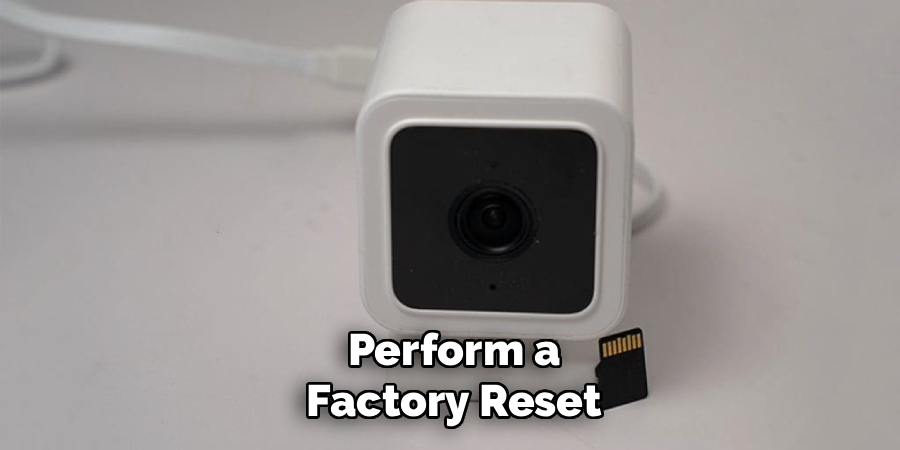
Press and hold the “Setup” button on the bottom of the device for about 15-20 seconds. Continue holding until the status light turns from solid yellow to flashing yellow. Once you hear the “Ready to connect” voice prompt, you can release the button. The camera is now fully reset and ready to be set up from scratch in the Wyze app.
Frequently Asked Questions
Why Is My Wyze Cam Showing Offline When The Wi-Fi Is Working?
This can happen for a few reasons. The camera may be too far from your router, resulting in a weak signal, even if other devices connect fine. It could also be a temporary glitch that a simple power cycle (unplugging for 30 seconds) can fix. Sometimes, a firmware update is needed. Check the signal strength in the Wyze app under Device Info. If it’s weak, try moving the camera closer to your router.
Do I Need To Reset My Wyze Cam After A Power Outage?
Usually, no. Wyze Cams are designed to automatically reconnect to your Wi-Fi network once power is restored. However, if the outage was accompanied by a power surge, it might have caused a glitch. If your camera doesn’t come back online on its own within a few minutes, the first step should be to power cycle it by unplugging it for 30 seconds before plugging it back in.
How Do I Know If My Wyze Cam Is Connected To Wi-Fi?
The easiest way to check is by looking at the status light on the back of the camera. A solid blue light indicates that it is powered on, connected to the Wi-Fi, and operating correctly. You can also open the Wyze app on your smartphone. If the camera is online, you will be able to view its live stream. If it shows “Offline,” it is not connected.
Can I Reconnect My Wyze Cam To A New Wi-Fi Network?
Yes, you can. You will need to go through the setup process again to provide the new network credentials.
- In the Wyze app, tap the “+” icon to add a new device.
- Select your Wyze Cam model.
- Press the “Setup” button on the camera until you hear “Ready to connect.”
- Follow the on-screen prompts in the app, which will include selecting your new Wi-Fi network and entering the password.
What Does A Flashing Red Light On My Wyze Cam Mean?
A flashing red light typically indicates a connection failure. This could mean it failed to scan the QR code during setup, the Wi-Fi password you entered was incorrect, or it’s unable to connect to the network for another reason. Try moving the camera closer to the router and re-attempting the setup process. Ensure you are connecting to a 2.4GHz network, as most Wyze Cams are not compatible with 5GHz networks.
Conclusion
A disconnected Wyze Cam can be a minor inconvenience, but it’s an issue that is almost always solvable. By following the steps outlined in this guide—from checking your power and internet to performing a factory reset as a last resort—you can efficiently diagnose and fix the problem. Remember to start with the simplest solutions first, as a quick power cycle often does the trick. With a little patience, you will have your security camera back online and protecting your home. Now that you have a clear understanding of how to reconnect wyze cam, you can handle any future connection issues with confidence.

About
Robert D is a distinguished figure in the world of Safety Systems and Risk Management, with a decade of expertise creating innovative and sustainable workplace solutions. His professional focus lies in merging traditional safety protocols with modern digital monitoring techniques, fostering environments that are both practical and hazard-conscious. As the lead author of SafetyRift, Robert delves into the art and science of risk mitigation, inspiring safety officers and industry professionals alike to bridge the gap between compliance and culture.
Education
RMIT University (Melbourne, Australia)
Associate Degree in Design (Industrial Safety)
-
Focus on sustainable safety infrastructure, industry-driven risk assessments, and practical implementation.
-
Gained hands-on experience with traditional hazard identification and digital monitoring tools, such as IoT safety sensors and predictive analytics software.
Nottingham Trent University (United Kingdom)
Bachelor’s in Occupational Health and Safety (Honors)
-
Specialized in systemic design with a focus on blending human behavior psychology with modern safety production techniques.
-
Participated in industry-wide projects, working with global logistics and manufacturing firms to gain real-world insights into large-scale safety deployments.
Publications and Impact
In SafetyRift, Robert shares his insights on safety design processes, protective materials, and strategies for efficient, accident-free production. His writing bridges the gap between foundational safety knowledge and modern industrial needs, making it a must-read for both budding safety coordinators and seasoned risk management professionals.
