
Smart home technology has revolutionized the way we live, offering convenience and control right at our fingertips. However, even the best devices sometimes encounter connectivity glitches or setup errors that require a fresh start. If your smart lights are unresponsive or failing to connect to your hub or Wi-Fi network, performing a factory reset is often the most effective solution.
Understanding the proper procedure ensures you can get your lighting system back online quickly without unnecessary frustration. Whether you are troubleshooting a connectivity issue or preparing to give the device to a friend, knowing how to reset a Sengled bulb is an essential skill for any smart home enthusiast. By following a few simple actions, you can restore your device to its original factory settings and enjoy seamless illumination once again. Let’s dive into the process so you can get back to enjoying your smart home.
Why Resetting a Sengled Bulb is Important
Smart lighting ecosystems rely on stable connections between the bulb, the controlling hub, and your home network. Over time, these digital handshakes can become corrupted due to power outages, router changes, or firmware updates that didn’t quite finish correctly. When this happens, your lights might flicker, fail to respond to app commands, or disappear from your dashboard entirely.
Resetting the hardware wipes the slate clean, removing old network credentials and temporary configurations that might be causing conflicts. It is essentially a “do-over” for your technology. Furthermore, if you plan to move the bulb to a different room, connect it to a new hub like an Echo device, or sell it, a reset is mandatory to disassociate it from your old setup. This simple maintenance step ensures your smart home remains responsive, secure, and reliable for daily use.
8 Step-by-Step Guide on How to Reset a Sengled Bulb
Step 1: Ensure The Power Switch Is On
Before you begin any troubleshooting process with smart lighting, you must verify the foundational element of the system: the power source. It might sound incredibly simple, but many users accidentally attempt to reset a device that isn’t receiving electricity because a wall switch was flipped off. Walk over to the fixture where your bulb is installed and physically check the position of the switch.
If the bulb is currently off because of an app setting but the switch is on, that is fine. However, for the reset sequence to register, electricity must be flowing to the socket. Ensure the lamp or fixture is plugged in securely and the main switch is in the “On” position. This initial check prevents you from performing the toggle sequence in vain and ensures the internal chip is ready to receive the reset command.
Step 2: Turn The Bulb Off Physically
The reset mechanism for these devices is triggered by a very specific rhythm of power cycling. To start this rhythm correctly, you need to cut the power physically. Reach for the wall switch or the lamp switch associated with the bulb. Flip it to the “Off” position and pause for a moment. This step is distinct from turning the light off via your smartphone app or voice assistant.
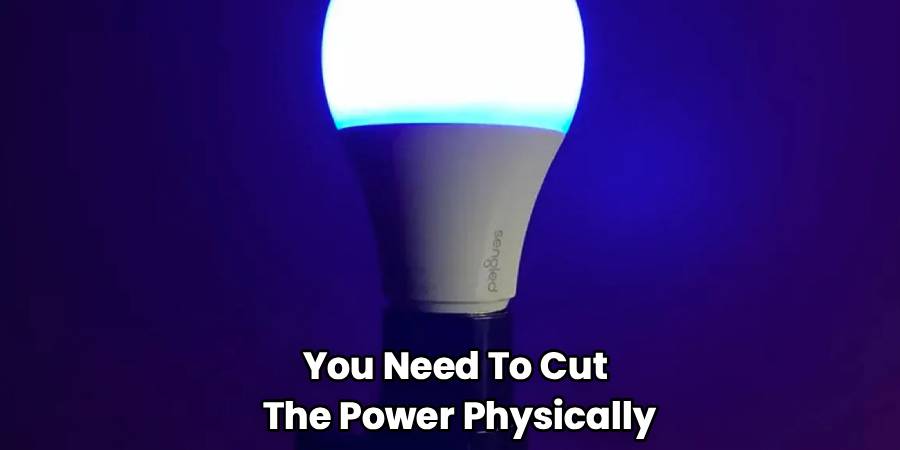
Using the app only puts the bulb into a standby mode where it still has power but emits no light. A hard reset requires the electrical current to be completely severed. By physically flipping the switch off, you are preparing the internal capacitor to discharge and recognize the upcoming sequence of on-off toggles that will initiate the factory restore process.
Step 3: Quickly Toggle The Switch On and Off
Now begins the most critical part of the process, which involves a specific pattern of physical switching. You need to turn the light switch on and then off again very rapidly. This is not a slow, deliberate motion; it needs to be a quick flick of the wrist. Turn the switch on, let the power flow for a fraction of a second, and then immediately turn it back off.
The timing here is crucial because the bulb’s internal firmware is programmed to recognize a rapid succession of power interruptions as a command rather than standard usage. If you do this too slowly, the bulb will simply think you are turning the light on and off normally. You are essentially communicating with the bulb’s computer using Morse code via the power switch.
Step 4: Repeat The Toggle Sequence Ten Times
A single on-off toggle is not enough to trigger the reset mode; you must repeat the quick switching action multiple times. Specifically, you need to flip the switch on and off at least ten times in rapid succession. It helps to count out loud as you do this to ensure you hit the required number. The motion should be rhythmic and consistent.
Keep your hand on the switch and flip it: on-off, on-off, on-off. Do not pause between the cycles. The goal is to overwhelm the normal boot-up sequence so the device realizes you are attempting to wipe its memory. If you are learning how to reset a Sengled bulb, mastering this rapid-fire switching cadence is the most challenging but important part of the entire procedure.
Step 5: Leave The Switch On After The Tenth Toggle
Once you have completed the rapid toggling sequence ten times, you must end the cycle with the switch in the “On” position. Do not flip it off an eleventh time. Leave the power flowing to the fixture. This is the moment where the bulb processes the command you just entered. It needs continuous electricity to execute the factory reset script stored in its memory.
If you turn it off immediately after the tenth toggle, the reset will fail, and you will have to start the entire counting process over from the beginning. Just take your hand off the switch and step back to observe the bulb’s behavior. The internal processor is now working to erase your Wi-Fi credentials and return the device to its out-of-the-box state.
Step 6: Watch For The Bulb To Pulse Or Flash
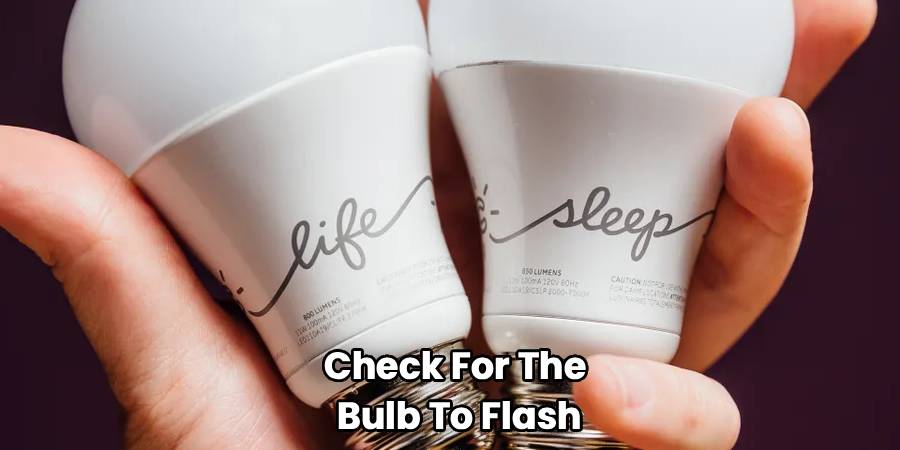
After you leave the switch on, you need to watch the light closely for visual confirmation that the reset was successful. Within a few seconds of stopping the toggle sequence, the bulb should flash or pulse. Depending on the specific model you own—whether it is a standard soft white bulb or a multicolor version—the signal might look slightly different.
Typically, the light will blink five times or cycle through colors to indicate it has entered pairing mode. This visual cue is your confirmation that the hardware has accepted the reset command. If the light simply stays solid and does not blink or pulse, the timing of your switching was likely off, and you will need to attempt the sequence again.
Step 7: Wait For The Bulb To Stabilize
Once the flashing or pulsing sequence concludes, the light will return to a solid, steady glow. This indicates that the factory reset is complete and the device is currently broadcasting its setup signal, waiting to be discovered by a hub or app. Do not turn the light off immediately. Give it a minute or two to stabilize its internal software. During this time, the bulb is effectively brand new in terms of software.
It has forgotten your previous Wi-Fi network name, your password, and any schedules or routines you previously set up. This stable state is necessary before you attempt to pair it again. Rushing to the app too quickly before the bulb stabilizes can sometimes lead to pairing failures or “device not found” errors.
Step 8: Troubleshoot If The Reset Failed
If you watched the bulb after the tenth toggle and it did not flash, the reset command was not registered. This is common and usually results from the toggling speed being either too fast or too slow. There is no need to worry; you simply need to try again. Turn the light off, wait for a few seconds to let the power dissipate completely, and then restart the sequence.
Try to adjust your rhythm slightly. Some users find that using a distinct “one-and-two-and” counting rhythm helps maintain consistency. Remember that different models might have slight variations, such as requiring fewer toggles, but the ten-toggle method is the standard for most Zigbee and Wi-Fi models. Patience is key here.
Update Firmware After Reconnecting
After you successfully pair the bulb back to your app, there is one final housekeeping step to ensure long-term stability. Check for any available firmware updates within the app settings. A factory reset reverts the software to the version that was installed at the factory, which might be outdated compared to the latest security patches and performance improvements available now.
Running an update immediately ensures your connection remains stable and prevents the very issues that might have forced you to reset the bulb in the first place. Once the update downloads and installs, your light is fully restored, secure, and ready for automation, finalizing the process of how to reset a Sengled bulb completely.
Frequently Asked Questions
Can I Reset My Bulb Without a Wall Switch?
Yes, you can reset your smart bulb even if it is installed in a lamp or fixture that does not have a traditional wall switch. The requirement is simply to cut the power to the bulb physically. You can achieve this by unplugging the lamp from the electrical outlet and plugging it back in repeatedly. Alternatively, if the lamp has an inline cord switch or a turn-knob on the socket itself, you can use those mechanisms to perform the on-off toggle sequence required for the reset.
Why Is My Bulb Not Flashing After I Toggle It?
If the light does not flash after you perform the toggle sequence, the timing of your switching was likely incorrect. The device requires a specific rhythm to recognize the reset command—if you switch it too slowly or too erratically, it registers as normal usage.
- Turn the light off and wait five seconds.
- Try the sequence again with a faster, more consistent rhythm.
- Ensure you are ending with the switch in the “ON” position.
Does Resetting The Bulb Delete My Scenes and Routines?
Resetting the hardware completely wipes the bulb’s internal memory, meaning it forgets its network connection and identity. However, your scenes and routines are typically stored in the cloud or on your hub app, not on the bulb itself. Once you re-pair the bulb, you will need to add it back into your specific rooms or groups.
- The bulb is removed from groups.
- Schedules specific to that device are lost.
- App-wide scenes remain but must be updated to include the “new” bulb.
Will I Need To Re-Enter My Wi-Fi Password?
Yes, performing a factory reset clears all network credentials from the device. It is essentially like taking the product out of the box for the first time. During the re-setup process, you will need to:
- Open your smart home app.
- Select your 2.4GHz Wi-Fi network.
- Manually type in your Wi-Fi password again to re-establish the connection.
How Do I Know If My Bulb Is Zigbee or Wi-Fi?
Identifying your bulb type is crucial because it dictates which hub or app you need. You can usually tell by looking at the base of the bulb where the model number is printed.
- Wi-Fi bulbs: Usually have “Wi-Fi” printed on the base and connect directly to your router without a hub.
- Zigbee bulbs: Often labeled “Element” or simply “Zigbee” and require a compatible hub (like a Sengled Hub, Echo Plus, or SmartThings) to function.
Conclusion
Troubleshooting smart home devices doesn’t have to be a headache. While technology can sometimes be temperamental, knowing the correct procedures empowers you to fix issues quickly and get back to enjoying the convenience of automated lighting. By following the toggle sequence carefully—remembering to aim for ten rapid switches—you can clear out any software glitches that are holding your system back. This simple maintenance trick is the solution to almost every connectivity problem you will encounter.
Now that you have mastered the technique, you can confidently manage your lighting setup or help friends who might be struggling with similar issues. Don’t let a connectivity glitch leave you in the dark. Go ahead and try these steps today if your lights are acting up; you will find that learning how to reset a Sengled bulb is a straightforward and valuable skill for any modern homeowner.

