
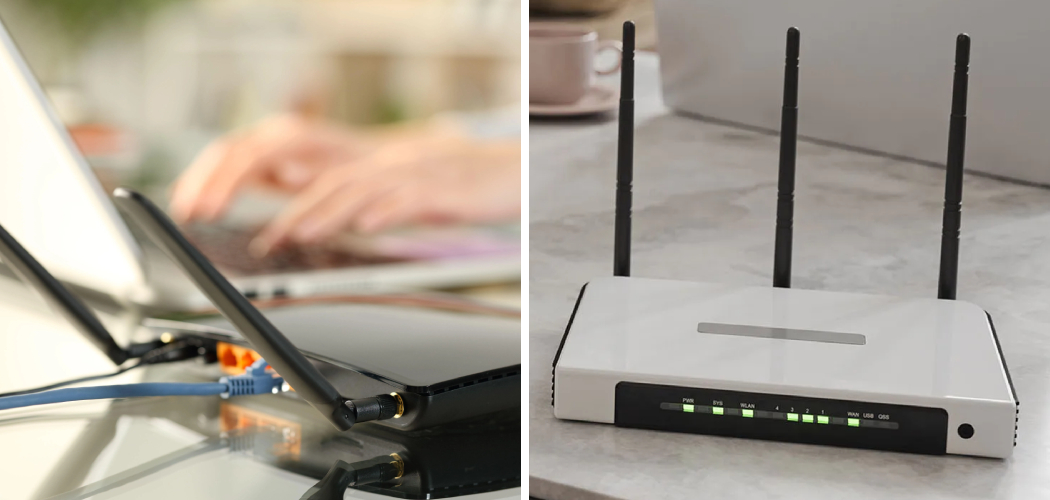
Your Netflix show freezes mid-episode. Again. Your video call drops for the third time today. You’re paying for fast internet, but your connection feels like it’s crawling through mud.
You’ve probably blamed your router. Maybe your provider. But there’s another answer you haven’t considered.
Someone might be using your WiFi without permission.
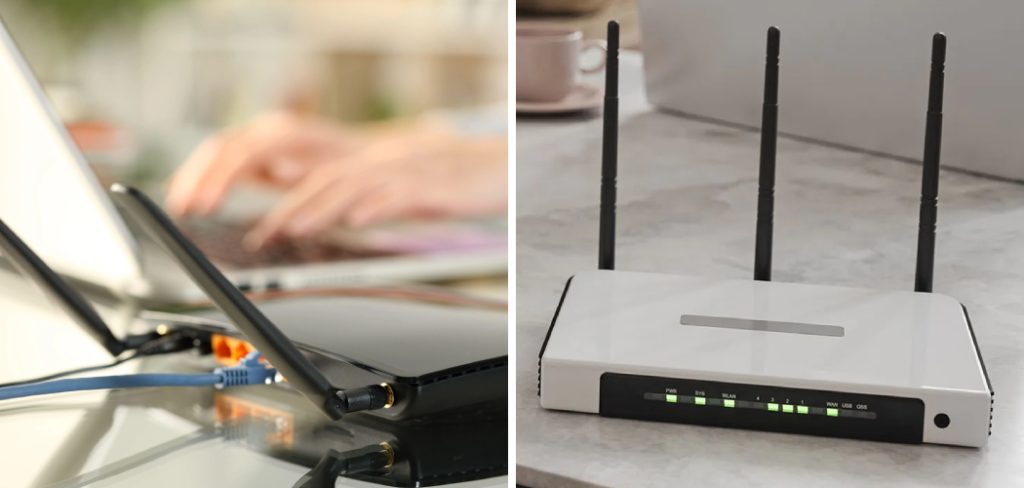
It happens more than you’d think. A neighbor guesses your password. An old guest never left your network. Or someone parked outside is quietly riding your signal for free.
Here’s the good news: you can catch them. In this guide, you’ll learn the exact signs of unauthorized WiFi access, step-by-step ways to check who’s connected, tools that make it easy, and How to Tell if Someone Is Stealing My WiFi. No tech degree required.
Let’s find out who’s really on your network.
Signs Someone Is Stealing Your WiFi
Before you dig into settings, pay attention to what your network is already telling you. Slow WiFi rarely happens for no reason.
Here are the clearest warning signs.
Your Internet Slows Down for No Reason
You didn’t change anything. No big downloads. No new devices. Yet your speed tanks, especially in the evenings.
That slowdown often means extra devices are eating your bandwidth. Every uninvited user streaming or downloading steals speed that you paid for.
Your Router Lights Blink When Everything Is Off
Turn off every device in your home. Phones, laptops, smart TVs, tablets. All of it.
Now look at your router. If the data or WiFi light keeps blinking rapidly, something is still sending and receiving data. That “something” isn’t yours.
You See Devices You Don’t Recognize
When you check your connected devices (we’ll cover how in a second), you spot names you’ve never seen. A random phone. An unfamiliar laptop. A device labeled with a stranger’s brand.
That’s the strongest sign of someone using your WiFi without permission.
Your Data Cap Gets Hit Early
If your plan has a monthly data limit, watch it closely. Hitting your cap weeks early, without changing your habits, points to a hidden user draining your allowance.
In short: unexplained slowness, blinking lights, and strange devices are your three loudest alarms.
How to Check Who’s Connected to Your Network
Suspicion isn’t proof. To know for sure, you need to look at the list of devices on your network. Here’s how to do it, step by step.
Step 1: Log Into Your Router
Every router has an admin dashboard. That’s where the truth lives.
- Open a web browser on a device connected to your WiFi.
- Type your router’s IP address into the address bar. Common ones are 192.168.0.1 or 192.168.1.1.
- Enter your admin username and password. If you never changed them, check the sticker on your router.
Warning: If your admin login is still the default (like “admin/admin”), change it today. That alone is a wide-open door.
Step 2: Find the Connected Devices List
Once you’re in, look for a section named:
- Attached Devices
- Connected Devices
- Device List
- DHCP Clients
The exact name depends on your router brand. This list shows every device currently using your WiFi.
Step 3: Identify Each Device
Now match each device to something you own. Look at three details:
- Device name (like “Sara-iPhone” or “Living-Room-TV”)
- IP address (a number like 192.168.1.5)
- MAC address (a unique code like A4:B2:C3:D4:E5:F6)
Count your own gadgets. Phones, laptops, tablets, smart plugs, cameras, game consoles. If the list is longer than your count, you’ve likely found unauthorized WiFi access.
Step 4: Confirm With a WiFi Scanner App
Not sure how to read your router page? Use an app instead. Apps like Fing, WiFi Analyzer, or GlassWire scan your network and show connected devices in plain language.
They often label devices by brand, which makes spotting a stranger’s phone much easier.
In short: log into your router, open the device list, and compare it against what you actually own.
Detection Methods Compared
Not every method fits every person. Some are fast. Some are detailed. Here’s how the main options stack up so you can pick the right one for you.
| Method | What It Shows | Skill Needed | Best For |
| Router Admin Page | Full device list, MAC and IP addresses | Beginner–Intermediate | People who want complete control and settings access |
| Mobile Scanner App (Fing) | Device names, brands, live alerts | Beginner | Anyone who wants a quick, simple check |
| Router Light Check | Activity with all devices off | Beginner | A fast first test before digging deeper |
| Network Monitor (GlassWire) | Real-time traffic and new-device alerts | Intermediate | People who want ongoing, automatic monitoring |
| ISP Data Usage Report | Total data consumed per month | Beginner | Spotting hidden usage on capped plans |
Pick one to start. The router page gives you the most power, while a scanner app gives you the fastest answer.
How to Kick Off Intruders and Secure Your WiFi
Finding the intruder is only half the job. Now you lock the door so they can’t come back.
Here’s exactly what to do.
Change Your WiFi Password Immediately
This is your fastest fix. A new password instantly kicks off every device, including the intruder.
- Go back to your router admin page.
- Find Wireless Settings or WiFi Settings.
- Enter a new password.
- Save and reconnect your own devices.
Make it strong: at least 12 characters, mixing letters, numbers, and symbols. Skip birthdays, names, and “password123.”
Turn On WPA3 or WPA2 Encryption
Encryption scrambles your data so outsiders can’t read it or slip in easily.
In your wireless security settings, choose WPA3 if your router supports it. If not, use WPA2. Never use the old WEP setting. WEP cracks in minutes.
Block Specific Devices With MAC Filtering
Want to ban a device for good? Use MAC filtering.
- Copy the MAC address of the unknown device.
- Go to MAC Filtering or Access Control in your router.
- Add that address to the block list.
This tells your router to reject that exact device, even if it has the password.
Hide or Rename Your Network
Your network name (SSID) can give away too much. If it says “SmithFamily5G,” you’ve told neighbors exactly whose signal it is.
Rename it to something neutral. You can also hide it entirely, so it won’t show up when strangers scan for networks nearby.
Update Your Router Firmware
Old firmware carries security holes. Manufacturers patch these over time.
Check your router’s admin page for a firmware update option and install any available updates. This closes gaps that intruders quietly exploit.
In short: change your password, turn on WPA3, block bad devices, and keep your firmware current.
Common Mistakes and Troubleshooting
Catching a WiFi thief sounds simple. In practice, people trip over the same problems again and again. Here’s what goes wrong and how to fix it fast.
Mistake 1: Counting Your Devices Wrong
You look at the device list, panic, and assume you’ve been hacked. But you forgot the smart bulbs, the thermostat, the doorbell camera, and your kid’s old tablet.
Why it happens: Smart homes hide dozens of quiet, always-on devices you never think about.
How to fix it: Write down every connected gadget in your home before you check. Include appliances, cameras, speakers, and consoles. Then compare against your router list.
Mistake 2: Confusing Guest Devices With Intruders
That “unknown” phone might belong to a friend who visited last week and connected once.
Why it happens: Devices stay remembered on your network long after their owner leaves.
How to fix it: Set up a separate guest network. Guests connect there instead of your main WiFi, keeping your device list clean and easy to read.
Mistake 3: Changing the Password but Leaving the Admin Login Default
You changed your WiFi password and felt safe. But your router’s admin login is still “admin/admin.”
Why it happens: People assume the WiFi password and the router login are the same thing. They’re not.
How to fix it: Change both. Your WiFi password controls who connects. Your admin password controls who changes settings. An intruder with admin access can undo everything you just did.
Mistake 4: Using Weak or Reused Passwords
You picked a “new” password, but it’s the same one from your email and streaming accounts.
Why it happens: Reusing passwords feels convenient and easy to remember.
How to fix it: Create a unique password for your WiFi alone. If one of your other accounts leaks online, your network stays protected.
Mistake 5: Ignoring the 2.4GHz and 5GHz Split
You checked one network list and saw nothing strange. But your router runs two bands, and the intruder is hiding on the other one.
Why it happens: Many routers broadcast both a 2.4GHz and 5GHz network, each with its own device list.
How to fix it: Check both bands. Look through every connected-devices section your router shows, not just the first one.
Mistake 6: Forgetting to Reboot After Changes
You updated your settings, but the intruder still seems connected.
Why it happens: Some changes only take full effect after a restart.
How to fix it: Reboot your router after changing passwords or security settings. Give it two minutes, then reconnect your devices.
Frequently Asked Questions
How can I tell if someone is stealing my WiFi without any apps?
Turn off every device in your home, then watch your router lights. If the data light keeps blinking, something is still connected. You can also log directly into your router’s admin page and read the connected-devices list without downloading anything.
Can someone use my WiFi without knowing my password?
Yes, in some cases. Weak encryption like WEP can be cracked quickly, and default router logins let intruders slip in. Someone who once had your password can also reconnect if you never changed it. That’s why strong encryption and regular password changes matter.
Will changing my WiFi password stop someone from using my network?
Yes. Changing your password instantly disconnects every device, including the intruder. Just make sure your new password is long, unique, and paired with WPA2 or WPA3 encryption so no one can guess or crack it again.
Is it illegal for someone to use my WiFi without permission?
In many places, unauthorized WiFi access is against the law. Beyond legality, it slows your connection, eats your data, and can expose your network to risk. Securing your WiFi protects both your speed and your safety.
How do I know which connected device belongs to a stranger?
Match each device on your router list to something you own by checking its name, IP, and MAC address. Anything you can’t identify after counting your own gadgets is a likely intruder. A scanner app like Fing makes this easier by labeling devices with their brand names.
Wrapping Up
Slow WiFi isn’t always your provider’s fault. Sometimes a stranger is quietly riding your signal, draining your speed and your data.
Now you know how to catch them. Watch for the warning signs, check your router’s device list, use a scanner app if you want it simple, and lock things down with a strong password and WPA3 encryption.
The best part? You don’t need to be a tech expert to protect your home network. A few careful minutes today can save you months of frustration.
Take control of your connection now.
Want to go further? Check out our guide on [How to Set Up a Secure Guest Network] to keep your main WiFi private and safe.

About
Robert D is a distinguished figure in the world of Safety Systems and Risk Management, with a decade of expertise creating innovative and sustainable workplace solutions. His professional focus lies in merging traditional safety protocols with modern digital monitoring techniques, fostering environments that are both practical and hazard-conscious. As the lead author of SafetyRift, Robert delves into the art and science of risk mitigation, inspiring safety officers and industry professionals alike to bridge the gap between compliance and culture.
Education
RMIT University (Melbourne, Australia)
Associate Degree in Design (Industrial Safety)
-
Focus on sustainable safety infrastructure, industry-driven risk assessments, and practical implementation.
-
Gained hands-on experience with traditional hazard identification and digital monitoring tools, such as IoT safety sensors and predictive analytics software.
Nottingham Trent University (United Kingdom)
Bachelor’s in Occupational Health and Safety (Honors)
-
Specialized in systemic design with a focus on blending human behavior psychology with modern safety production techniques.
-
Participated in industry-wide projects, working with global logistics and manufacturing firms to gain real-world insights into large-scale safety deployments.
Publications and Impact
In SafetyRift, Robert shares his insights on safety design processes, protective materials, and strategies for efficient, accident-free production. His writing bridges the gap between foundational safety knowledge and modern industrial needs, making it a must-read for both budding safety coordinators and seasoned risk management professionals.
