
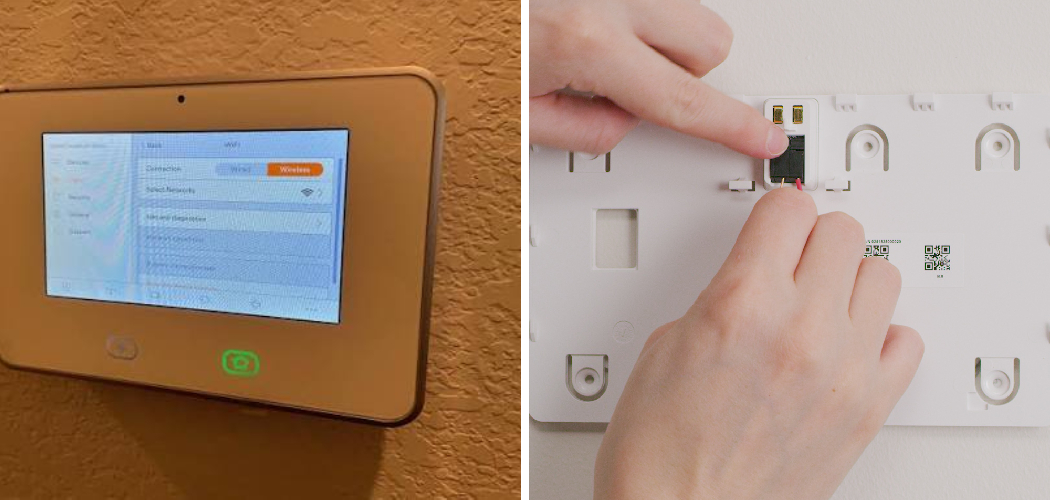
It’s late. Your Vivint panel is stuck on a frozen screen, the touch buttons ignore you, and that little sensor alert won’t clear no matter how many times you tap.
You feel that flicker of worry. Is the whole system down? Is your home unprotected right now?
Take a breath. A frozen or glitchy panel almost never means your security is broken. Most of the time, it just needs a reboot.
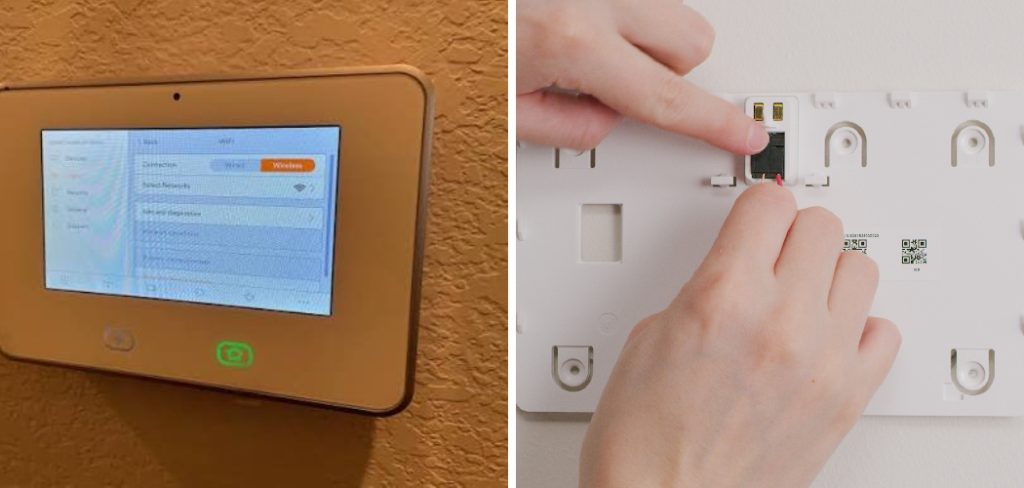
In this guide, you’ll learn exactly how to reboot Vivint panel — step by step. We’ll cover the gentle soft reset, the full power cycle, and how the steps change depending on whether you have a Smart Hub or the older SkyControl panel.
You’ll also learn what commonly goes wrong and how to fix it fast. Let’s get your panel working again.
Why Your Vivint Panel Freezes in the First Place
Your panel is a small computer. Like any computer, it can slow down, lag, or lock up.
Here’s what usually causes it:
- A software glitch after an update or a long stretch without a restart.
- A weak or dropped Wi-Fi connection that leaves the panel hanging.
- Too many background processes running at once.
- A power flicker from a storm or a tripped breaker.
None of these mean your system failed. They mean it needs a fresh start.
That’s the real value of a reboot: not fixing broken hardware, but clearing the temporary mess that builds up over time.
In short: most panel problems are software hiccups, and a reboot clears them.
What You’ll Need Before You Start
Good news — you don’t need tools or tech skills. Just a few things and a couple of minutes.
- Your Vivint panel (Smart Hub or SkyControl).
- Your master PIN or admin passcode. Some reset menus ask for it.
- A few minutes of patience. A full reboot can take 3–5 minutes to finish.
- Access to the panel’s power source, in case you need a hard reset.
One quick warning before you begin.
Don’t unplug or disconnect anything unless a reboot from the screen doesn’t work. Start soft. Go harder only if you must. Yanking power should be your last step, not your first.
In short: grab your PIN, give yourself a few minutes, and start with the gentlest method.
Method 1: Soft Reset (Reboot From the Screen)
A soft reset is the safest way to reboot your Vivint panel. It restarts the software without touching the power or battery.
Try this first. It fixes most freezes, lag, and stuck alerts.
Soft Reset on the Vivint Smart Hub
The Smart Hub is Vivint’s current panel — a large, sleek touchscreen.
- Tap the menu button (bottom-left corner of the screen).
- Enter your master PIN when prompted.
- Scroll to Settings.
- Tap System Info or Devices, depending on your software version.
- Look for Smart Hub or Panel settings.
- Tap Reboot (sometimes labeled Restart).
- Confirm your choice.

The screen goes dark, then the Vivint logo appears as it powers back up. Wait the full 3–5 minutes. Don’t touch it while it boots.
Soft Reset on the SkyControl Panel
The SkyControl is Vivint’s older panel. The menu looks a little different, but the idea is the same.
- Tap the gear or settings icon on the home screen.
- Enter your passcode.
- Tap Advanced Settings or System.
- Select Reboot or Restart Panel.
- Confirm.
Give it a few minutes to restart fully.
If your panel is too frozen to respond to taps, the screen reboot won’t work. That’s when you move to a power cycle.
In short: a soft reset restarts the software from the menu and fixes most everyday glitches.
Method 2: Power Cycle (When the Screen Won’t Respond)
Sometimes the panel is so locked up that tapping does nothing. A power cycle forces a restart by cutting power and restoring it.
This is a hard reset, and it’s completely safe when done in the right order.
Here’s the key: your Vivint panel has two power sources — the main power and an internal backup battery. You need to disconnect both, then reconnect them.
Power Cycling the Smart Hub
- Locate the power source. The Smart Hub plugs into a wall outlet or a power adapter.
- Unplug the power adapter from the wall.
- Open the back of the panel if it’s a wall-mounted unit, or find the battery access.
- Disconnect the backup battery. It’s a small connector you gently unplug.
- Wait 30 seconds. This lets the panel fully power down.
- Reconnect the battery first.
- Plug the power adapter back in.
- Wait for the Vivint logo, then let it boot for up to 5 minutes.
Power Cycling the SkyControl Panel
- Find the panel’s power cable at the base or behind the unit.
- Unplug it from the outlet.
- Remove the back cover to reach the battery.
- Unplug the backup battery connector.
- Wait 30 seconds.
- Reconnect the battery, then restore main power.
- Let it restart fully before you test it.
Warning: If you only unplug the wall power but leave the battery connected, the panel keeps running. It won’t actually reboot. You must disconnect both.
In short: a power cycle forces a restart when the screen is frozen — just remember to disconnect both power and battery.
Comparing the Reboot Methods
Not every situation calls for the same fix. Here’s how the methods stack up so you can pick the right one fast.
| Reboot Method | Time Needed | Difficulty | Best For |
| Soft Reset (from screen) | 3–5 minutes | Easy | Everyday glitches, lag, stuck alerts, slow response |
| Power Cycle (hard reset) | 5–7 minutes | Medium | A fully frozen or unresponsive screen |
| Wait-and-Watch | 1–2 minutes | Very easy | Minor lag that might clear on its own |
| Contact Vivint Support | Varies | None | Repeated freezes or a panel that won’t boot |
A few things worth knowing about this table.
- Always start soft. The screen reset solves most problems and carries the least risk.
- Go hard only when needed. A power cycle is safe, but save it for a truly stuck panel.
- Repeated reboots signal a deeper issue. If you’re rebooting weekly, it’s time to call support.
In short: match the method to the problem, and start with the gentlest option first.
What Happens to Your Security During a Reboot
Here’s the question in the back of your mind: am I unprotected while the panel restarts?
For those few minutes, your panel isn’t actively monitoring. That’s honest and worth knowing.
But your system doesn’t forget its settings. Your sensors, cameras, and configurations stay saved. Rebooting doesn’t erase anything or disarm your account.
Once the panel finishes booting, it reconnects to Vivint’s monitoring center on its own. Everything picks back up right where it left off.
To stay safe, do a quick check after every reboot:
- Confirm the Wi-Fi or cellular icon shows a connection.
- Make sure any sensor alerts have cleared.
- Test that you can arm and disarm the system.
In short: you’re briefly offline during a reboot, but your settings stay safe and monitoring resumes automatically.
Common Mistakes and Troubleshooting
Most reboot problems come from small, avoidable missteps. Here’s what goes wrong, why it happens, and how to fix it.
Unplugging Power but Leaving the Battery Connected
Why it happens: People don’t realize the panel has a backup battery. So they pull the wall plug, and the panel keeps running on battery power.
How to fix it: Disconnect both the main power and the internal battery. Wait 30 seconds, then reconnect. Only then does the panel truly reboot.
Not Waiting Long Enough
Why it happens: The screen goes dark and you assume it’s done. You start tapping, and the panel freezes again mid-boot.
How to fix it: Be patient. A full reboot takes 3–5 minutes, sometimes longer. Don’t touch the screen until you see the home page load completely.
Rebooting Over and Over for the Same Problem
Why it happens: A reboot clears the glitch for a few hours, then it returns. So you keep restarting, hoping it sticks.
How to fix it: Repeated freezing points to a deeper cause — often a weak Wi-Fi signal or failing hardware. Check your internet connection first. If the problem repeats, contact Vivint support instead of rebooting again and again.
Forgetting Your Master PIN
Why it happens: The reset menu asks for your PIN, and you can’t remember it. You get stuck before you even start.
How to fix it: Look up your PIN in the Vivint app under account settings, or call support to verify your identity. Never guess repeatedly — too many wrong tries can lock the panel.
Panel Won’t Reconnect to Wi-Fi After Rebooting
Why it happens: The panel restarts fine, but it can’t find your network. Usually your router needs a restart too, or the Wi-Fi password changed.
How to fix it: Reboot your router, wait for it to come fully online, then check the panel’s network settings. Re-enter your Wi-Fi password if needed.
Reboot Doesn’t Fix the Freeze at All
Why it happens: The issue isn’t software — it may be a hardware fault, a swollen battery, or a failing screen.
How to fix it: Try one full power cycle. If the panel still freezes or won’t boot, stop troubleshooting and reach out to Vivint. Pushing further can make hardware problems worse.
In short: most failures trace back to leaving the battery connected, rushing the process, or trying to fix hardware with a software reboot.
Frequently Asked Questions
How do I restart my Vivint panel without unplugging it?
Use the soft reset from the screen. Tap the menu button, enter your master PIN, go to Settings, and select Reboot or Restart. This restarts the software without touching the power, and it fixes most freezes and lag.
Will rebooting my Vivint panel delete my settings?
No. A reboot only restarts the system — it doesn’t erase your sensors, cameras, or configurations. Everything stays saved, and your panel reconnects to Vivint monitoring automatically once it finishes booting.
Why does my Vivint panel keep freezing?
Frequent freezing usually points to a weak Wi-Fi signal, a software glitch, or aging hardware. Try rebooting your router and doing one full power cycle. If it keeps happening, contact Vivint support, since repeated freezes often mean a deeper issue.
How long does a Vivint panel reboot take?
Give it 3 to 5 minutes. You’ll see the screen go dark, then the Vivint logo appears as it powers back up. Don’t tap or interrupt it until the home screen fully loads.
Is my home unprotected while the panel reboots?
For those few minutes, the panel isn’t actively monitoring. But your settings stay intact, and monitoring resumes on its own once the reboot finishes. To be safe, confirm the connection icon and test arming the system afterward.
Wrapping Up
A frozen Vivint panel feels alarming, but it’s rarely serious. Most of the time, a simple reboot clears the glitch and gets you back to normal.
You now know how to reboot your Vivint panel the right way: start with a soft reset from the screen, move to a power cycle only if the screen won’t respond, and remember to disconnect both power and battery for a true restart. You also know when a repeated freeze means it’s time to call support.
Next time your panel acts up, you’ll know exactly what to do.
Want to get even more from your system? [Check out our guide on setting up the Vivint mobile app] to control your home from anywhere.

About
Robert D is a distinguished figure in the world of Safety Systems and Risk Management, with a decade of expertise creating innovative and sustainable workplace solutions. His professional focus lies in merging traditional safety protocols with modern digital monitoring techniques, fostering environments that are both practical and hazard-conscious. As the lead author of SafetyRift, Robert delves into the art and science of risk mitigation, inspiring safety officers and industry professionals alike to bridge the gap between compliance and culture.
Education
RMIT University (Melbourne, Australia)
Associate Degree in Design (Industrial Safety)
-
Focus on sustainable safety infrastructure, industry-driven risk assessments, and practical implementation.
-
Gained hands-on experience with traditional hazard identification and digital monitoring tools, such as IoT safety sensors and predictive analytics software.
Nottingham Trent University (United Kingdom)
Bachelor’s in Occupational Health and Safety (Honors)
-
Specialized in systemic design with a focus on blending human behavior psychology with modern safety production techniques.
-
Participated in industry-wide projects, working with global logistics and manufacturing firms to gain real-world insights into large-scale safety deployments.
Publications and Impact
In SafetyRift, Robert shares his insights on safety design processes, protective materials, and strategies for efficient, accident-free production. His writing bridges the gap between foundational safety knowledge and modern industrial needs, making it a must-read for both budding safety coordinators and seasoned risk management professionals.
