
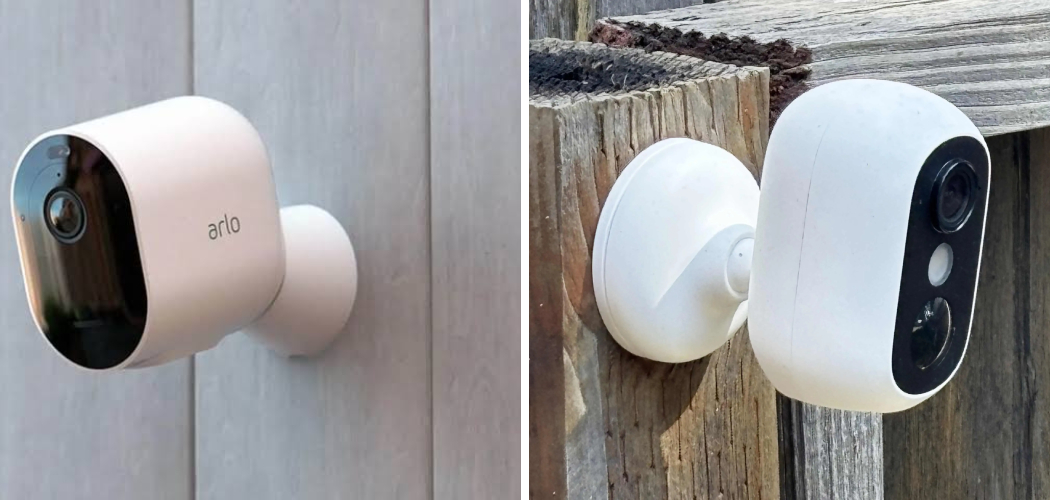
You’re hosting a dinner party. The last thing you want is your Arlo camera pinging your phone every time someone walks past the front door. Or maybe you’re spending the day at home and the constant motion alerts are driving you up the wall. You just want it to stop.
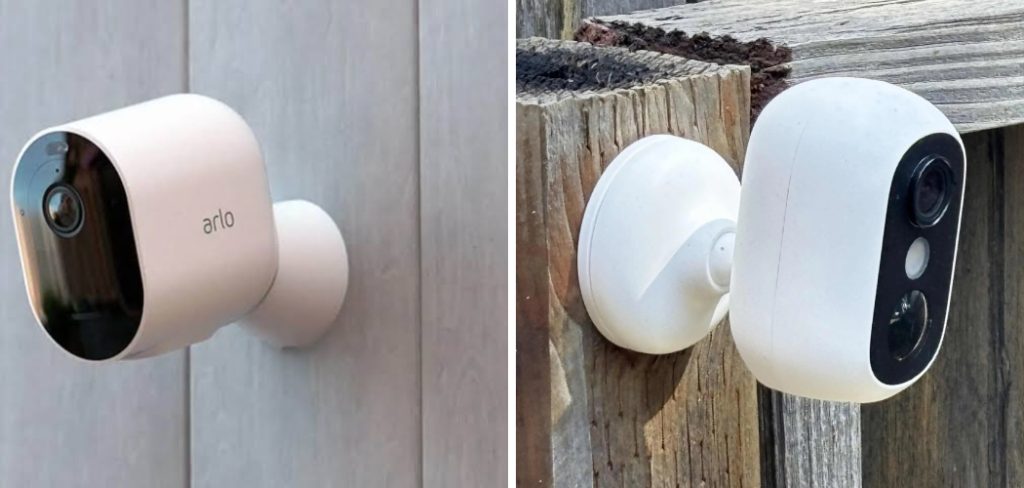
Here’s the thing. Turning off an Arlo camera isn’t as simple as flipping a switch. There are several ways to do it, and each one behaves a little differently.
Some methods pause recording for an hour. Others shut things down completely. A few require you to physically touch the camera.
This guide walks you through every option. You’ll learn how to turn off arlo camera through the app, how to use modes and schedules, and when a physical shutdown makes the most sense. Let’s get you some peace and quiet.
Understand What “Turning Off” Really Means
Before you tap anything, it helps to know what you’re actually turning off.
An Arlo camera does a few jobs at once. It detects motion. It records video. It sends you alerts. And it stays connected to your network the whole time.
When you say you want to “turn off” the camera, you might mean any one of these.
The Different Levels of “Off”
Here’s what you’re really choosing between:
- Disarm the camera: stops motion detection and alerts, but the camera stays powered and connected.
- Turn off the video feed: disables live view and recording while keeping the device online.
- Full power down: cuts power completely, so the camera does nothing at all.
Most people who search how to turn off Arlo camera actually want to disarm it. They just want the alerts and recording to stop for a while.
That’s the good news. Disarming is the easiest method, and you can do it in seconds from your phone.
In short: decide whether you want a quick pause or a full shutdown before you pick a method.
Turn Off Your Arlo Camera Through the App
The Arlo Secure app is your main control center. For everyday use, this is where you’ll turn things off.
You don’t need any tools. You just need your phone and a few taps.
Method 1: Disable the Camera’s Video Feed
This is the cleanest way to switch off a single camera without touching your whole system.
- Open the Arlo Secure app on your phone.
- Tap the camera you want to turn off from your Devices list.
- Look for the video feed at the top of the screen.
- Tap the three-dot menu (or gear icon) for that camera.
- Select Turn Camera Off or toggle the camera switch to off.
The live feed goes dark. The camera stops recording and won’t send alerts until you turn it back on.
This works great when you want one specific camera off but the rest of your system running.
Method 2: Disarm the Camera or Whole System
Disarming stops motion detection across your setup. It’s perfect when you’re home and don’t need alerts.
- Open the Arlo Secure app.
- Tap the Mode button or the Routines tab.
- Choose Disarmed (sometimes shown as Standby).
- Confirm your choice.
Once disarmed, your cameras stay powered but stop recording motion and sending notifications.
Warning: disarming stops your security coverage. If you leave the house, remember to arm it again, or you’ll have no footage if something happens.
In short: use Turn Camera Off for a single camera, and Disarmed mode when you want the whole system to go quiet.
Use Modes and Schedules to Turn Off Automatically
Tapping buttons every day gets old fast. This is where Arlo’s modes and schedules save you real effort.
Instead of turning the camera off by hand, you tell it when to switch off on its own.
Set a Privacy Schedule
A schedule turns your cameras off and on at set times. Think of it as an automatic routine.
- Open the Arlo Secure app.
- Go to the Routines or Modes tab.
- Tap Schedule.
- Tap the plus (+) to add a new time block.
- Set the days and hours you want the camera disarmed.
- Save the schedule.
For example, you can set the camera to disarm every weekday from 8 a.m. to 5 p.m. while you’re home, then arm again in the evening.
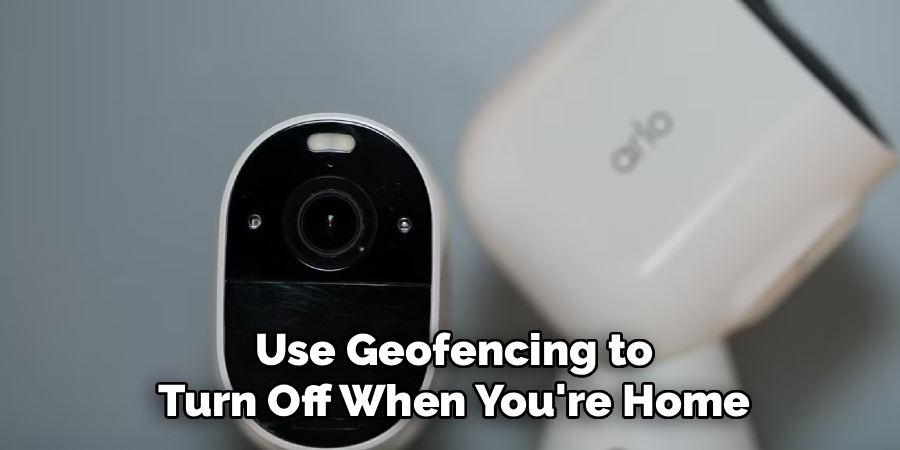
Use Geofencing to Turn Off When You’re Home
Geofencing uses your phone’s location to control your cameras. When you arrive home, the cameras turn off. When you leave, they turn back on.
- In the app, open the Routines tab.
- Select Geofencing.
- Allow the app to access your location.
- Set your home zone on the map.
- Choose Disarmed for when you’re inside the zone.
This is hands-off protection. You never have to remember to switch anything off.
In short: schedules turn your Arlo off by the clock, and geofencing turns it off based on where you are.
Physically Turn Off the Camera
Sometimes you want the camera fully dead. No connection, no power, no chance of recording. For that, you go to the hardware.
The steps depend on which Arlo model you own.
For Battery-Powered Cameras
Most Arlo cameras (like the Pro and Essential series) run on a rechargeable battery.
- Take the camera down from its mount or bracket.
- Open the battery compartment (usually a latch or twist-off back).
- Remove the battery completely.
With the battery out, the camera can’t do anything. This is the surest way to guarantee it’s fully off.
For Wired or Plug-In Cameras
If your camera plugs into an outlet or connects to a power cable:
- Unplug the power adapter from the wall, or
- Disconnect the cable from the camera.
The camera loses power right away and shuts down.
For Cameras Using a SmartHub or Base Station
Some Arlo systems route through a hub. To turn everything off at once:
- Unplug the SmartHub or base station.
This disconnects every camera tied to it. Handy if you want the whole system dark in one move.
Warning: pulling power won’t erase your settings, but your cameras will show as offline in the app until you restore power. That’s normal.
In short: remove the battery or cut the power when you need the camera completely off, not just paused.
Compare Your Options for Turning Off an Arlo Camera
Not every method fits every situation. This table helps you pick the right one fast.
| Method | How Long It Lasts | Best For | Effort Level |
| Turn Camera Off (app) | Until you turn it back on | Silencing one camera | Very low |
| Disarmed Mode | Until you re-arm | Quieting the whole system | Very low |
| Privacy Schedule | Set times, repeats daily | Regular routines | Low (one-time setup) |
| Geofencing | While you’re home | Automatic, hands-off control | Low (one-time setup) |
| Remove battery / unplug | Until you restore power | Full shutdown, total privacy | Moderate |
When to Choose a Quick App Method
If you just want alerts to stop for the afternoon, stick with the app. Turn Camera Off or Disarmed mode does the job in seconds and reverses just as fast.
No ladders. No batteries. No fuss.
When a Full Power Down Makes Sense
If you’re worried about privacy during a long guest stay, or you’re storing the camera away, go physical. Removing the battery or unplugging the camera guarantees it records nothing.
In short: match the method to your goal — quick quiet from the app, or total silence from the hardware.
Common Mistakes and Troubleshooting
Plenty of people think they’ve turned off their Arlo camera, only to get an alert an hour later. Usually it comes down to one of these mix-ups. Here’s what goes wrong and how to fix it.
Mistake 1: Confusing “Disarmed” With “Off”
Why it happens: disarming stops alerts and recording, so people assume the camera is fully off. It isn’t. The camera stays powered and connected.
How to fix it: if you want zero activity, use Turn Camera Off in the app or remove power. Disarmed mode is for pausing alerts, not shutting the device down.
Mistake 2: Forgetting a Schedule Is Still Running
Why it happens: you set a schedule weeks ago, then manually disarm the camera. But when the scheduled arm time hits, the camera turns itself back on.
How to fix it: check your Routines tab for active schedules. Pause or delete the schedule if you want your manual setting to stick. A schedule always overrides a forgotten manual change at its set time.
Mistake 3: Geofencing Turns the Camera Back On
Why it happens: you turned the camera off, then left the house. Geofencing detected you leaving and re-armed everything automatically.
How to fix it: if you want the camera off even while you’re away, disable geofencing first. Go to Routines, open Geofencing, and toggle it off.
Mistake 4: The Camera Still Shows a Live Feed
Why it happens: you disarmed the system, but live view still works. Disarming only stops automatic motion recording, not manual live viewing.
How to fix it: to kill the live feed too, use Turn Camera Off on that specific camera. That disables both recording and live view at once.
Mistake 5: App Changes Won’t Save
Why it happens: a weak internet connection stops your settings from reaching the camera. You tap “off,” but the change never lands.
How to fix it: check that your phone has a stable connection and your camera shows as online in the app. If the camera is offline, your changes won’t apply until it reconnects. Restart the app if a setting seems stuck.
Mistake 6: Removing the Battery but Leaving the Hub On
Why it happens: you pull one camera’s battery, but other cameras on the same SmartHub keep running. You think the system is off when only one device is.
How to fix it: to turn off every camera at once, unplug the SmartHub or base station. Handling cameras one by one only affects the ones you touch.
Frequently Asked Questions
How do I temporarily turn off my Arlo camera?
Open the Arlo Secure app, select the camera, and tap Turn Camera Off, or switch your system to Disarmed mode. Both stop recording and alerts right away. You can turn the camera back on the same way whenever you’re ready.
Does turning off an Arlo camera stop it from recording?
Yes. Using Turn Camera Off in the app disables both recording and live view for that camera. Disarming stops automatic motion recording but still allows manual live viewing, so choose “Turn Camera Off” if you want recording fully stopped.
Will my Arlo camera keep working if I remove the battery?
No. Removing the battery cuts all power, so the camera can’t record, detect motion, or connect to your network. It’s the surest way to fully turn off an Arlo camera. Your settings stay saved and return once you reinsert the battery.
Why does my Arlo camera turn back on by itself?
It’s almost always a schedule or geofencing rule doing its job. A schedule re-arms the camera at a set time, and geofencing re-arms it when you leave home. Check your Routines tab and pause whichever rule is overriding your manual change.
Can I turn off Arlo notifications without turning off the camera?
Yes. In the app settings, you can disable push notifications while the camera keeps recording normally. This is handy when you still want footage saved but don’t want your phone buzzing all day.
Wrapping Up
You started out just wanting the alerts to stop. Now you know exactly how to make that happen.
You can silence a single camera from the app, disarm your whole system, set a schedule, use geofencing, or pull the power for a full shutdown. Each method fits a different need, and none of them take more than a minute or two.
The trick is matching the method to your goal. Quick quiet? Use the app. Total privacy? Go to the hardware.
Set it up once, and your Arlo works around your life instead of interrupting it.
Ready to get more from your setup? Check out our guide on [how to set up Arlo motion detection zones] and fine-tune your alerts.

About
Robert D is a distinguished figure in the world of Safety Systems and Risk Management, with a decade of expertise creating innovative and sustainable workplace solutions. His professional focus lies in merging traditional safety protocols with modern digital monitoring techniques, fostering environments that are both practical and hazard-conscious. As the lead author of SafetyRift, Robert delves into the art and science of risk mitigation, inspiring safety officers and industry professionals alike to bridge the gap between compliance and culture.
Education
RMIT University (Melbourne, Australia)
Associate Degree in Design (Industrial Safety)
-
Focus on sustainable safety infrastructure, industry-driven risk assessments, and practical implementation.
-
Gained hands-on experience with traditional hazard identification and digital monitoring tools, such as IoT safety sensors and predictive analytics software.
Nottingham Trent University (United Kingdom)
Bachelor’s in Occupational Health and Safety (Honors)
-
Specialized in systemic design with a focus on blending human behavior psychology with modern safety production techniques.
-
Participated in industry-wide projects, working with global logistics and manufacturing firms to gain real-world insights into large-scale safety deployments.
Publications and Impact
In SafetyRift, Robert shares his insights on safety design processes, protective materials, and strategies for efficient, accident-free production. His writing bridges the gap between foundational safety knowledge and modern industrial needs, making it a must-read for both budding safety coordinators and seasoned risk management professionals.

1 thought on “How to Turn Off Arlo Camera”