
It’s the middle of winter. You wake up, and the house feels like a walk-in freezer. You stumble to the thermostat, squint at a screen full of buttons and symbols, and jab at it until something changes. Sound familiar?
A digital thermostat can save you real money and keep your home comfortable all year. But only if you know how to use it. Too many people leave it stuck on one setting, ignore the schedule features, and pay more than they should.
Here’s the good news. Using a digital thermostat is easier than it looks once someone walks you through it.
This guide covers everything. You’ll learn how to use a digital thermostat, build a schedule, switch between heating and cooling, understand the modes, and fix the problems that trip up most first-timers. Let’s warm up.
Get to Know Your Digital Thermostat First
Before you touch a single button, take a minute to understand what you’re looking at. Most digital thermostats share the same core parts, even across different brands.
Knowing what each one does removes the guesswork.
The Main Buttons and Symbols
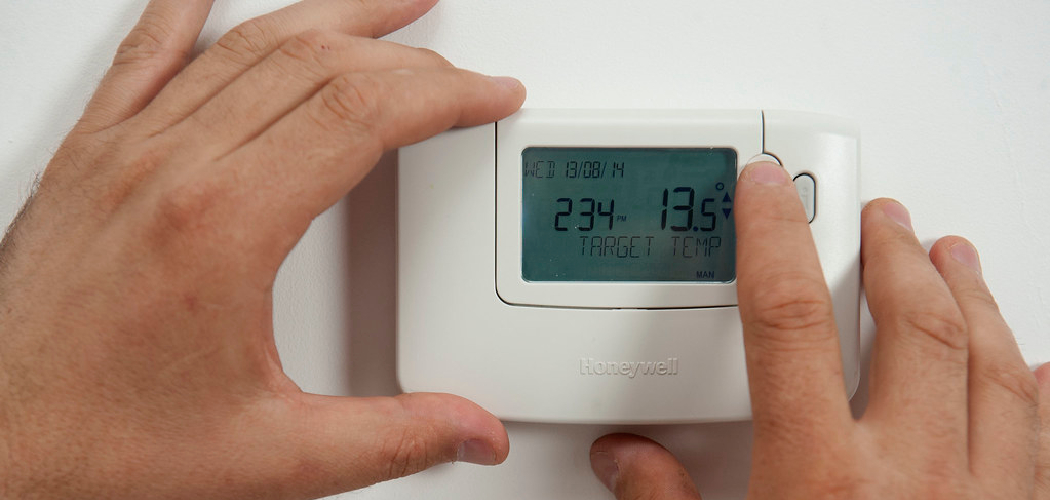
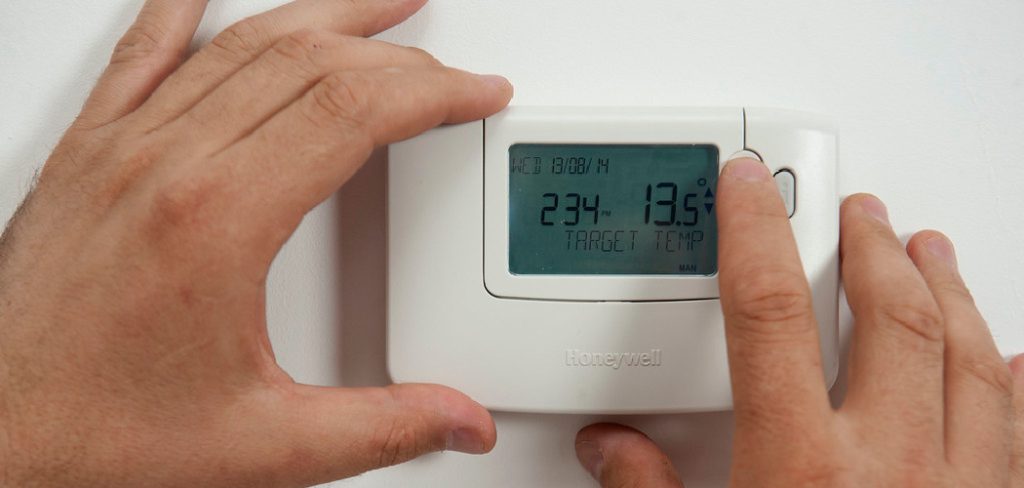
Look at your thermostat’s screen and controls. You’ll usually find these:
- Temperature arrows (up/down): Raise or lower the target temperature.
- Mode button: Switches between Heat, Cool, Auto, and Off.
- Fan button: Sets the fan to Auto or On.
- Set or Program button: Opens the scheduling menu.
- Hold button: Locks in one temperature and pauses the schedule.
- Time and day display: Shows the current time, which the schedule depends on.
Take note of which buttons you have. Some models pack these into a touchscreen, while others use physical buttons.
Set the Time and Date
This step matters more than people think. Your schedule runs on the clock, so a wrong time means the heat kicks on at the wrong hour.
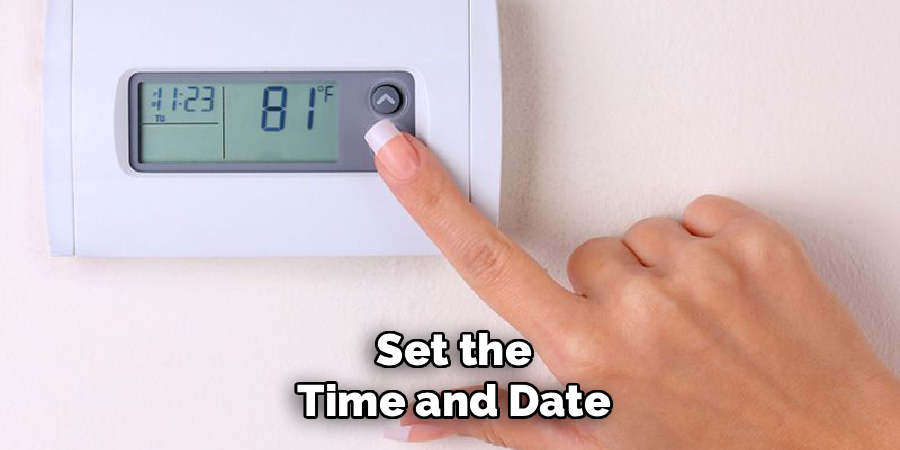
- Press the Set or Menu button.
- Scroll to the Time/Date option.
- Use the arrows to set the correct time and day.
- Confirm with Set or Done.
Warning: if the time resets often, your batteries are probably dying. More on that later.
In short: learn your buttons and set the clock before anything else, or the smart features won’t work right.
Set the Temperature Step by Step
This is the part everyone uses. Setting the temperature on a digital thermostat takes seconds once you know the flow.
Here’s how to do it the first time.
Adjust the Temperature Manually
- Check the current mode on the screen (Heat or Cool).
- Press the up arrow to make the room warmer, or the down arrow to make it cooler.
- The screen shows your target temperature — the number you want the room to reach.
- Wait a moment. The system clicks on and works toward that number.
The temperature you set is the goal. The number that reads slightly differently is the actual room temperature right now.
Find Comfortable Settings That Save Money
The right setting balances comfort and cost. Here are numbers many people find work well:
- Winter (home and awake): 68°F
- Winter (asleep or away): 60–62°F
- Summer (home and awake): 76–78°F
- Summer (away): 82°F or higher
Every degree you lower the heat in winter can trim your energy bill. Small changes add up over a season.
In short: press the arrows to set your target, and lean on those money-saving numbers to stay comfortable for less.
Program a Heating and Cooling Schedule
Here’s where a digital thermostat earns its keep. Instead of adjusting it by hand all day, you set a schedule once and let it run.
The idea is simple. Your home warms up before you wake, eases off while you’re out, and warms again before you get home.
Build Your Daily Schedule
Most programmable thermostats use four time blocks. Set a temperature for each one:
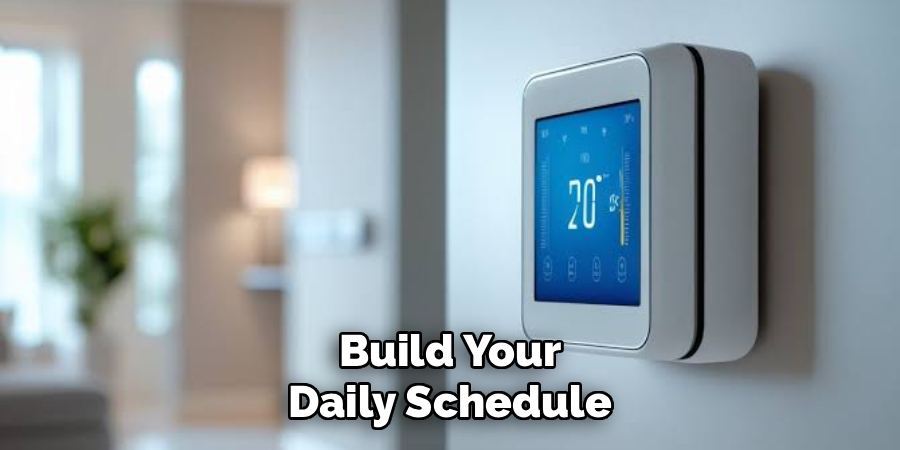
- Wake (early morning): comfortable while you get ready.
- Leave (daytime): cooler in winter, warmer in summer to save energy while you’re gone.
- Return (evening): comfortable again for when you’re home.
- Sleep (night): cooler for better rest and lower bills.
To program it:
- Press the Program or Set button.
- Choose the day or group of days you want.
- Set the time and temperature for each block using the arrows.
- Save each entry, then move to the next.
- Confirm when all four blocks are done.
Use the Hold Function When Plans Change
Life doesn’t always follow a schedule. When you’re home sick or away for the weekend, use the Hold feature.
- Temporary Hold: keeps one temperature until the next scheduled block, then returns to normal.
- Permanent Hold: stays at one temperature until you cancel it.
Press Hold, set your temperature, and the thermostat pauses the schedule without erasing it.
In short: a good schedule does the thinking for you, and Hold covers the days that break the routine.
Understand the Modes and Fan Settings
The mode and fan buttons confuse a lot of first-timers. Once you get them, you’ll control your comfort with confidence.
Let’s clear them up.
Heat, Cool, Auto, and Off
- Heat: the system only warms the house. Use it in winter.
- Cool: the system only cools. Use it in summer.
- Auto: the thermostat picks heating or cooling to hit your target. Handy in spring and fall when days swing warm and cold.
- Off: the heating and cooling shut down. The fan may still work.
Warning: leaving your thermostat on Auto year-round can cause it to switch between heating and cooling on the same day, which wastes energy. Set it to Heat or Cool when the season is steady.
Fan: Auto vs. On
- Fan Auto: the fan runs only when the system is actively heating or cooling. This is the efficient choice for most people.
- Fan On: the fan runs nonstop, even when the system isn’t heating or cooling. Good for steady air movement, but it uses more power.
Start with Auto unless you have a reason to keep air moving all the time.
In short: match the mode to the season, and keep the fan on Auto to save energy.
Compare Thermostat Types Before You Upgrade
Not all digital thermostats work the same way. If you’re thinking about a new one, this comparison helps you pick the right fit.
Here’s how the main types stack up.
| Feature | Basic Programmable | Smart Wi-Fi | Learning Thermostat |
| Control method | Buttons on the wall | Phone app + wall | App + learns on its own |
| Scheduling | Manual time blocks | Manual + remote edits | Builds schedule for you |
| Remote access | No | Yes, from anywhere | Yes, from anywhere |
| Energy reports | No | Basic | Detailed |
| Setup difficulty | Easy | Moderate | Moderate |
| Price range | $25–$50 | $80–$150 | $150–$250 |
| Best for | Simple, budget-friendly control | Remote control lovers | Hands-off, max savings |
When a Basic Model Is Enough
If you keep a steady routine and want something simple, a basic programmable thermostat does the job. You set your four time blocks once and forget it.
No app, no fuss, no monthly thinking.
When a Smart Thermostat Pays Off
If you travel, work odd hours, or want to adjust the heat from your phone, a smart Wi-Fi thermostat is worth the extra cost. You can warm the house on your drive home or turn it down after you’ve already left.
A learning model goes further and builds the schedule for you over time.
In short: pick a basic model for simple needs, and step up to smart or learning models for remote control and bigger savings.
Common Mistakes and Troubleshooting
Plenty of people set up a digital thermostat and still run into trouble. Usually it’s one of these predictable mistakes. Here’s what goes wrong and how to fix it.
Mistake 1: Cranking the Temperature Way Up
Why it happens: the house is cold, so you set the heat to 85°F thinking it’ll warm up faster. It won’t.
How to fix it: your system heats at the same steady rate no matter the target. Setting it to 85°F just makes it run longer and overshoot, wasting energy. Set your real target and give it time.
Mistake 2: Ignoring the Schedule Entirely
Why it happens: programming feels like a chore, so people leave the thermostat on one manual setting all day.
How to fix it: spend ten minutes setting your four time blocks. A schedule that lowers the temperature while you sleep and work is where the real savings live. Skipping it means paying to heat an empty house.
Mistake 3: Dead or Weak Batteries
Why it happens: many digital thermostats run on batteries, and people forget they exist until the screen goes blank or the clock keeps resetting.
How to fix it: replace the batteries once a year, even if the screen still works. A blank display, a low-battery symbol, or a clock that won’t hold time are all signs. Fresh batteries fix most sudden failures.
Mistake 4: The Thermostat Sits in a Bad Spot
Why it happens: a thermostat in direct sunlight, near a vent, or above a lamp reads the wrong temperature. It thinks the room is warmer or cooler than it really is.
How to fix it: if your rooms feel off despite the right setting, the placement may be the culprit. You can’t always move it easily, but knowing this helps you trust the numbers less and adjust accordingly. For a new install, pick an interior wall away from heat sources.
Mistake 5: Wrong Mode for the Season
Why it happens: people leave the thermostat on Cool in winter or Heat in summer, then wonder why nothing happens when they press the arrows.
How to fix it: check the mode first. If you set the temperature and the system won’t respond, you’re likely in the wrong mode or in Off. Switch to Heat or Cool to match the season.
Mistake 6: Forgetting to Cancel a Hold
Why it happens: you set a Permanent Hold for a trip and never turn it off. The schedule stays frozen for weeks.
How to fix it: after any hold, press Run, Cancel, or Schedule to return to your normal program. If your temperature feels stuck no matter the time of day, a forgotten hold is the usual cause.
Frequently Asked Questions
How do I set a digital thermostat for the first time?
Start by setting the correct time and date, since the schedule depends on it. Then press the mode button to choose Heat or Cool, and use the up and down arrows to set your target temperature. Once that works, open the program menu to build a daily schedule.
What temperature should I set my thermostat in winter?
Aim for around 68°F while you’re home and awake, and 60–62°F while you sleep or are away. Lowering the heat when you don’t need it is the easiest way to cut your energy bill. Every degree down saves a little more over the season.
Why is my digital thermostat not responding when I press the buttons?
The most common cause is a wrong mode or dead batteries. Check that the thermostat is set to Heat or Cool instead of Off, and look for a low-battery symbol on the screen. Fresh batteries and the correct mode fix most unresponsive thermostats.
What’s the difference between the “Auto” and “On” fan settings?
Fan Auto runs the fan only while the system is heating or cooling, which saves energy. Fan On keeps the fan running all the time for steady air movement, but it uses more power. Most people are best off leaving the fan on Auto.
Can I control a digital thermostat from my phone?
Only if you have a smart Wi-Fi or learning thermostat. These models connect to your home network and let you adjust the temperature from an app anywhere. A basic programmable thermostat has no remote access and must be set at the wall.
Wrapping Up
You walked up to that screen unsure which button did what. Now you know.
You can set the temperature, build a schedule that saves money, switch modes with the season, and troubleshoot the little problems that stump most people. That’s the whole toolkit.
Set the clock, program your four time blocks, keep the fan on Auto, and swap the batteries once a year. Do those things, and your digital thermostat quietly does its job while you enjoy a comfortable home for less.
Ready to take the next step? Check out our guide on [how to lower your home energy bills this season] and keep the savings going.

About
Robert D is a distinguished figure in the world of Safety Systems and Risk Management, with a decade of expertise creating innovative and sustainable workplace solutions. His professional focus lies in merging traditional safety protocols with modern digital monitoring techniques, fostering environments that are both practical and hazard-conscious. As the lead author of SafetyRift, Robert delves into the art and science of risk mitigation, inspiring safety officers and industry professionals alike to bridge the gap between compliance and culture.
Education
RMIT University (Melbourne, Australia)
Associate Degree in Design (Industrial Safety)
-
Focus on sustainable safety infrastructure, industry-driven risk assessments, and practical implementation.
-
Gained hands-on experience with traditional hazard identification and digital monitoring tools, such as IoT safety sensors and predictive analytics software.
Nottingham Trent University (United Kingdom)
Bachelor’s in Occupational Health and Safety (Honors)
-
Specialized in systemic design with a focus on blending human behavior psychology with modern safety production techniques.
-
Participated in industry-wide projects, working with global logistics and manufacturing firms to gain real-world insights into large-scale safety deployments.
Publications and Impact
In SafetyRift, Robert shares his insights on safety design processes, protective materials, and strategies for efficient, accident-free production. His writing bridges the gap between foundational safety knowledge and modern industrial needs, making it a must-read for both budding safety coordinators and seasoned risk management professionals.
